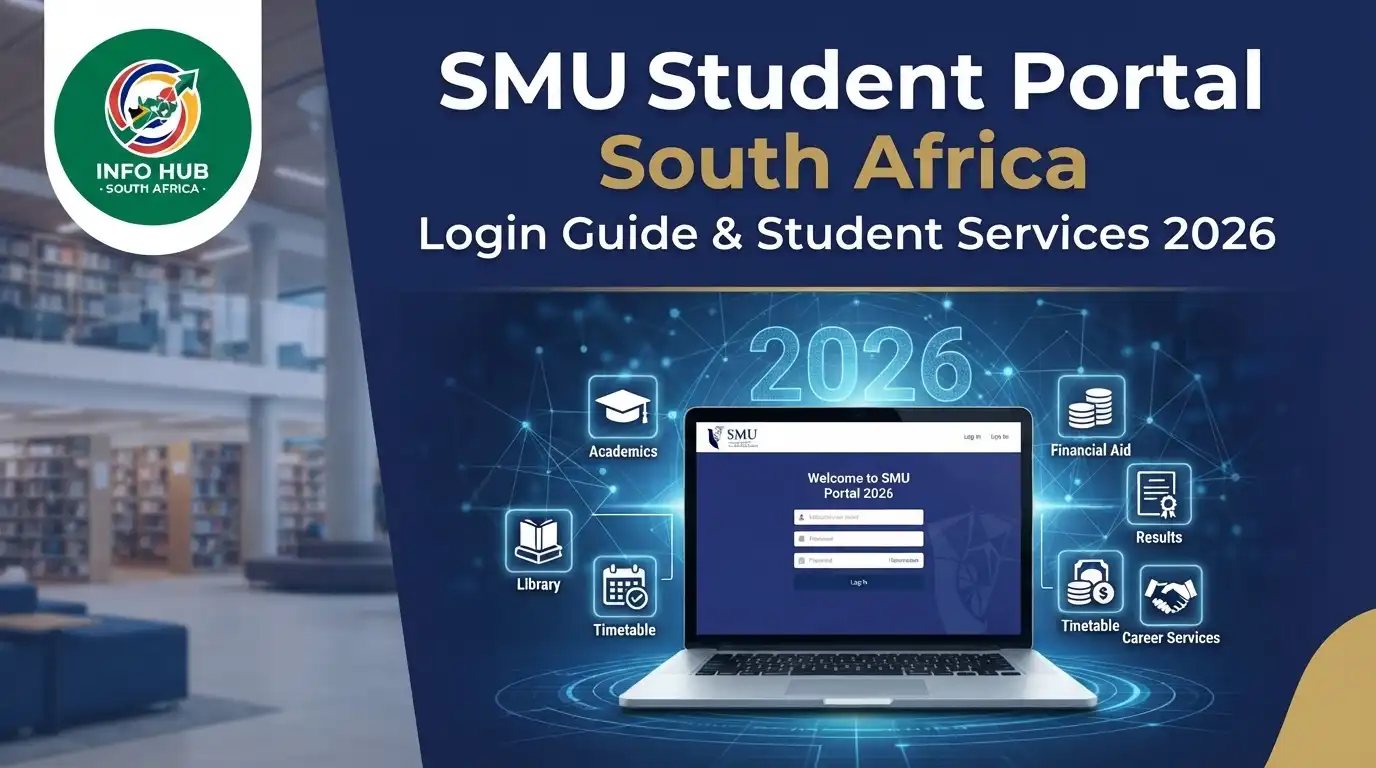
SMU Student Portal South Africa: Login Guide & Student Services 2026
Finding the right student portal matters when you need to check an application, view university information, or submit outstanding documents. For students and applicants at Sefako Makgatho Health Sciences University (SMU), the official Life Student iEnabler portal provides access to important student and application services.
This guide explains how the SMU student portal login works, what you can do after signing in, how to upload documents, and what to try if you cannot access your account.”Visit Homepage for more”.
What Is the SMU Student Portal?
The SMU student portal is an online university service used by students and applicants to access selected academic and administrative functions. The system is commonly presented as the Student iEnabler or Life Student portal.
The university’s ICT department specifically lists the Registered Students Portal (iEnabler) among its student technology services and states that ICT support manages access to the student portal.
For applicants, the portal can also be important when following the progress of an application. An official SMU notice instructed first-time applicants to check their application status through the Life Student address using their allocated student number and PIN.
SMU at a glance
| Item | Information |
|---|---|
| University | Sefako Makgatho Health Sciences University |
| Common abbreviation | SMU |
| Portal | Life Student / iEnabler |
| Main login | Student number and PIN |
| Official portal | lifestudent.smu.ac.za |
| Official website | smu.ac.za |
You may also encounter the phrase Medunsa University when searching for SMU online. This is related to the institution’s historical identity, but the university operating today is Sefako Makgatho Health Sciences University. For current student services, use the official SMU website and its current portal rather than relying on older third-party pages.
SMU Student Portal Login: Step-by-Step
Getting into the portal generally requires two pieces of information: your student number and PIN.
Step 1: Open the official portal
Open Chrome, Microsoft Edge, Firefox, or another current browser and visit:
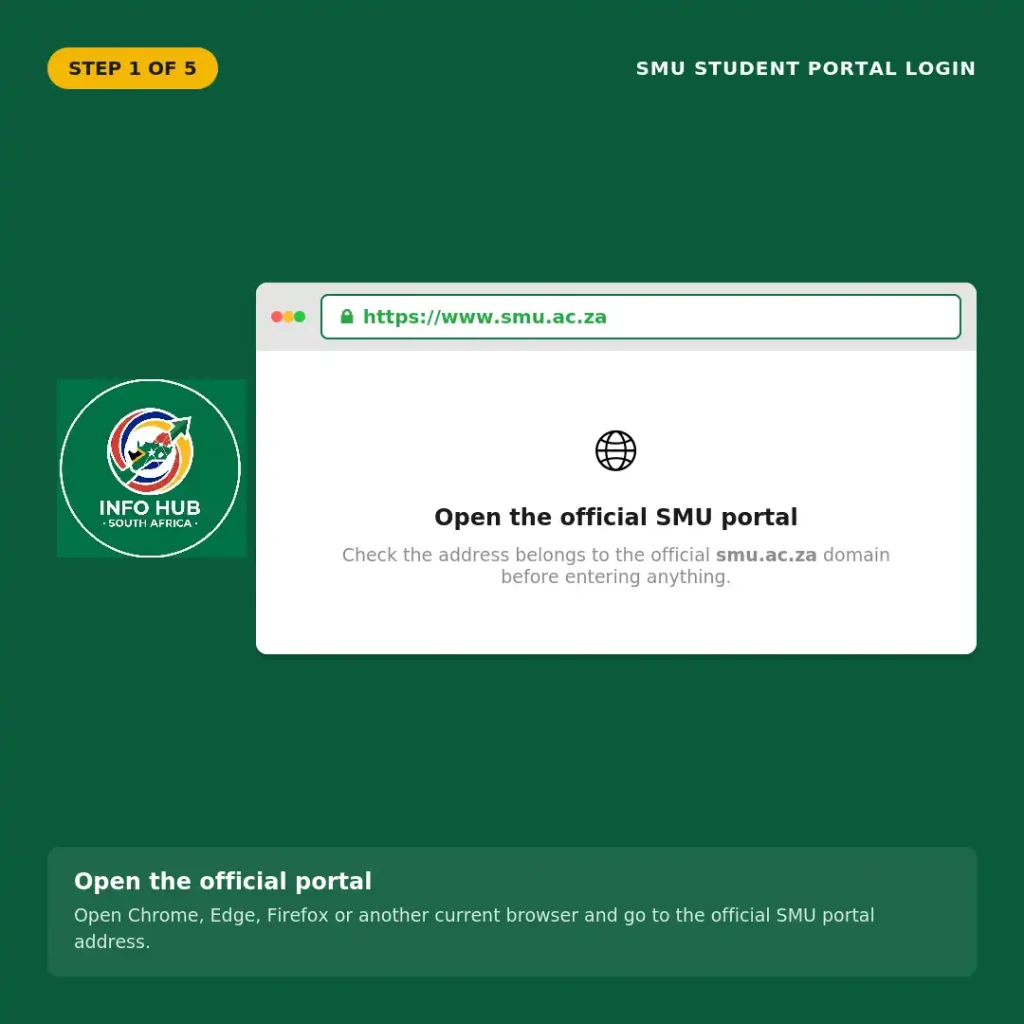
Before entering anything, check that the address belongs to the official smu.ac.za domain.
Step 2: Locate the login fields
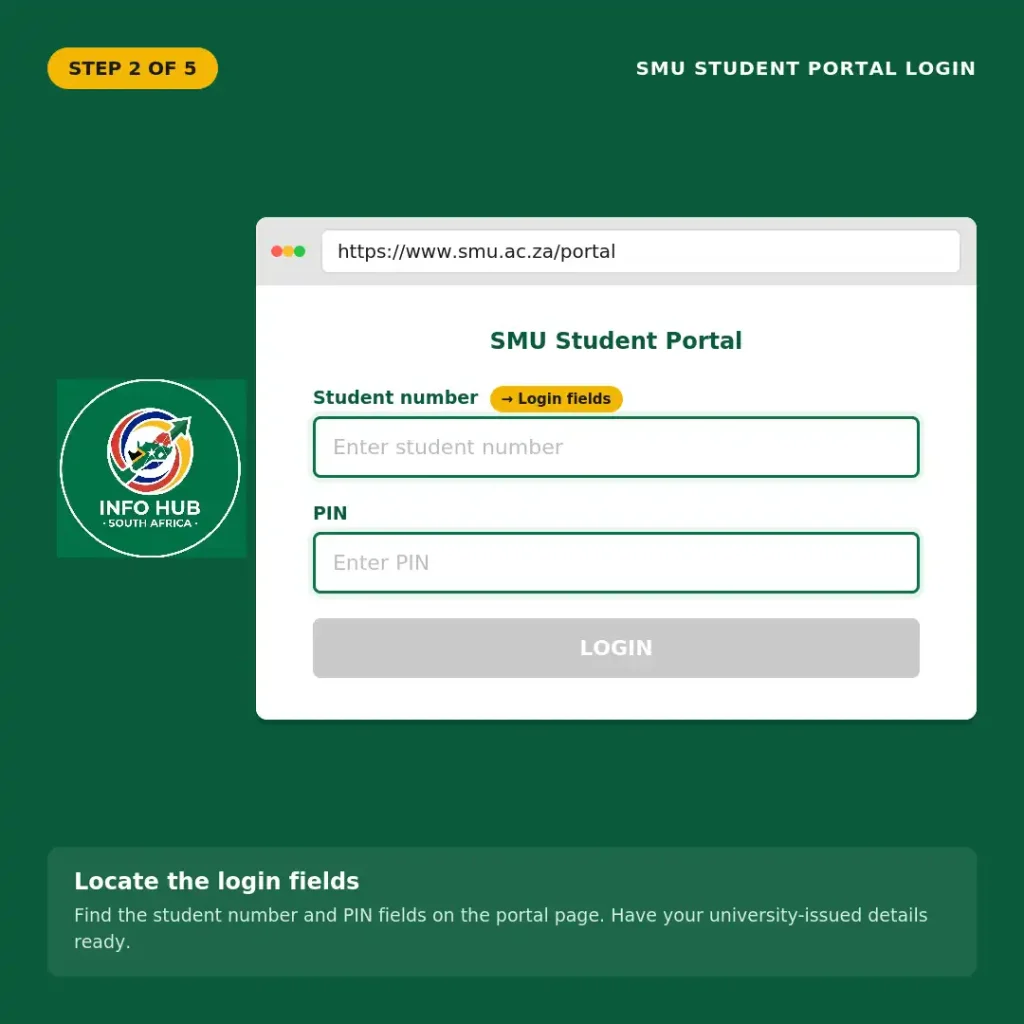
Once the page opens, look for the fields provided for your login information.
Have your university-issued details available before starting. If you’re an applicant, use the credentials associated with your SMU application.
Step 3: Enter your student number
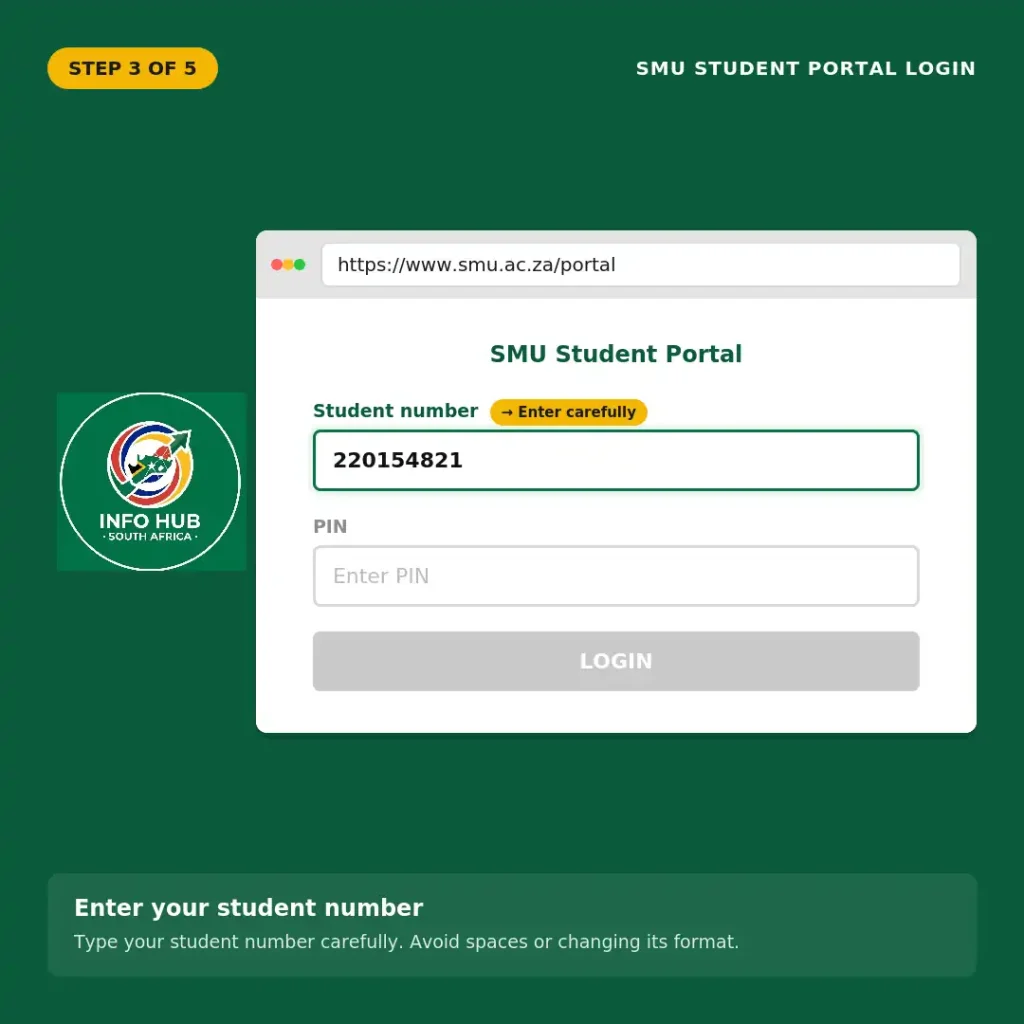
Enter your student number carefully in the relevant user ID field.
Avoid adding spaces or changing the number’s format. If you’ve received your student number through an official SMU communication, use that exact number.
Step 4: Enter your PIN
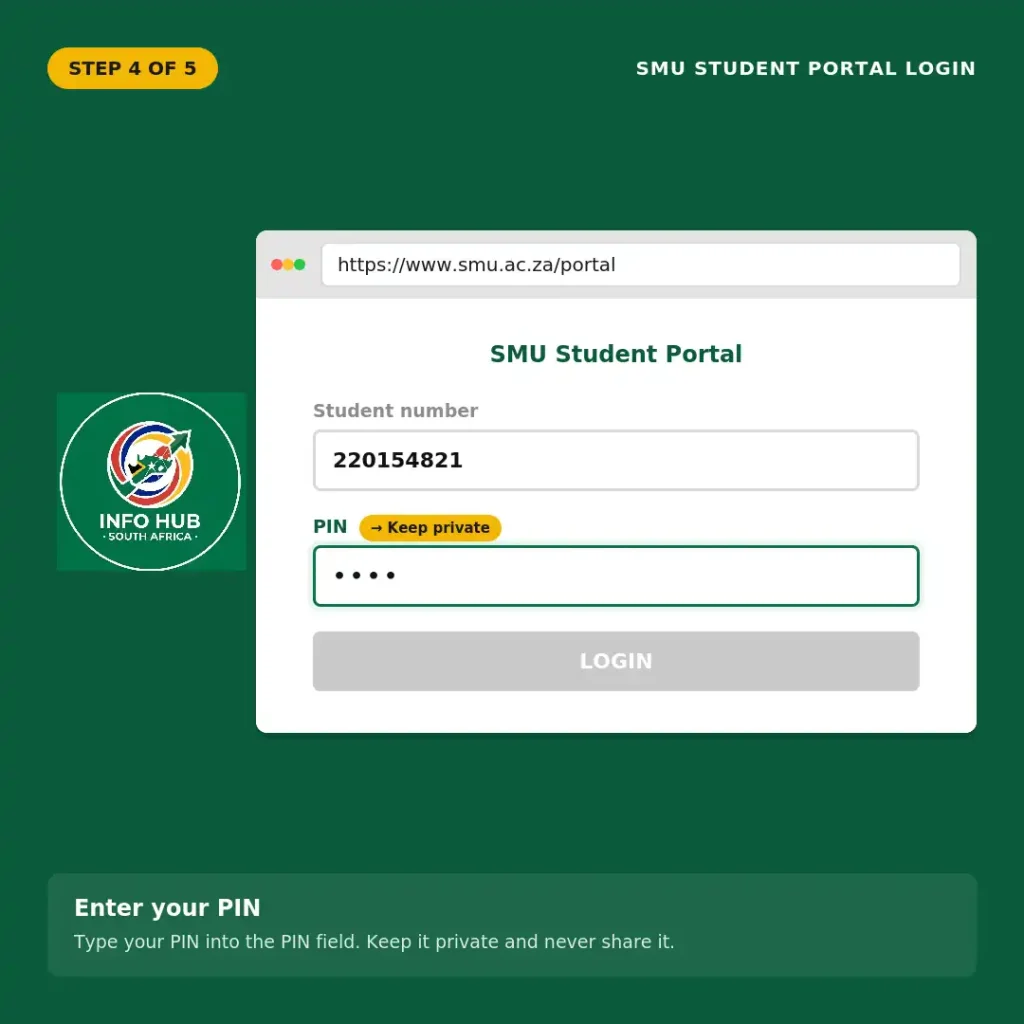
Type your PIN into the appropriate field.
Your PIN should be kept private. Don’t share it with another person, and avoid entering your credentials on websites that aren’t part of the official SMU system.
Step 5: Submit the login
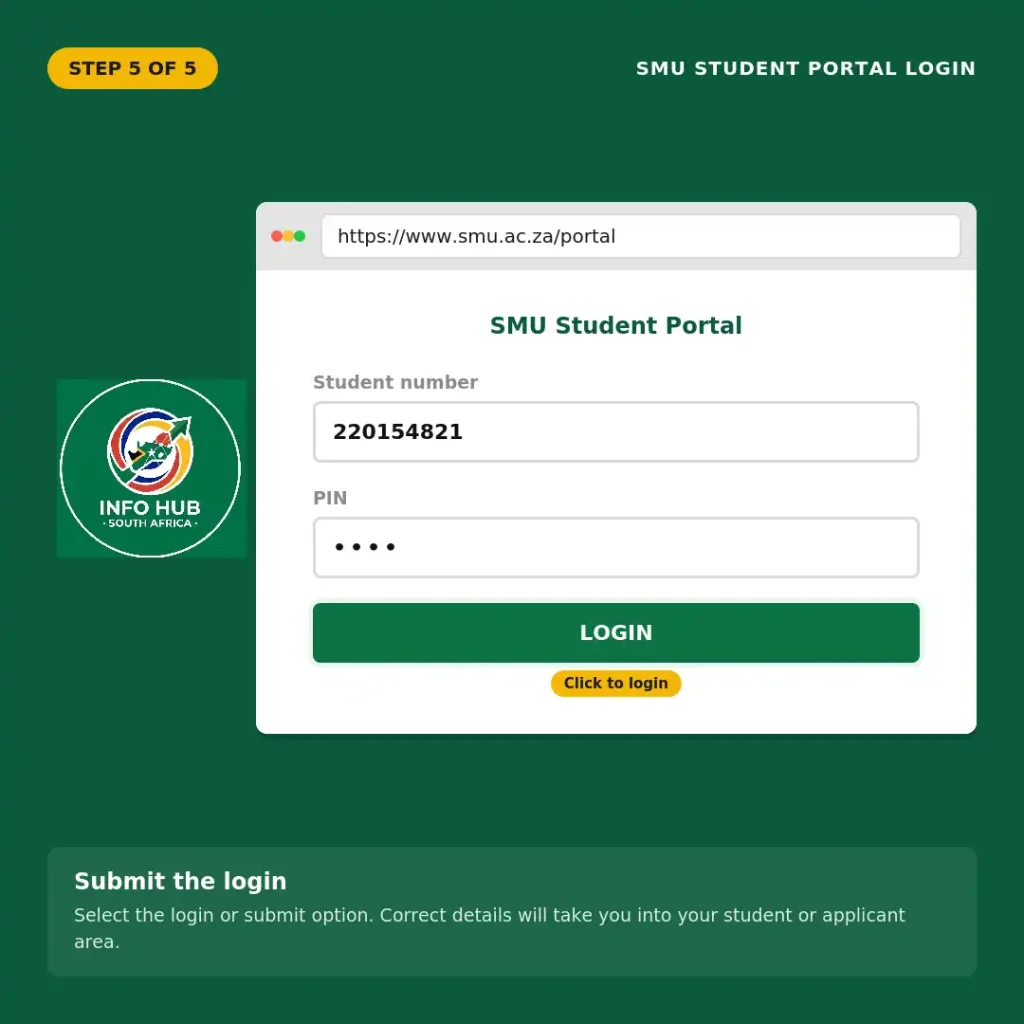
Select the login or submit option shown on the portal.
If your details are correct, the system should take you into the relevant student or applicant area.
Quick check before logging in:
What Can You Do Through the Portal?
The exact options displayed can depend on your status and the services currently available to your account. For applicants, the portal can be used to monitor application information, while registered students can access relevant student administration services.
One particularly useful feature is document submission. SMU’s ICT support page provides specific instructions for uploading outstanding supporting documents through the student portal.
Checking your application information
If you applied to SMU, the portal can be an important place to check your application progress.
SMU has advised applicants to use the Life Student portal with their allocated student number and PIN to check application status.
Keep in mind that an application status is different from simply having access to the portal. Logging in successfully does not, by itself, mean that an applicant has been admitted.
Uploading outstanding documents
Applicants may sometimes need to provide additional documentation. The university’s official ICT instructions give the following route:
Login → Academic Application → Certificate
SMU states that outstanding documents can be uploaded through this section of the portal.
This is useful if your application requires documents that were not submitted previously.
How to Upload Supporting Documents on the SMU Portal
If SMU has asked you to provide an outstanding document, follow the university’s published portal route rather than searching for a separate upload website.
- Open the official SMU student portal login page.
- Sign in with your student number and PIN.
- Look at the menu on the left-hand side.
- Select Academic Application.
- Select Certificate.
- Locate the relevant document area.
- Upload the required outstanding document.
- Check that the submission has been accepted by the system.
SMU’s ICT department specifically confirms this navigation path for outstanding supporting documents.
Tip: Before uploading anything, make sure the document is clear and readable. If the university has given you a particular file format, size, or document requirement, follow that instruction rather than relying on a general upload rule.
How to Check Your SMU Application or Admission Status
For applicants, one of the main reasons to use the SMU student portal is to monitor the progress of an application. If you have already submitted an application to Sefako Makgatho Health Sciences University, keep your student number and PIN available so you can return to the portal when you need to check for updates.
Follow these steps
- Visit the official SMU student portal login page: SMU Life Student Portal Login
- Enter your allocated student number.
- Enter your PIN.
- Submit your login details.
- Once inside the portal, look for the Student Enquiry option.
- Select Academic Admission Status.
- Review the information displayed for your application.
The wording and options shown in your account may vary depending on whether you are an applicant or an existing student.
Understanding common application-status terms
| Status | What it generally indicates |
|---|---|
| Pending / Under Review | Your application is still being processed. |
| Provisionally Accepted | You have received provisional acceptance, subject to any conditions shown by the university. |
| Fully Accepted | Your application has reached an accepted status according to the information displayed. |
| Declined | The application or selected choice has not been accepted. |
Important: Don’t interpret a portal status from a third-party website. Always rely on the status displayed through the official SMU system and any formal communication issued by the university.
SMU Portal Services for Current Students
The Sefako Makgatho Health Sciences University portal isn’t only relevant to new applicants. Once you become a registered student, the system can provide access to student-related administrative services.
Depending on your account and the services available at the time, you may use the portal for activities such as:
The available menu can differ between users, so don’t be concerned if another SMU student sees options that aren’t visible on your account.
Keep your student information accurate
If the portal allows you to update your personal information, check your details carefully before submitting changes. In particular, make sure contact information such as your email address and telephone number is current where the system permits updates.
This can help prevent problems when the university needs to communicate with you.
What to Do If Your SMU Student Portal Login Fails
A failed login doesn’t always mean your account has a serious problem. Incorrect credentials, browser issues, network problems and temporary system traffic can all interfere with access.
Before contacting support, work through these checks.
1. Recheck your student number
A single incorrect digit can cause the login to fail. Carefully compare the number you’re entering with the number provided in your official SMU correspondence.
Don’t add spaces or extra characters unless the portal specifically requires them.
2. Check your PIN
Make sure you’re entering the correct PIN associated with your account. If you recently changed your credentials, use the latest details rather than an older PIN.
Also check whether Caps Lock or another keyboard setting is affecting what you type.
3. Return to the official login page
If you’ve reached the portal through a search engine, close the page and open the official address directly:
This is particularly useful when you’re searching for SMU student portal login, because older or unofficial pages may appear in search results.
4. Try another browser
If the page isn’t displaying correctly, try an updated version of:
You can also try opening a private/incognito browser window to determine whether stored browser data is causing the issue.
5. Check your internet connection
A weak or unstable connection can cause login pages to load slowly or time out. If possible, switch to a more reliable connection and try again.
SMU Student Portal Document Upload Problems
Document uploads are another area where applicants can run into trouble. If the SMU student portal accepts your login but refuses a document, first check the file you’re attempting to submit.
Before uploading, check:
A poor-quality photograph can be just as problematic as an incorrect file format. Make sure names, dates, identification numbers and other relevant information can be read clearly.
Where do you upload documents?
After signing into the SMU Life Student system, the supplied university instructions indicate the following route:
Academic Application → Certificate
Look for the relevant document option and upload the requested file.
Don’t upload unrelated documents simply because an upload field is available. Submit the documents requested for your application or registration.
When Should You Contact SMU ICT Support?
If you’ve confirmed your student number and PIN but still cannot access your account, contacting official university support is the sensible next step.
The supplied information identifies ICT Student Support as the relevant support channel for persistent technical difficulties and portal access problems.
SMU ICT Student Support
Email: [email protected]
For on-campus assistance, students can also visit the designated Student ICT Support Services (STSS) office with appropriate identification, such as a student or identity card.
When reporting a problem, explain what happened and include useful details such as:
Security reminder: Never send your PIN in an email or public support request unless an official university process specifically instructs you to do so.
SMU Student Portal Security Tips
Your student portal contains personal academic and administrative information, so treat your login details as private account credentials.
Never share your PIN
Don’t post your PIN in a Facebook group, WhatsApp group, forum or public comment. If someone offers to “fix” your portal account and asks for your PIN, use caution and verify the request through an official SMU support channel.
Check the web address
Before entering your details, make sure you’re on the official SMU Life Student domain:
lifestudent.smu.ac.za
A page can look similar to a university login screen without being the correct website. Checking the domain is a simple step that can prevent unnecessary security risks.
Use your own device when possible
If you’re using a public computer, don’t save your password or PIN in the browser. Sign out when you’ve finished and close the browser window.
Keep your device protected
SMU’s ICT department advises registered students to ensure that devices used on the university network are properly protected with antivirus software.
Keeping your operating system and browser updated is also a sensible general security practice.
Quick SMU Student Portal Checklist
Before contacting support, run through this checklist:
This distinction matters. A technical login problem should generally go to ICT support, while an admissions or application question may need to be directed to the relevant SMU admissions/enrolment office.
FAQs
Conclusion
Whether you searched for SMU student portal login, Sefako Makgatho Health Sciences University portal, or Medunsa University portal, it is important to make sure you are using the correct and current SMU system.
The SMU student portal gives students and applicants access to important university-related services, including account information, application updates, academic services, and other online resources. Students should keep their login details private and always check that they are accessing the legitimate university system.
For applicants, the portal can also be useful for checking application-related information and completing required steps, such as submitting outstanding supporting documents when requested. If you experience a technical issue with your account or portal access, contacting SMU’s relevant student support services is the appropriate next step.
At Info Hub South Africa, our goal is to make university portals and online student services easier to understand. We provide straightforward guides covering South African universities, student portals, application systems, login procedures, and other useful education-related information.
Read More
SIS Portal South Africa: Login, Registration & Student Guide 2026
Wits Self Service Portal South Africa: Login, Application Status & Student Guide 2026
UFH Blackboard Login South Africa: Student Portal Guide 2026
Learners Licence Booking South Africa 2026: Requirements, Steps & Fees