eTshwane Login: Register, View Bills & Reset Password
Managing your City of Tshwane municipal account online can save you the trouble of visiting a municipal office for routine services. Through the eTshwane platform, residents can view account details, monitor unpaid balances, settle municipal bills and submit water or electricity meter readings.
The eTshwane login portal provides online access to municipal account services for individuals and businesses. Whether you are a homeowner, tenant or business account holder, the platform offers a convenient way to handle everyday municipal account matters from one place.
eTshwane Online Services Available After Logging In
The eTshwane portal allows City of Tshwane residents to manage several municipal account activities online instead of visiting a municipal office for every enquiry. Once logged in, users can access different features related to billing, payments, meter readings and municipal service requests.
Depending on the account and services available on the dashboard, you may be able to:
| Portal feature | Purpose |
|---|---|
| Manage municipal accounts | Link and manage your municipal accounts through your online profile. |
| View account statements | Review municipal bills, charges and available billing information. |
| Make online payments | Settle outstanding municipal balances through the available payment options. |
| Submit meter readings | Provide electricity and water meter readings online. |
| Report service issues | Submit complaints about municipal faults or other service-related problems. |
| Check account history | Review accessible billing statements and previous account records. |
For instance, residents who want to review their latest water or electricity charges can check their available statements through the portal. Property owners can also use the relevant account features to keep track of municipal balances.
Good to know: The services displayed after eTshwane login may vary depending on your registration, linked municipal accounts and the features currently supported by the platform.
What You Need to Register for an eTshwane Account
Before creating an eTshwane profile, gather the identification and municipal account information requested during registration. Entering the correct details from the beginning can help prevent verification problems and make the process easier.
Prepare the following information:
Is eTshwane Registration Available to Foreign Residents?
Yes, the registration information provided for eTshwane includes an option for foreign residents to enter a valid foreign passport number instead of a South African ID number.
If you manage a municipal account in Tshwane but do not have a South African ID, follow the identification requirements displayed on the registration form. Make sure your passport details and personal information are entered correctly. If the system does not recognise your details, contact eTshwane support for assistance.
How to Register on the eTshwane Portal
New users need to create an online profile before they can access the eTshwane login dashboard. The registration process involves entering your personal details, completing a security check and activating your account through email.
Follow the steps below to get started.
Step 1: Visit the Official eTshwane Website
Open the official eTshwane login and registration portal using your mobile phone, tablet or computer.
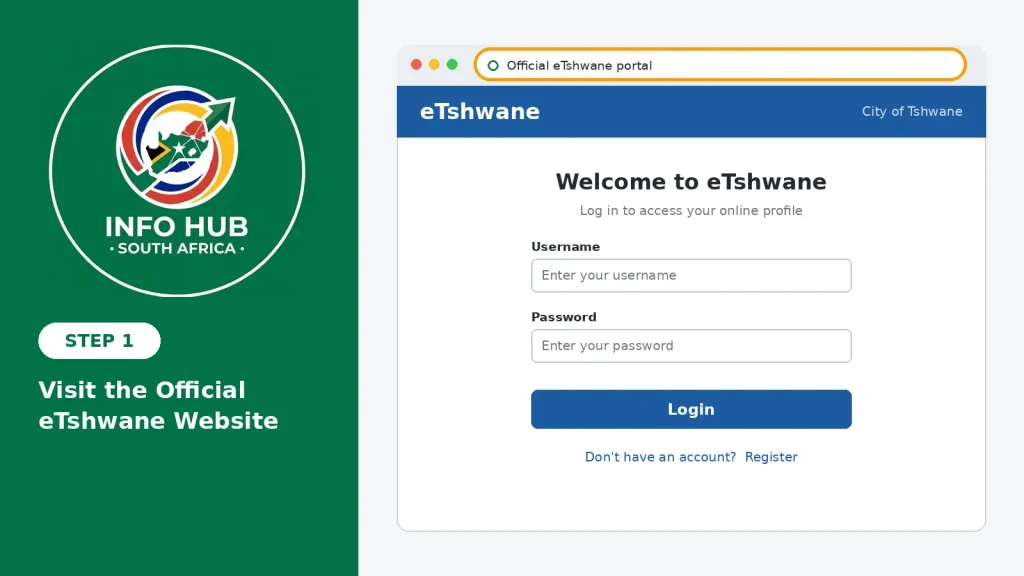
Make sure the website address is correct before entering any personal or identification information.
Step 2: Open the Registration Form
On the portal’s main page, find the Register option and select it. This will take you to the form where new users can provide the information needed to create an online profile.
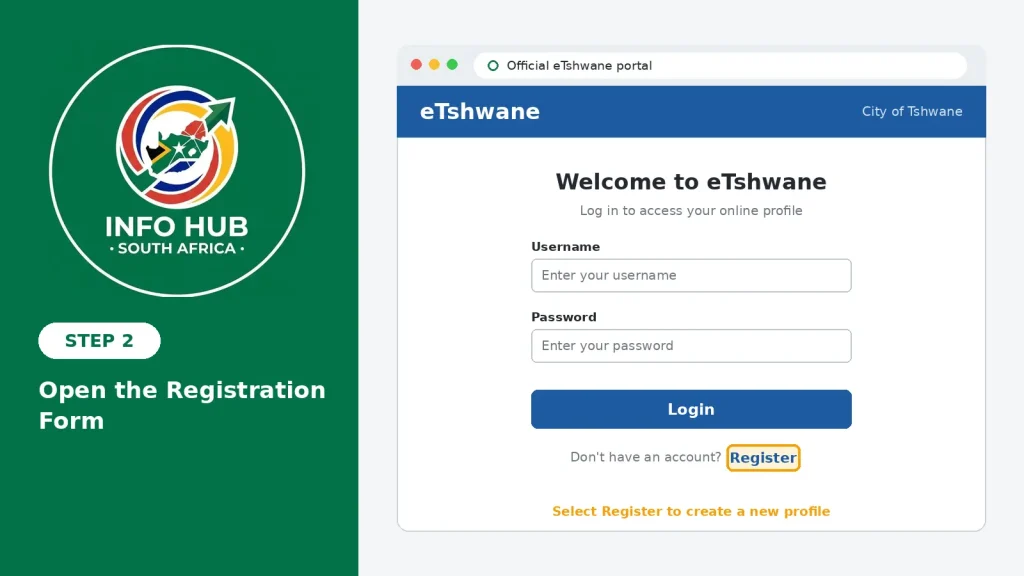
If you already have an account, use the existing login option rather than registering again.
Step 3: Accept the Terms and Conditions
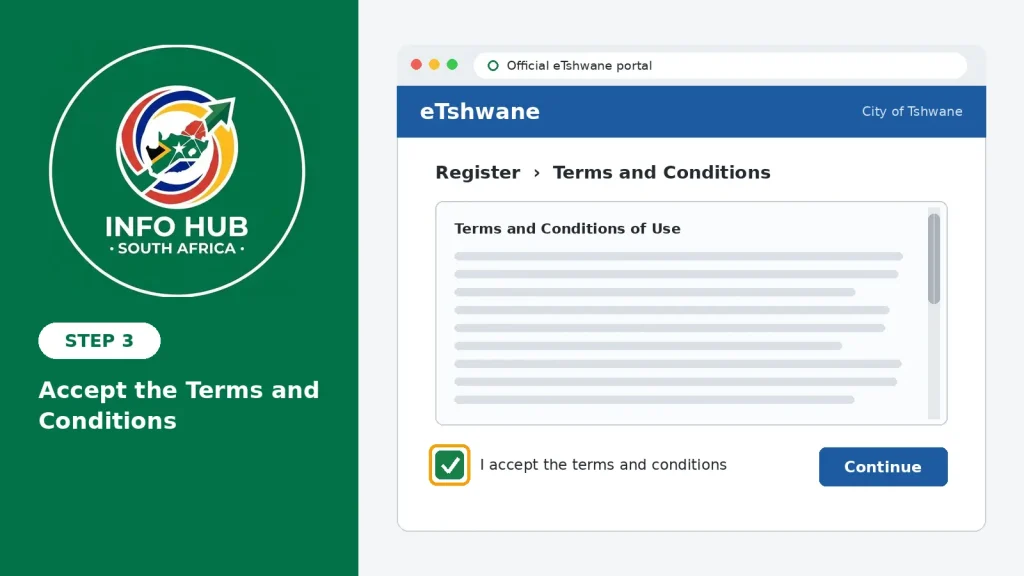
Read the terms and conditions displayed during registration. Once you understand the information, select the required checkbox to confirm your acceptance and continue.
Step 4: Provide Your Personal Details
Enter the requested information into the registration form. The details may include:
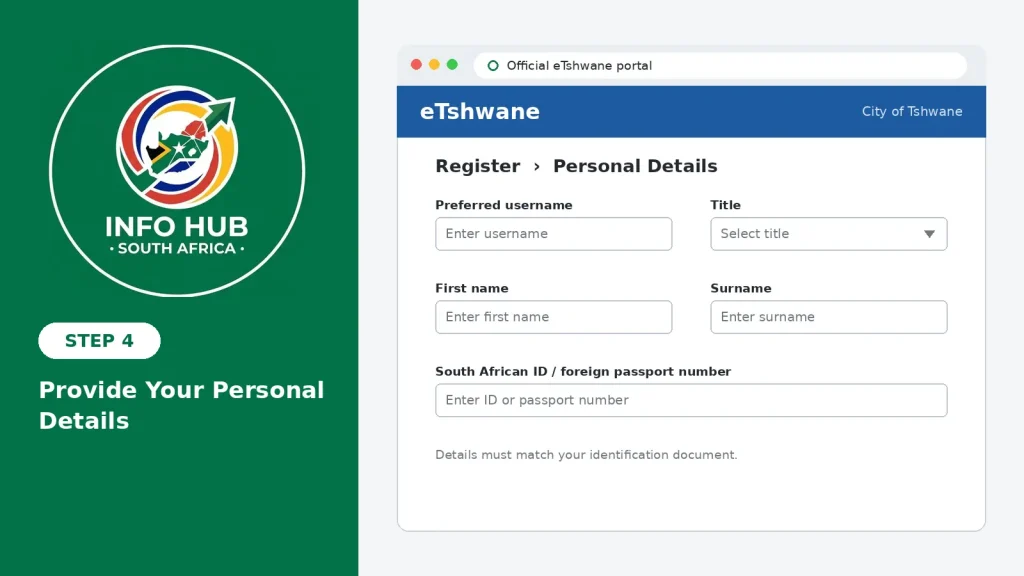
Check each field before moving forward. Your personal information should match your identification document to avoid unnecessary verification difficulties.
Step 5: Complete the CAPTCHA Verification
The registration page may display a reCAPTCHA security check. Complete the verification as instructed to confirm that you are submitting the form yourself.
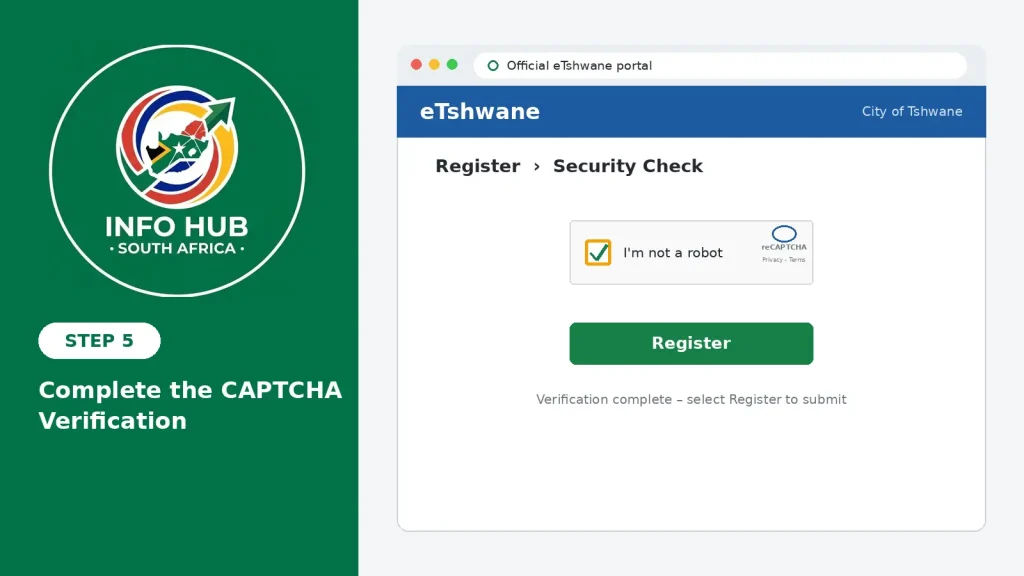
After passing the security check, select Register to submit your details.
Step 6: Verify Your Email Address
Once your registration has been submitted, open the email account you used on the form. Look for an activation or confirmation message from eTshwane and follow the instructions provided.
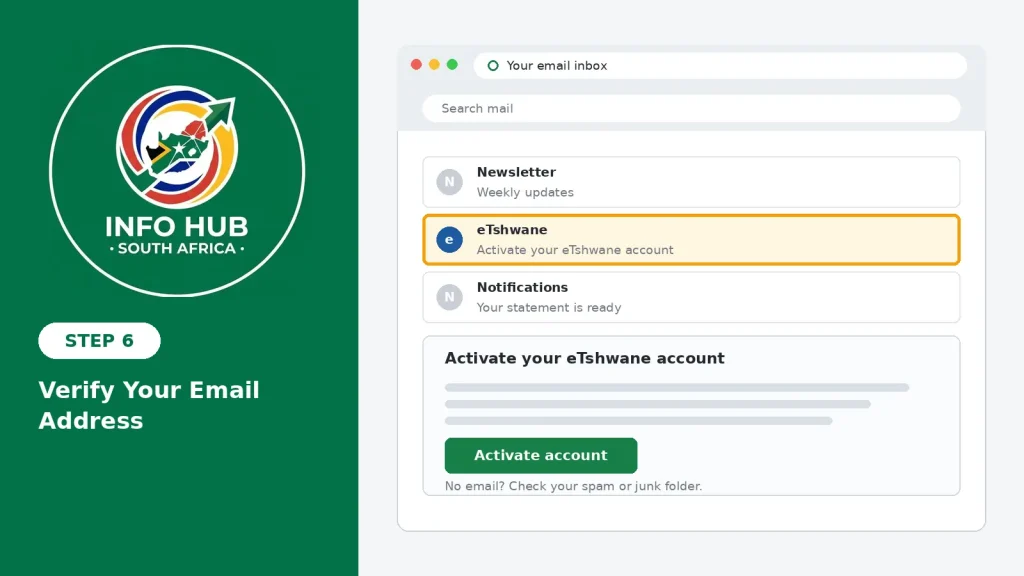
If the message does not appear in your inbox, check your spam or junk folder as well.
After completing the email verification process, you should be able to proceed with accessing your eTshwane profile.
Accessing Your Municipal Account Through eTshwane Login
Once your eTshwane registration and email activation are complete, you can sign in to manage your municipal account online. Your registered username and password are used to access the platform’s available services.
How to Sign In to Your eTshwane Account
Use these instructions to reach your online dashboard:
- Open the login portal: Visit the official eTshwane website.
- Locate the sign-in fields: Find the username and password boxes on the login page.
- Enter your username: Use the username created during registration.
- Type your password: Enter the password linked to your profile.
- Submit your credentials: Select the login option to proceed.
- Open your dashboard: If your details are correct, the portal should take you to your municipal account area.
First-Time Login: Do You Need to Change Your Password?
During an initial sign-in, some users may be prompted to replace a temporary password with a new one. If this happens, follow the password update instructions shown on the screen.
The process may ask you to:
Keep your updated login details secure. If you cannot reach your dashboard, check your credentials and make sure there are no typing errors before attempting to sign in again.
How to View Your eTshwane Municipal Statement Online
Checking your municipal statement is one of the practical reasons to use the eTshwane online platform. It allows account holders to review available billing information without relying solely on printed municipal bills.
Your statement can help you understand the charges applied to your account, identify unpaid amounts and check payments recorded by the municipality.
Steps to Check Your eTshwane Account Statement
After logging in, follow this general process:
- Visit the official eTshwane website.
- Sign in using your registered username and password.
- Go to the account management area.
- Choose the municipal account you want to check.
- Find the statement or billing information section.
- Open the available statement to review your account details.
The names of dashboard options may differ depending on the portal’s current layout and your account access.
What Does an eTshwane Municipal Statement Show?
A municipal statement provides useful information about your account and billing activity. Depending on the statement available, you may be able to review:
Tip: Make a habit of reviewing your municipal statement regularly. If you find an unexpected charge or a payment that has not been reflected, contact the relevant City of Tshwane support channel for clarification.
Paying Your City of Tshwane Municipal Account Online
Registered users can also use the eTshwane platform to access the online payment facility. This provides an alternative to visiting a municipal office when settling outstanding account balances.
Before making a payment, review your linked accounts and confirm the amount you intend to pay.
How to Pay Through the eTshwane Portal
Once you have completed the eTshwane login, follow these instructions:
- Open the Accounts or account management section.
- Select Account Manager.
- Review the municipal accounts connected to your profile.
- Tick the account or accounts you want to pay.
- Choose Pay Selected Accounts, if the option is available.
- Follow the on-screen instructions to complete the transaction.
Check the selected account numbers and payment amounts before confirming. After completing the transaction, retain your payment confirmation or reference number in case you need to make an enquiry later.
Payment reminder Bank processing times and transaction fees may vary depending on the payment method used.
What Happens If Your Municipal Services Have Been Disconnected?
According to the supplied portal information, payments associated with disconnected services may display a reconnection-related layout within approximately four hours.
However, making a payment does not necessarily mean that your electricity or water supply has already been restored. Follow any instructions provided by the municipality and contact the relevant department if the service remains disconnected.
Submitting Water and Electricity Meter Readings on eTshwane
The eTshwane platform also provides access to meter reading submission services. These readings help the municipality obtain information about actual water and electricity consumption for billing purposes.
When actual readings are unavailable, estimated consumption may be used. Submitting accurate meter information can therefore help keep your municipal account up to date.
How to Submit Your Municipal Meter Readings
Before opening the submission section, take note of the latest reading displayed on your water or electricity meter.
Then follow these general instructions:
- Open the eTshwane login portal.
- Enter your registered login credentials.
- Access your municipal account dashboard.
- Look for the meter reading submission section.
- Select the relevant account or meter.
- Enter the reading displayed on the meter.
- Check the numbers carefully.
- Submit the information and follow any confirmation instructions.
Avoid These Common Meter Reading Mistakes
Incorrect meter information can cause problems with your submission. Keep the following checks in mind:
If your reading is rejected, check the entered figures and review any error message displayed by the website.
Please note: Submitting a reading does not guarantee that it will be accepted for the current billing period. Check the portal for confirmation or any further instructions.
How to Report Municipal Faults and Complaints on eTshwane
Residents can also use the available eTshwane complaint facilities to report municipal problems and request assistance. This may be useful when dealing with service issues such as water leaks, electricity faults or other municipal concerns.
Steps to Lodge a Municipal Complaint
If the complaint facility is available in your dashboard, follow this process:
- Sign in through the official eTshwane login page.
- Open the relevant dashboard menu.
- Select Lodge a Complaint, where available.
- Choose the appropriate service or complaint category.
- Describe the problem clearly, including relevant details.
- Submit your complaint and check whether a reference number is provided.
When describing a municipal fault, include enough information to help the relevant department understand the problem. Provide your property or municipal account details where requested.
If the system generates a complaint reference number, save it for future communication. You can use this reference when following up on the issue with the municipality.
How to Reset a Forgotten eTshwane Login Password
Unable to remember your eTshwane password? You can use the password recovery facility on the official portal to regain access to your municipal account. There is no need to create a new profile straight away; existing users should first try the available password reset option.
Steps to Recover Your eTshwane Password
Follow these instructions to start the recovery process:
- Open the official website: Visit the eTshwane login portal.
- Find the recovery option: Look below the username and password fields for the Forgot Password link.
- Select Forgot Password: Click the option to open the password recovery section.
- Follow the on-screen instructions: Provide the information requested by the portal to continue.
- Check your registered email: Look for a password recovery message sent to the email address linked to your eTshwane profile.
- Complete the reset process: Follow the verification instructions provided in the message and set a new password if prompted.
- Log in again: Return to the eTshwane login page and enter your updated credentials.
What If You Don’t Receive a Password Reset Email?
If the recovery message does not arrive, try these checks:
Important: Use the email address linked to your existing eTshwane profile. If you still cannot recover your account, contact the official eTshwane support service for further assistance rather than registering a duplicate profile.
Common eTshwane Login Issues and How to Fix Them
Even after registering successfully, you may occasionally encounter problems when accessing your eTshwane account or using its online services. These difficulties can involve incorrect login details, account activation, missing municipal accounts or payment updates.
The table below outlines common issues and the recommended actions to take.
| Problem | Recommended solution |
|---|---|
| Incorrect username | Verify the username used during registration or select the Forgot Username option, if available. |
| Forgotten password | Use the Forgot Password facility and follow the recovery instructions. |
| Account not activated | Check your registered email for the account activation message and complete the verification process. |
| Password recovery email missing | Check your spam and junk folders and confirm that you are using the correct registered email address. |
| Municipal account not appearing | Review your linked accounts and check that the municipal account details are correct. |
| Meter reading rejected | Confirm that you selected the correct meter and entered the displayed reading accurately. |
| Website not opening | Check your internet connection and try accessing the portal again later. |
| Payment not showing | Keep your transaction reference and contact municipal support for assistance. |
Contacting eTshwane for Assistance
If you are unable to access your account or resolve a technical issue through the online portal, you can contact the relevant City of Tshwane support team for guidance.
Depending on the type of assistance you need, the following contact numbers may be useful:
eTshwane Technical Support
086 144 4779
Contact this support line for technical difficulties, login-related problems and assistance with the eTshwane online platform.
City of Tshwane Call Centre
012 358 9999
Use this number for general municipal enquiries, account-related concerns and other service-related questions.
Before calling, keep your municipal account number and any relevant payment or complaint reference nearby. Explain your issue clearly so the support team can direct your enquiry to the appropriate department.
FAQs
Conclusion
The eTshwane online portal makes it easier for residents to manage municipal services and account-related tasks through a single digital platform. Whether you need help with registration, login, payments, statements or meter readings, understanding the correct steps can make the process more straightforward.
At Info Hub South Africa, our aim is to provide clear, practical guides that help South Africans navigate online portals, government services and important public information. We explain processes in simple language so readers can better understand where to go and what steps to follow. For the latest account services and official assistance, always use the City of Tshwane’s authorised platforms and contact channels.
Read More
GEHS Login South Africa 2026: Online Login, Password Reset & Status Check Guide
Television Licence South Africa: Online Application, Status Check & SABC TV Licence Guide 2026
Coastal College Online Application 2027: How to Apply & Check Status