CSD Log In 2027: Official Portal, Supplier Registration & Login Guide
The Central Supplier Database (CSD) is a central online platform where businesses and individuals can register to supply goods or services to South African government institutions. Managed by National Treasury, it allows suppliers to create profiles, submit business and verification details, and keep their information up to date for use by government departments and other organs of state.
To access your supplier profile, visit the CSD log in page and sign in using your registered email address and password. First-time users must create an account before completing supplier registration. Whether you need to access the portal, set up a new account, update your supplier details or reset a forgotten password, understanding the process can help you avoid common login problems and manage your profile more easily.
CSD Login Portal: Where to Sign In
The official CSD login portal is hosted on the South African government’s secure website. Registered suppliers can use this page to access their accounts and continue managing their information.
CSD Portal: Essential Information
The following table provides a quick overview of the database and its main purpose.
| Information | Details |
|---|---|
| Database name | Central Supplier Database (CSD) |
| Responsible authority | National Treasury |
| Country | South Africa |
| Official portal | secure.csd.gov.za |
| Login credentials | Registered email and password |
| Account recovery | Forgot Password option |
| Main users | Businesses and individual suppliers |
| Primary purpose | Centralised supplier information and registration |
What Happens When You Access Your CSD Account?
The CSD portal provides registered users with access to supplier information and account management functions. The options available may depend on the status of your account and supplier registration.
Once logged in, you can use the available features to:
For businesses interested in supplying government departments, maintaining an accurate CSD profile is particularly important. The information recorded in the database should reflect your current business and contact details.
Information to Prepare Before CSD Registration
Before creating an account or accessing the supplier registration process, gather the details relevant to your registration category. Having the correct information ready can make the process easier and help you avoid errors when completing the online forms.
Here are the main details you may need.
Email Address and Contact Number
Start with an active email address that you can access regularly. The address is used to create your CSD user account and receive account-related messages, including activation and password recovery communication.
You should also have a working cellphone number available. The system may use One-Time PINs (OTPs) as part of its verification process.
Personal or Business Identification Details
The identification information required depends on the type of supplier you are registering. For example, an individual supplier may need personal identification details, while a registered company may need to provide business registration information.
Depending on your circumstances, prepare:
Make sure that the details entered into the CSD system match your supporting records.
Supplier Banking Information
Banking details may be required during supplier registration so that the relevant information can be verified. Have your account details available and check that the account holder information is consistent with the supplier’s legal details where required.
Incorrect or mismatched banking information can create verification problems, so review these fields carefully before submitting them.
Device, Internet Connection and Browser
You will need a device with internet access to use the CSD website. An updated browser such as Google Chrome, Microsoft Edge or Mozilla Firefox is recommended.
If the website fails to load properly, try refreshing the page or opening the portal in another browser.
Never disclose your account password or OTP to another person. Your registered email account should also remain secure because it may be needed to restore access to your supplier profile.
New to CSD? How to Create Your Online Account
People who have never used the Central Supplier Database must register for a user account before they can sign in. This is the first stage of gaining access to the online system.
It is worth understanding the difference between the two processes: CSD user account registration creates your login credentials, whereas supplier registration involves providing the information needed to establish your supplier profile.
Follow these instructions to get started.
1. Go to the Central Supplier Database Website
Open the official CSD homepage:
Check the website address in your browser to confirm that you are on the correct government portal. From the homepage, look for the option to register a new user.
2. Start the User Registration Process
Select the Register option to open the new account registration section.
The system will ask for basic details to create your user profile. Follow the instructions displayed on the screen and make sure you are completing user account registration rather than attempting to sign in with details you have not created yet.
3. Provide Your Personal and Contact Information
Enter the information requested in the registration form. This may include your:
Pay particular attention to your email address and mobile number. These contact details may be used for account activation and future verification, so make sure they are correct and accessible.
4. Complete the Required Security Checks
Follow the security instructions shown on the registration page. Depending on the fields displayed, you may need to complete a CAPTCHA, review the terms and conditions and confirm that your information is accurate.
Once you have checked the details, select Register to submit the form.
5. Verify and Activate Your Account
After submitting your registration information, open the inbox of the email address you provided.
Look for the CSD activation email and follow the instructions included in the message. You may also be asked to enter an OTP sent to your registered cellphone number to complete the verification process.
If the activation message is missing, check your spam or junk folder before requesting another email.
Once your user account has been activated, return to the official CSD login page. You can then sign in using your registered email address and password and proceed to the supplier registration section.
Before moving forward: Keep your login credentials somewhere secure. You will need them whenever you return to the CSD portal to manage your supplier information.
How to Log In to Your CSD Account
After registering and activating your user account, you can sign in to the Central Supplier Database using your registered email address and password. The CSD email login process gives existing users access to their accounts, where they can manage supplier information and review their profiles.
Follow the steps below to access the official CSD portal.
Step 1: Open the Official CSD Login Portal
Visit the official CSD login page using the link below:
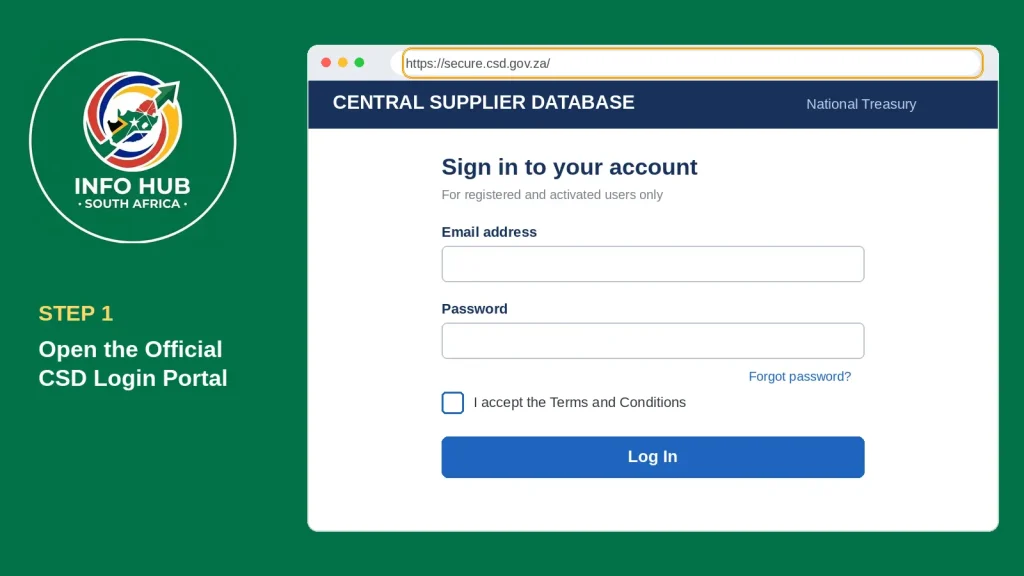
This page is intended for users who have already registered and activated their accounts. If you are a first-time user, complete the registration process before attempting to log in.
Step 2: Enter Your Registered Email Address
Locate the email address field on the login page and enter the email address you used when registering your CSD account.
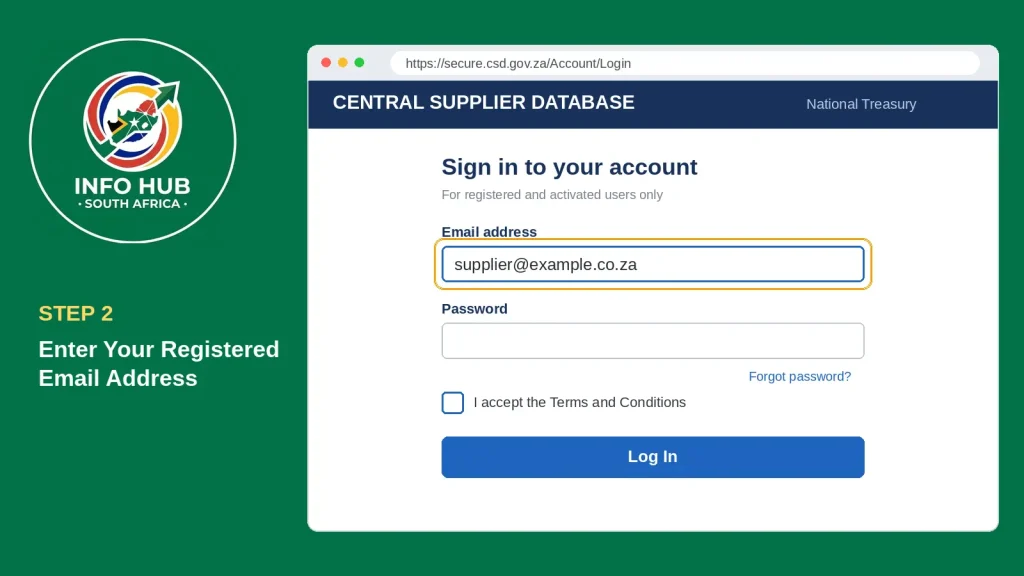
Your registered email address serves as your login identification. Make sure there are no spelling mistakes and that you are not using a different email address.
Step 3: Provide Your CSD Account Password
Enter your password in the designated password field. Use the password you created during account registration.
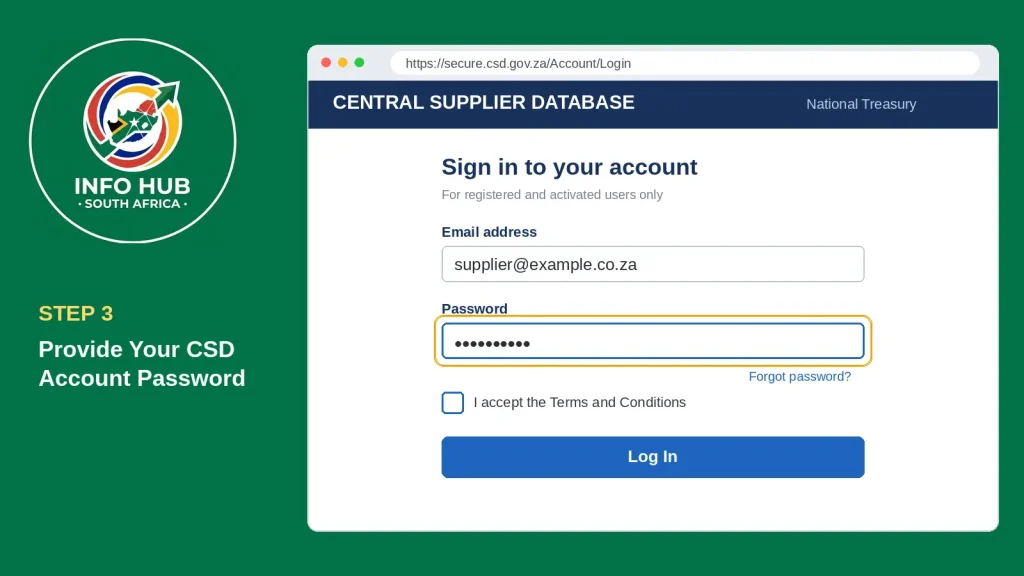
Before continuing, check that:
If you cannot remember your password, select the Forgot Password option rather than repeatedly trying incorrect combinations.
Step 4: Review and Accept the Terms and Conditions
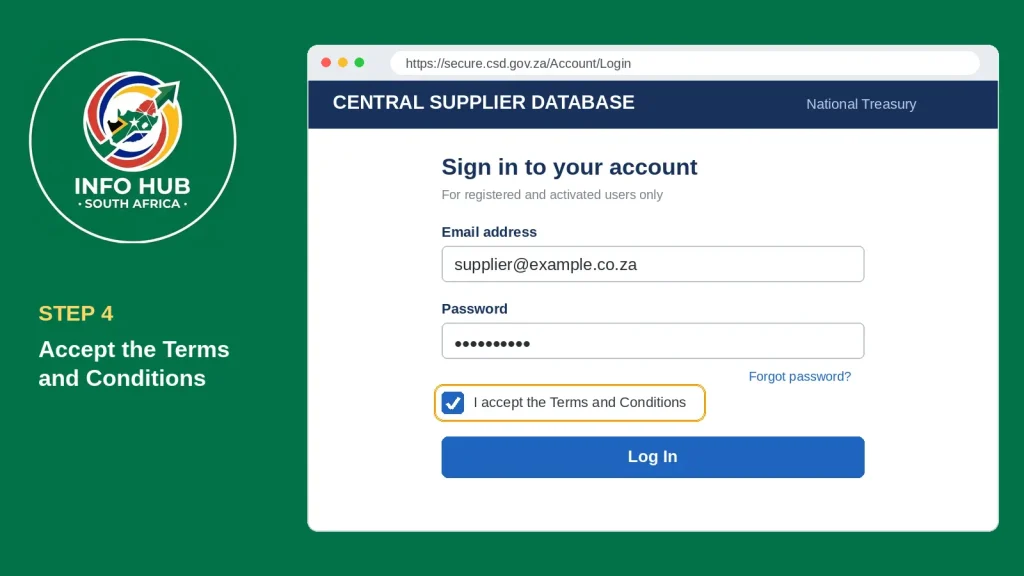
Check whether the login page displays a terms and conditions checkbox. If required, read the displayed information and tick the box to confirm your acceptance before proceeding.
Step 5: Submit Your Login Details
Once you have entered your email address and password and completed any required confirmations, click the Log In button.
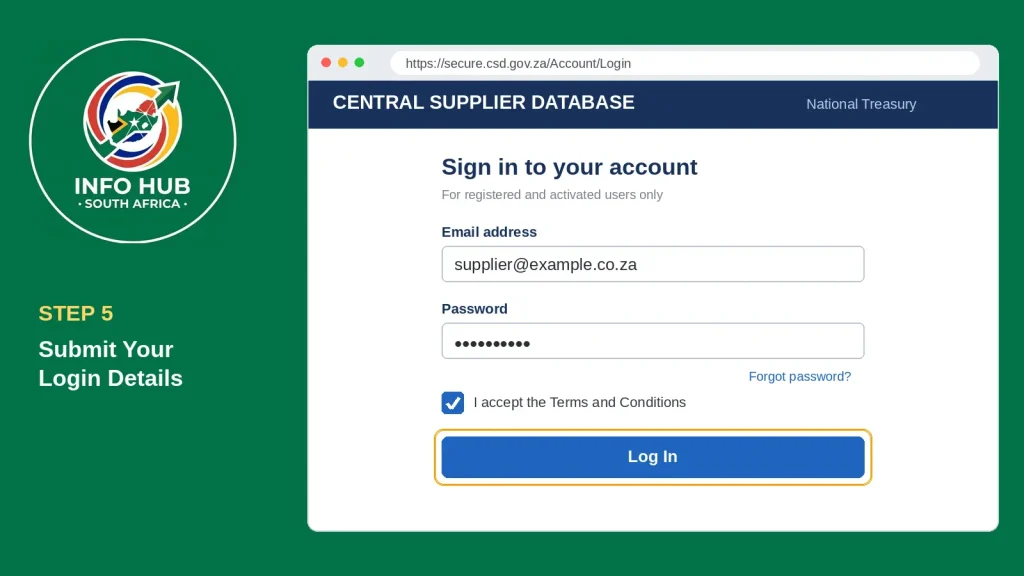
The system will check your credentials. If your login information is correct and your account is active, you should be able to proceed to your CSD account.
Step 6: Open Your Supplier Account Dashboard
After a successful login, navigate through the available dashboard options to access your supplier information.
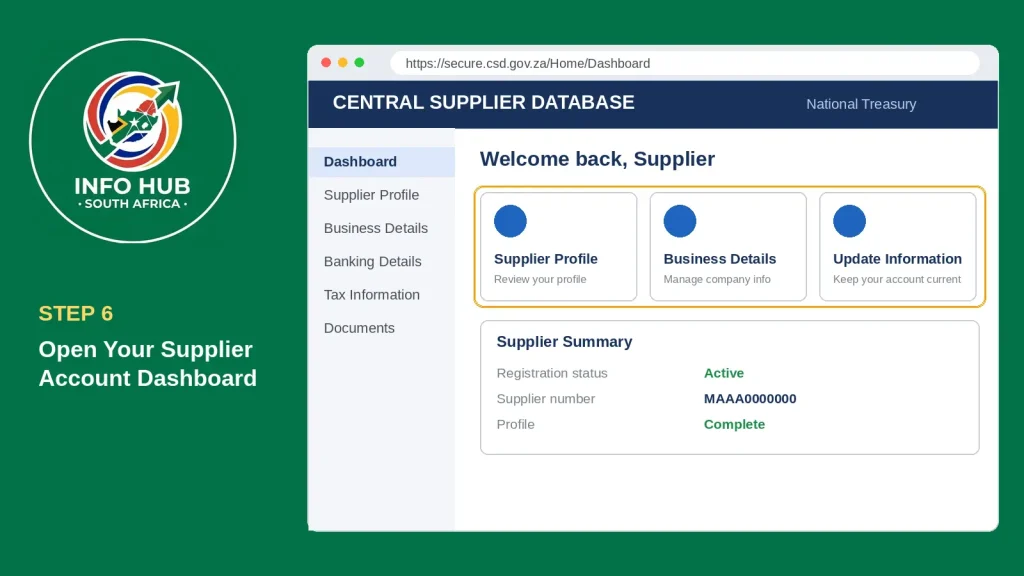
Depending on your registration status, you can review your supplier profile, manage business details and update the information available in your account.
Important: Having access to your CSD user account does not automatically mean that your supplier registration is complete. You must also provide and submit the required supplier information to establish your profile on the database.
How to Register Your Business on the Central Supplier Database
Creating a CSD user account does not automatically register your business as a government supplier. You must also complete the supplier profile by providing the required business, tax, banking and contact information.
After signing in to your CSD account, follow these steps to register your supplier details.
1: Open the Supplier Details Section
Log in to the official CSD portal and navigate to the supplier management section. Select Supplier Details and look for the option to create or add a supplier profile.
2: Select Your Supplier Category
Choose the supplier type that applies to your registration. Available categories may include:
Make sure you select the correct category because the information required depends on your supplier type.
3: Enter Your Business and Identification Details
Complete the identification section using the relevant personal or business registration information. You will also need to provide your contact details, physical address and postal address.
Check that all information is accurate and up to date before continuing.
4: Add Tax and Banking Information
Enter the requested tax details and supplier banking information. Check your account holder name, bank details and account number carefully to avoid verification problems.
Only submit sensitive financial information through the official CSD website.
5: Select Your Industry and Commodities
Choose the industry classifications and commodities that describe the goods or services your business provides.
For example, a cleaning company should select relevant cleaning service categories. Avoid choosing unrelated classifications that do not represent your actual business activities.
6: Review and Submit Your Supplier Profile
Open the Overview section to review your information before submitting the registration. Check your identification, contact, address, tax, banking and commodity details for missing or incorrect entries.
Once everything is complete, follow the portal’s submission instructions.
According to the supplied registration guidance, successful completion generates a unique Supplier Number and a 36-digit Unique Registration Reference Number. Keep both numbers safe for future reference.
CSD Login Forgot Password: How to Recover Your Account
If you cannot remember your password, you can use the password recovery option on the official CSD website instead of repeatedly attempting to sign in with incorrect details.
Step 1: Open the CSD Login Page
Visit the official CSD login portal and locate the Forgot Password option below the login fields.
Step 2: Enter Your Registered Email Address
Click the password recovery option and provide the email address linked to your CSD account. Check that the address is correct before submitting your request.
Step 3: Follow the Password Reset Instructions
Check your email inbox for the password reset message. If you cannot find it, look in your spam or junk folder.
Open the message and follow the instructions to create a new password.
Step 4: Log In With Your New Password
Return to the CSD login page and enter your registered email address and newly created password.
If the password has been successfully changed, you should be able to access your supplier account again.
Security tip: Choose a strong password that you do not use on other websites. Never share your CSD password or account verification codes with anyone.
CSD Registration Status Check: How to View Your Supplier Details
Once you have submitted your supplier information, you may want to check whether your details have been recorded correctly on the Central Supplier Database. The CSD registration status check allows you to review the information linked to your supplier profile and identify any outstanding requirements.
To check your supplier details, follow these steps:
Sign In to Your CSD Account
Visit the official CSD login page and enter your registered email address and password.
Open Your Supplier Profile
After logging in, navigate to your supplier dashboard and select the relevant supplier details or registration section.
Review Your Registration Information
Check the information displayed on your profile, including your business details, identification, contact information and registration records.
Check for Outstanding Requirements
Look for incomplete fields, unverified information or any instructions requiring further action. Follow the guidance displayed by the portal to address outstanding items.
Keep your Supplier Number and 36-digit Unique Registration Reference Number available for future reference.
Important: Accessing your CSD account does not automatically mean that your supplier registration and all verification requirements have been completed. Always rely on the registration information displayed in the official portal.
CSD Supplier Report: What Information Does It Contain?
A CSD report provides information associated with a supplier’s profile on the Central Supplier Database. It can be useful when reviewing your registration details or when a government department requests supplier information during a procurement process.
To access the available supplier information, log in to your CSD account and look for the relevant profile or reporting options.
Your supplier records may include the following details:
The information available for viewing or downloading depends on the reporting features provided by the CSD portal.
If a government department requests a CSD report, check its specific submission requirements before providing the document. This helps ensure that you submit the correct supplier information.
Common CSD Login Problems and How to Resolve Them
Having trouble accessing your supplier account? CSD login issues can occur for several reasons, including incorrect credentials, incomplete account activation or website loading problems.
The following solutions can help you identify and address common difficulties.
1. Incorrect CSD Email Address or Password
If your login attempt fails, first check that you are using the email address linked to your original CSD registration.
Re-enter your password carefully and check for typing errors or accidental spaces. If you cannot remember your credentials, use the Forgot Password option to recover your account.
2. CSD Account Activation Email Not Received
Sometimes the account activation message may not appear in your main inbox.
Check your spam or junk folder for the missing email. If the portal provides a Resend Account Activation E-mail option, you can use it to request another activation message.
3. CSD Account Not Activated
Creating a user account does not always mean that the activation process is complete. You may still need to verify your email address or enter an OTP sent to your registered cellphone number.
Return to the activation instructions and complete any outstanding verification steps before attempting to log in again.
4. CSD Website Is Not Loading
If the official portal fails to open, try the following:
5. Cannot Remember Your Registered Email Address
If you have forgotten which email address you used during registration, search your existing inboxes for previous CSD registration or activation messages.
These messages may help you identify the email linked to your account. If you cannot recover the address, contact the available official CSD support channels for assistance.
Avoid creating another account before checking whether your existing profile can be recovered.
6. Supplier Profile Has Missing Information
If your supplier registration is incomplete, sign in and return to the relevant supplier details section.
Review the information entered in each section, including identification, banking, tax and business details. Complete or correct the outstanding fields and follow any further instructions displayed by the portal.
FAQs
Conclusion
The CSD log in portal is the main online access point for registered suppliers who want to manage their information on South Africa’s Central Supplier Database. Whether you are registering a new business, updating supplier details, checking registration information or recovering a forgotten password, using the official CSD website helps you manage your account securely.
New users should first complete CSD registration and activate their accounts before setting up their supplier profiles. Existing suppliers should log in regularly, keep their business information accurate and ensure that their registration details remain up to date.
For more South African government portal guides, application instructions and educational resources, visit Info Hub South Africa. Our website helps readers find useful information about government services, student portals, online applications and other important South African platforms in one place.
Read More
GEHS Login South Africa 2026: Online Login, Password Reset & Status Check Guide
Television Licence South Africa: Online Application, Status Check & SABC TV Licence Guide 2026
Coastal College Online Application 2027: How to Apply & Check Status