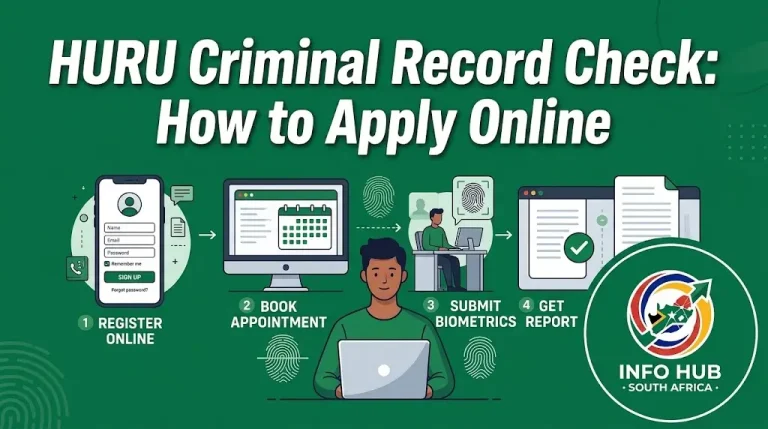
Motheo Student Portal Login, Results & Registration Guide 2027
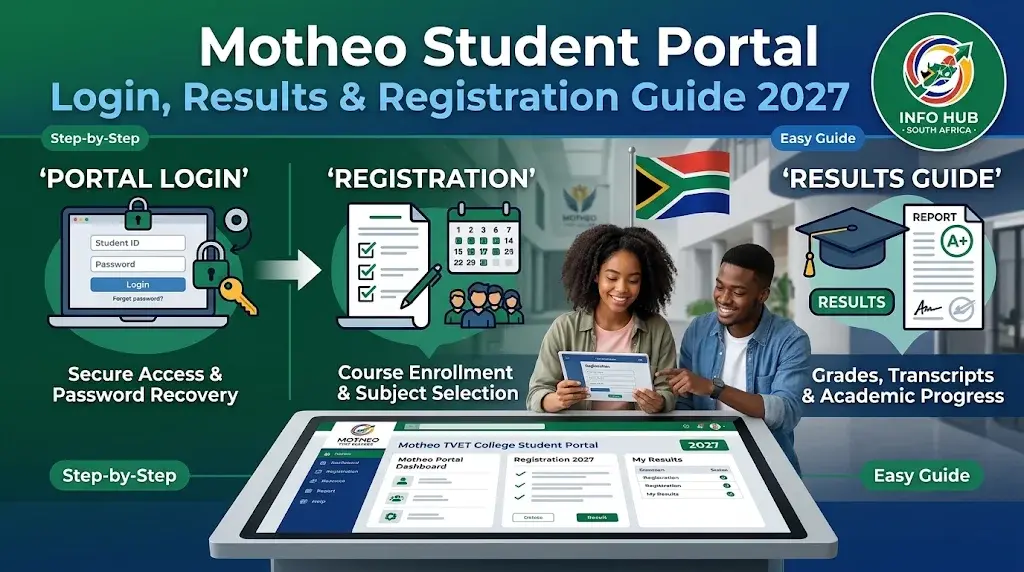
The Motheo student portal is the online platform students use to access important college-related services through the Coltech system. Whether you are a new applicant waiting for an admission decision, a returning student preparing for registration, or an existing student who wants to check academic results, knowing how to use the portal can make managing your studies easier.
Motheo TVET College students can access the online login page to manage their student accounts and find relevant academic information. The portal is particularly useful when you need to sign in, follow up on an application, access available student services or resolve an account-related problem. However, the services displayed may depend on your account type and the stage of your studies.
This guide explains how to access the Motheo student portal, enter your login details, deal with password problems, check your application progress and understand the registration and results process. It also covers common login difficulties and practical steps to take when the Coltech student portal does not work as expected.
What Is the Motheo Student Portal?
The Motheo student portal is an online student management platform associated with Motheo TVET College. It uses the Coltech system to provide an online access point for students and applicants who need to interact with college administration.
Instead of relying entirely on in-person enquiries, users can access the portal through an internet-connected device and use the services made available to their accounts.
The Motheo student portal login is relevant to different groups of users:
It is worth understanding that the portal does not necessarily display identical information to everyone. A prospective applicant may see application-related information, while an enrolled student may have access to a different set of academic services.
How to Access the Motheo Student Portal Login
You can access the Motheo student portal login using a computer, laptop, tablet or smartphone. Before signing in, make sure you have the correct account information and are using the official Coltech website.
Follow these instructions:
Step 1: Open the Official Login Page
Open Google Chrome, Microsoft Edge, Mozilla Firefox or another updated browser. Enter the official Motheo Coltech student portal address:
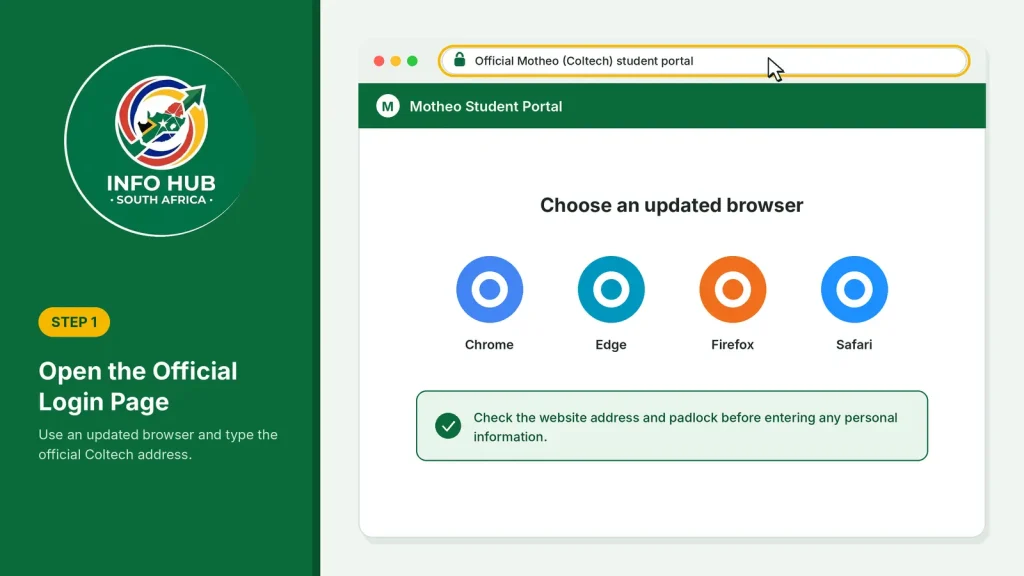
Check the website address before entering personal information. Using the correct domain helps you avoid unofficial websites that may imitate the college’s login page.
Step 2: Identify Your Login Information
Prepare the credentials associated with your Motheo student account. Depending on the login fields and instructions displayed, you may need your student number or another registered identification detail.
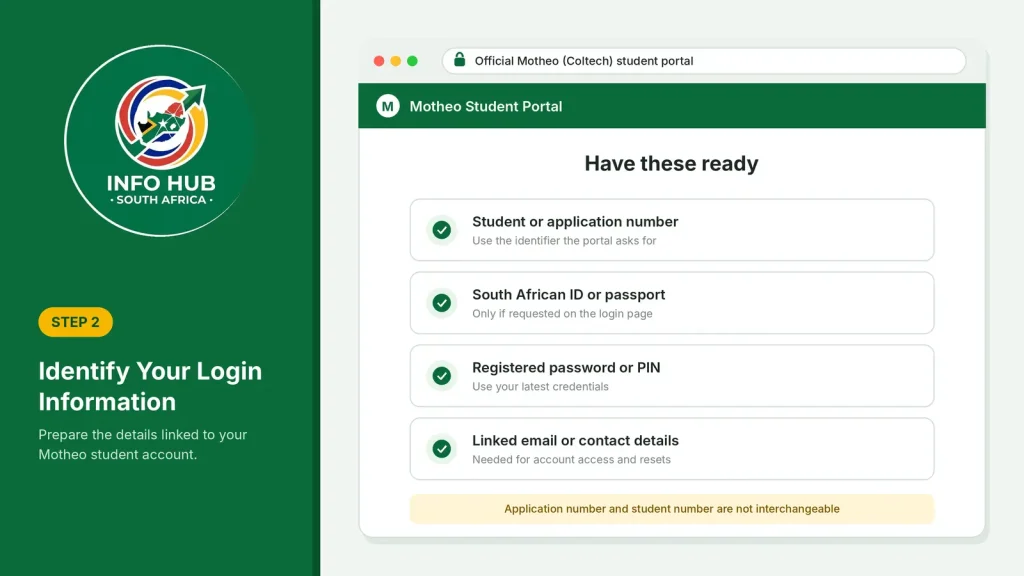
Keep the following information available:
Do not assume that an application number and a student number are interchangeable. Use the identifier requested by the portal.
Step 3: Enter Your Login Credentials
Type your account details into the relevant fields on the login page. Check for typing mistakes, unnecessary spaces and incorrect characters before proceeding.
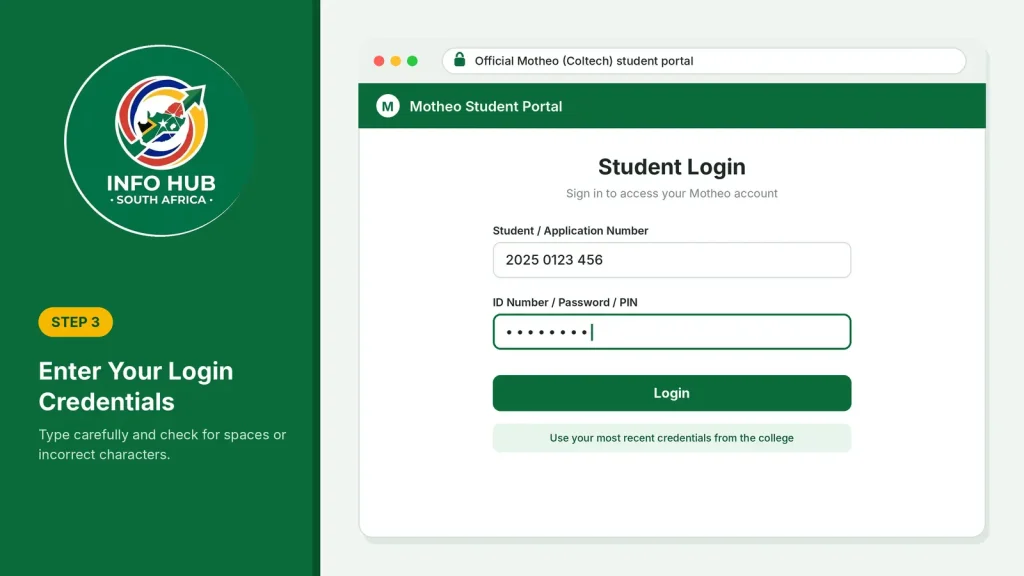
If you have recently received login credentials from the college, use those details rather than an older password that may no longer be valid.
Step 4: Submit Your Login Details
Select the login option displayed on the page. Allow the website a few moments to process your information.
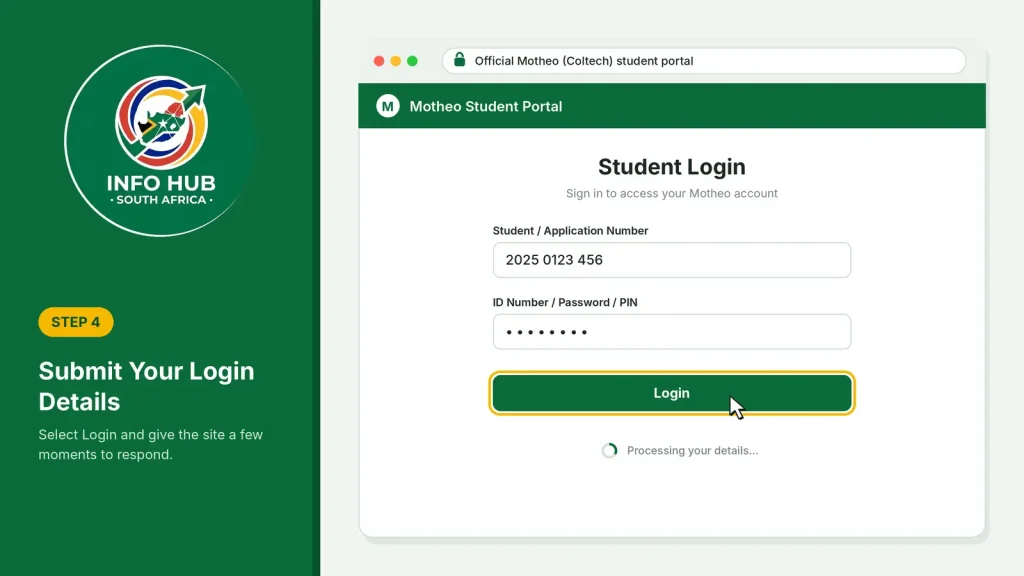
If your credentials are accepted, you should be directed to the relevant account area or student dashboard. The information available after login will depend on your account permissions.
Step 5: Navigate to the Required Service
Once you have entered your account, look for the relevant section. Depending on what Motheo has enabled for your profile, this may include application information, registration-related services or academic details.
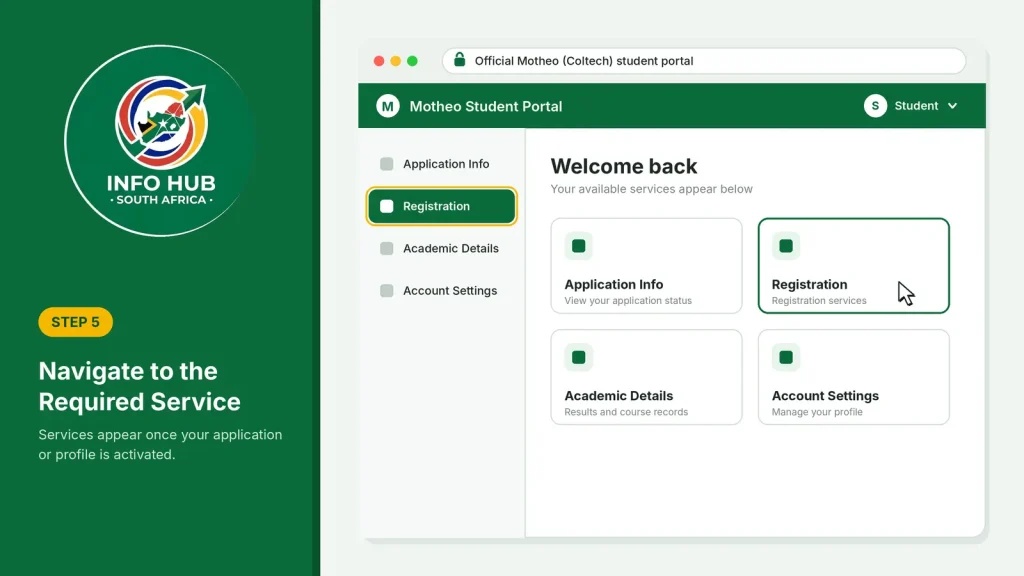
If you cannot find a particular feature, do not assume that your account is faulty. Some services may only become available after the college has processed your application or activated your student profile.
Important: Always log out after using the Motheo student portal, particularly when accessing your account from a public computer or shared device.
What You Need Before Using the Motheo Student Portal
Having the correct information ready can prevent unnecessary login attempts and delays. The requirements may differ between applicants and registered students.
| Requirement | Why it matters |
|---|---|
| Internet connection | Allows your device to communicate with Coltech |
| Updated browser | Helps the login page load correctly |
| Student number | Identifies an existing student account, where required |
| ID or passport details | May be requested for account identification |
| Password or PIN | Used to authenticate your login |
| Registered email address | May be needed for account recovery and communication |
International applicants should use their passport information where the college’s application or account process requests it.
Motheo Student Portal Login Password: How to Handle Forgotten Passwords
Forgetting your password is a common reason students cannot access their online accounts. If you are having trouble with the Motheo student portal login password, first check whether you are entering the correct credentials.
A password may fail because of an incorrect character, an outdated password, a keyboard setting or an account-related issue.
Before trying again, consider these checks:
- Confirm that Caps Lock is switched off if your password is case-sensitive.
- Check whether you have accidentally included a space before or after your password.
- Make sure you are using the password associated with your Motheo account.
- Confirm that you are on the official Coltech login page.
- Avoid repeated attempts with different passwords if you are unsure of the correct one.
If the login page provides a password recovery option, follow the instructions displayed there. If no recovery option is available or the process does not work, contact the college for assistance.
Remember: Never share your password, PIN or one-time verification details with another person. College staff should not need you to disclose your private password to investigate a login problem.
How to Check Motheo Student Portal Results
Checking examination results is one of the main reasons students search for the Motheo student portal results page. Students want to know whether their marks have been released, whether they have passed their subjects and whether they can progress to the next level of their programmes.
The portal may provide access to academic information for registered students, depending on the services enabled by the college. Follow these steps to look for your results.
Steps to View Your Motheo TVET College Results
Step 1: Visit the student login page
Open the official Motheo Coltech student portal using your browser.
Step 2: Sign in to your account
Enter the login details associated with your student profile. Make sure you use your current credentials.
Step 3: Open your academic information
After signing in, look for an academic, examination or results-related section if one is available on your dashboard.
Step 4: Select the relevant academic period
If the portal provides an option to select a semester, examination period or academic year, choose the period for which you want to view your marks.
Step 5: Review your results
Check the subjects listed and review the marks or academic outcomes displayed. Save or print the information if the system provides a download or print option.
What If Your Motheo Student Portal Results Are Not Showing?
There are several reasons why your marks might not appear immediately.
If your classmates can see their marks but yours are missing, contact the relevant college department and ask them to check your academic record.
Do not rely on unofficial social media posts or messages claiming that results have been released. Confirm your academic information through the college’s recognised communication channels.
Motheo Student Portal Status Check: How to Track Your Application
The Motheo student portal status check is particularly important for applicants who have submitted an application and are waiting for feedback.
After applying to Motheo TVET College, applicants naturally want to know whether their documents have been received, whether their application is being assessed and whether an admission decision has been made.
The first place to check is the online account associated with your application.
How to Check Your Motheo Application Status
- Open the official Coltech website: Visit the Motheo student login page.
- Enter your application details: Use the credentials or identification information associated with your application.
- Access your account: Submit the required details and wait for the system to respond.
- Look for application information: Check whether your dashboard displays an application or admission section.
- Review the latest information: Read any available messages, status updates or instructions carefully.
- Follow up if necessary: If the status is unclear or has not changed for a long time, contact the college.
Understanding Common Application Status Messages
The wording used by online application systems can vary. The following table explains common application terms you may encounter. These are general descriptions, not confirmation that Motheo uses every status label.
| Application status | What it generally means |
|---|---|
| Submitted | Your application has been sent through the online system |
| Received | The institution has received your application information |
| Pending | A decision or further processing is still outstanding |
| Under Review | Your application is being assessed |
| Incomplete | Some required information or documents may be missing |
| Accepted | You have received an admission offer |
| Unsuccessful | Your application was not approved |
| Registration Required | You may need to complete the next registration process |
A useful tip: Keep your application number safe after submitting an application. It can help the college identify your record when you enquire about a delayed or unclear status.
What to Do When Your Application Status Does Not Change
An unchanged status does not automatically mean that your application has been rejected. Applications may take time to process, particularly when the college receives a large number of submissions.
If you have been waiting for an update:
Avoid submitting another application simply because your existing status has not changed. First establish whether your original application is still being processed.
Motheo Student Portal Registration: How to Complete the Process
Registration is an important stage for students who have been admitted or are continuing their studies at Motheo TVET College.
The Motheo student portal registration process allows eligible students to access the relevant online registration services where these are made available by the institution.
However, admission and registration are not the same thing. Receiving an application outcome does not necessarily mean that you have completed your registration.
What to Prepare Before Registering
Before starting your registration, make sure you have the relevant information available:
The exact requirements may differ depending on your qualification, student category and registration period.
How to Register Through the Motheo Student Portal
Step 1: Access your account
Visit the official Motheo Coltech login page and sign in using your existing student credentials.
Step 2: Check your admission information
Confirm that your application or admission information is available. If you have not received an admission outcome, contact the college before assuming that you can proceed with registration.
Step 3: Find the registration section
Look for a registration or student administration option on your dashboard, if available.
Step 4: Review your programme details
Check the programme information and any registration instructions presented by the system. Make sure that the details correspond with the course or qualification for which you have been accepted.
Step 5: Follow the displayed instructions
Complete the required fields and provide the requested information. Do not submit incorrect personal or academic details just to move to the next page.
Step 6: Confirm your registration
If the system provides a final submission or confirmation step, complete it and keep any reference number or confirmation message.
How to Know Whether Your Registration Is Complete
After following the registration instructions, check whether the portal displays a confirmation or updated registration information.
Keep a copy of any confirmation that the system makes available. If you are unsure whether your registration has been finalised, contact Motheo TVET College directly.
Important: Registration dates, programme availability and admission requirements can change. Always follow the latest instructions issued by the college rather than relying on dates from previous academic years.
Motheo TVET College Online Application Portal 2027
Students who want to study at Motheo TVET College in 2027 should understand the difference between the online application process and the existing student login system.
The Motheo TVET College online application portal is intended for prospective students who want to apply for admission. The student portal, on the other hand, is used to access an existing account and the services made available to that user.
Although both processes are connected to the college’s online administration, they should not be treated as exactly the same service.
How to Apply to Motheo TVET College for 2027
If you are planning to apply for the 2027 academic year, follow the application instructions published by the college.
- Visit the college’s application platform: Find the current online application instructions issued by Motheo TVET College.
- Choose your preferred programme: Review the available courses and select a programme that matches your qualifications and career interests.
- Enter your personal information: Complete the requested details accurately, using your ID or passport information where applicable.
- Provide your educational information: Enter your previous school or qualification details as requested.
- Upload supporting documents: Attach the documents required by the application system. Check that each file is readable.
- Review your application: Correct any mistakes before submitting the form.
- Submit and keep your reference details: Save your application number or confirmation information for future enquiries.
Documents to Prepare for an Online Application
The exact documents depend on the programme and the college’s current admission requirements. Applicants should prepare the following where requested:
Do not upload documents simply because they appear on an old application checklist. Follow the requirements for the particular 2027 application period.
Motheo Coltech Online Application 2027: Important Advice
When searching for the Motheo Coltech online application 2027, make sure you are using the correct application process rather than the existing student login page.
An applicant who has never registered with the college should not assume that an ordinary student login will create a new application automatically.
Similarly, students who already have accounts should use their existing credentials when accessing student services.
If you have already submitted your 2027 application, keep your application reference details and use the relevant account or communication channel to follow up on your admission progress.
Coltech Student Portal Login: Services Students May Need
The Coltech platform provides the online access environment used for Motheo student accounts. The available services depend on the user’s account and the features activated by the college.
Here are some of the main areas students may need to access.
1. Student Account Information
Your online account is the starting point for accessing available student services. Keep your personal information accurate and follow the college’s instructions if any details need to be corrected.
2. Academic Information and Results
Registered students may need to access examination information, academic records or results when these services are made available.
3. Registration Information
Students progressing to another academic period should check the registration instructions and any outstanding requirements communicated by the college.
4. Application and Admission Updates
Prospective students can use their relevant application account or the process specified by Motheo to follow up on admission-related information.
5. Financial Information
If financial services are enabled for your account, check the available information for payment records or account-related details. Contact the college if you need an official statement or clarification about outstanding fees.
Please note: These are areas students may need to access; they are not a guarantee that every service appears on every Motheo Coltech dashboard.
Common Motheo Student Portal Login Problems and Solutions
Sometimes students cannot access the portal even when they believe their login details are correct. The problem may be related to the browser, account credentials or temporary system issues.
Use the following troubleshooting suggestions before contacting the college.
| Problem | What you can try |
|---|---|
| Incorrect password | Check your password and try the official recovery process if available |
| Student number not accepted | Confirm that you are entering the correct account identifier |
| Page not loading | Refresh the page or try another browser |
| Dashboard not opening | Sign out, reopen the official login page and try again |
| Results missing | Check whether results have been released |
| Registration option unavailable | Confirm your admission and registration eligibility |
| Website displaying an error | Try again later if the system is temporarily unavailable |
Browser and Internet Connection Problems
A slow or unstable internet connection can prevent the login page from loading correctly.
Try these practical solutions:
If the problem continues across different browsers and devices, it may require attention from the college’s technical support team.
When Should You Contact Motheo TVET College?
Contact the institution if you cannot recover your password, your student number is not recognised, your account appears to be blocked or your academic information is incorrect.
The contact details supplied for Motheo TVET College are:
When sending an enquiry, explain the problem clearly. Include your name, student or application number where appropriate, and a description of the error.
Never include your password in an email.
FAQs
Conclusion
The Motheo student portal is an important online access point for applicants and students who need to manage their college-related information through the Coltech system. From accessing an existing student account to checking available academic information and following registration instructions, understanding the login process can help you avoid unnecessary delays.
If you are a new applicant planning to study in 2027, make sure you follow the correct application procedure rather than relying only on the existing student login page. Current students should keep their login credentials secure and check their accounts for relevant academic and administrative updates.
If you experience difficulties, contact Motheo TVET College directly for assistance instead of repeatedly attempting to access an account that may require administrative support.
For more South African university, TVET college and government service guides, visit Info Hub South Africa, where you can find practical information to help you navigate important online portals and student services.
Read More
GEHS Login South Africa 2026: Online Login, Password Reset & Status Check Guide
Television Licence South Africa: Online Application, Status Check & SABC TV Licence Guide 2026
Coastal College Online Application 2027: How to Apply & Check Status