CIDB Login South Africa 2026: Sign In & Online Portal Guide
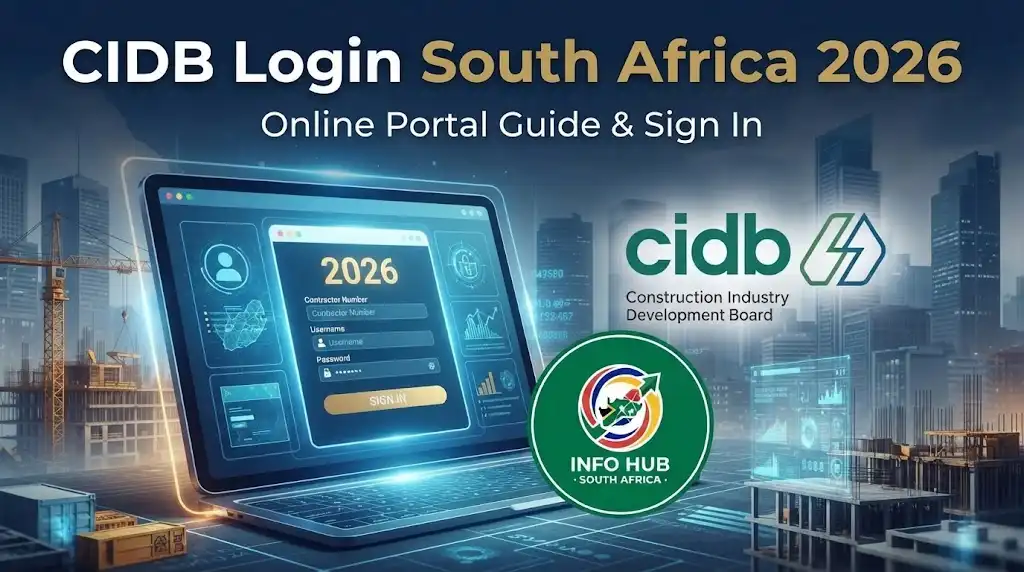
Finding the correct cidb login page is the first step when you want to manage a contractor registration, submit an application, update your details or handle other CIDB services online. The Construction Industry Development Board (CIDB) provides a digital platform known as eRoC for contractor applications and registration-related services.
For contractors who already have an online profile, the cidb online login process requires the details associated with the contractor’s CIDB registration. New applicants can create an online profile before proceeding with an application.”Visit Homepage for more”.
What Is the CIDB?
The Construction Industry Development Board (CIDB) is the statutory body responsible for supporting and regulating South Africa’s construction industry under the CIDB Act 38 of 2000. One of its key responsibilities is maintaining the Register of Contractors (RoC), which classifies contractors across nine grading levels according to their capacity to undertake construction work.
For public-sector projects, CIDB registration is an important requirement. Government clients generally cannot award construction work to a contractor that is not registered with the CIDB or whose grading is below the applicable tender value limit.
Contractor registration and related services are managed through the Construction Industry Management System (CIMS). Contractors can use the official CIDB platform to access relevant registration and account services.
The Grade 1 category provides an entry route for new contractors without an established construction history. According to the supplied information, Grade 1 does not require financial statements or previous project experience, costs R450 per class of works, and can be activated within 48 working hours.
Quick CIDB Login Information
| Item | Information |
|---|---|
| Organisation | Construction Industry Development Board |
| Country | South Africa |
| Online contractor system | eRoC |
| Main website | cidb.org.za |
| Main contractor services | Registration, upgrades, renewals, annual updates and changes |
| Existing-user login details | CRS number, email address and password |
| New-user profile | CSD number and email address |
The CIDB’s current instructions state that existing applicants can access their profile using their CRS number, email address and password. New applicants are instructed to use their Central Supplier Database (CSD) number and email address when creating an online profile.
How to Find the Official CIDB Login
If you have searched for “cidb login online”, avoid relying on unofficial websites that ask for sensitive account information. Start from the official CIDB website and navigate to the contractor registration service.
Step 1: Open the CIDB Website
Open your browser and visit the official CIDB website:
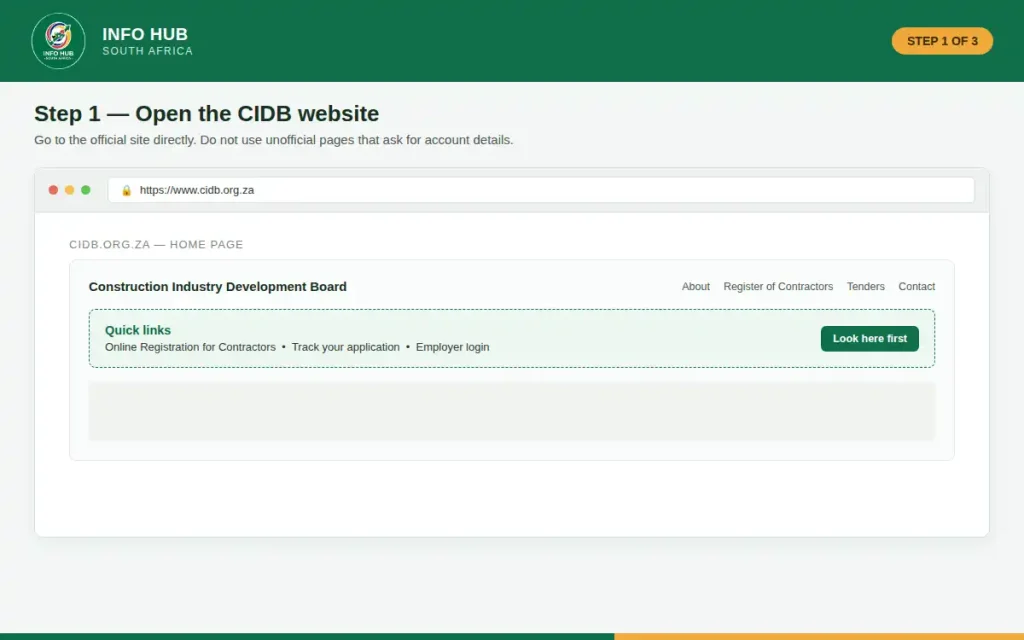
Look for the Online Registration for Contractors service. CIDB describes this service as its digital platform for contractor applications and registration activities.
Step 2: Select Online Registration for Contractors
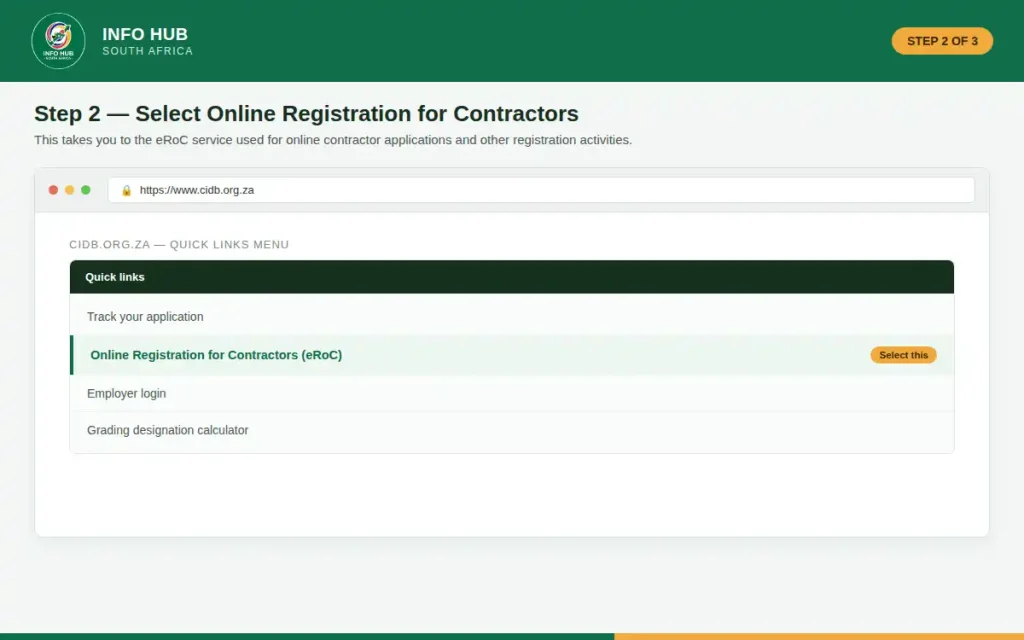
Choose the online contractor registration option from the CIDB website. This takes you towards the eRoC service used for online contractor applications.
The portal is designed to handle different registration-related activities, so you do not necessarily need a separate system for every CIDB service.
Step 3: Sign In With Your Existing Details
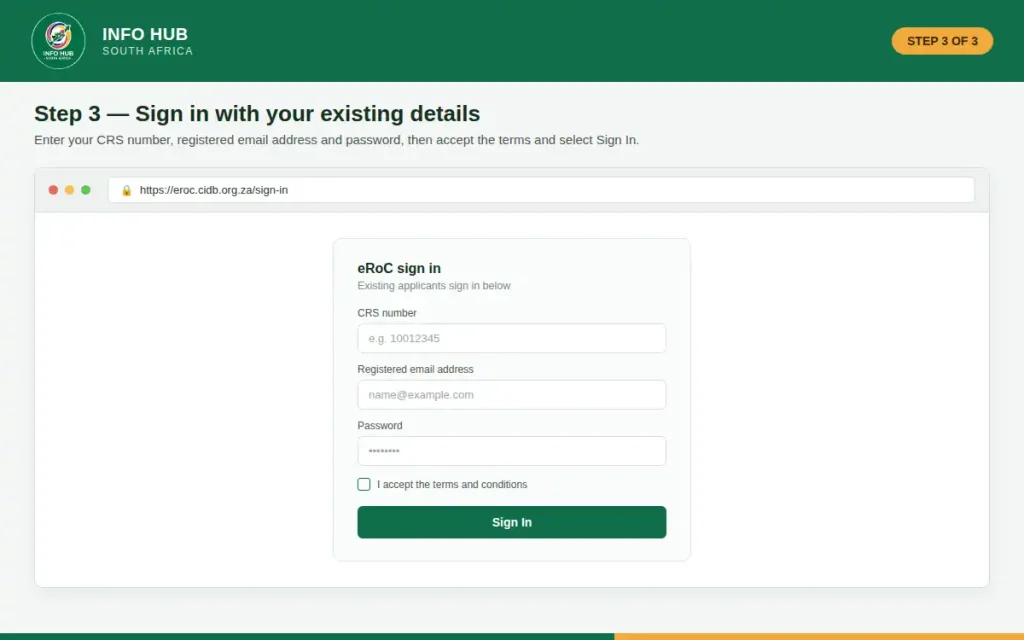
If you already have a CIDB online profile, the official instructions say that existing applicants should enter:
After entering the information, select Sign In to continue.
This is the main cidb registration login route for existing applicants.
How to Create a CIDB Online Profile
If you are using the service for the first time, you should create an online profile before attempting to manage your application.
CIDB’s current profile instructions are different for new and existing applicants. New applicants are directed to enter their CSD number and email address, accept the terms and conditions, and then receive login details by email. The system requires the user to change the supplied password to a new one.
New Applicant Process
Start with the official CIDB website → Online Registration for Contractors → Register.
You will then need to provide the information requested by the portal. Make sure the email address you use is active because CIDB sends your login information to the address supplied during profile creation.
Once your profile has been activated, keep your login details secure. Do not share your password with another person or enter it on an unofficial website.
What Should You Prepare Before Using CIDB Online Login?
Preparing your information before starting can reduce interruptions during the application process. The exact requirements depend on the service and grading you are applying for, so contractors should always check the relevant CIDB requirements rather than assuming every application needs the same documents.
For higher-grade applications, CIDB considers factors such as construction track record and available capital. Its grading guidance explains that projects completed within the relevant period can be used when assessing track record, while financial information is considered when determining available capital.
For Grade 2 to 9 applications, documents may need to be uploaded through eRoC. CIDB currently states that documents uploaded through eRoC for Grades 2–9 must be in PDF format, with each uploaded document not exceeding 500 MB.
Before beginning, therefore, have relevant business and application information available, including:
Do not upload documents simply because they appear on an old checklist or third-party website. Requirements can change, so use the official CIDB instructions for the application you are completing.
Choosing the Right CIDB Grade
A CIDB grade indicates the level of construction work for which a contractor is registered. The grading assessment takes into account construction experience and financial capacity.
CIDB explains that Grades 2 to 9 require supporting documentation, while the grading process considers completed construction projects and available capital.
The higher grades have higher tender-value limits. Grade 9 has no upper tender-value limit listed in the CIDB grading information, while lower grades have specified limits.
Choosing a grade should therefore be based on your actual business position rather than simply selecting the highest available option.
A Useful Tip Before Applying
Check your tax compliance before starting an online application. CIDB states that annual tax compliance is required to remain actively registered and that non-compliance can prevent contractors from upgrading or renewing their status.
This can save time because an application may be affected if your tax information is not in the required state.
What Can You Do After CIDB Login?
Once you successfully access the eRoC system, the available services depend on your contractor profile and circumstances. CIDB lists several online services, including new registrations, upgrades, additions of classes of works, renewals, Potentially Emerging status, changes of particulars and annual updates.
For example, an existing contractor may use the portal to start an annual update rather than submitting the process entirely offline. CIDB’s current annual-update instructions require the contractor to sign in, start an application, select Annual update, verify company information, complete the declaration and proceed to payment.
That makes the cidb online login particularly useful for contractors who need to keep their registration information current.
What You Need Before Starting a CIDB Application
A little preparation can make the cidb online login and application process much smoother. CIDB currently lists an active email address, CSD number and suitable payment method among the requirements for online applications. Existing clients also need their CRS number.
For first-time eRoC users, CIDB specifically advises having a CSD number, accessible email address, cellular phone number and a bank card available. The current CIDB guidance says the bank card should be Visa, Mastercard or American Express with at least R450 available.
Keep your business information available before you begin, particularly if you are applying for a grade that requires supporting evidence. This can include company registration information, director or principal details, tax compliance information, track-record documentation and financial records, depending on the application.
CIDB Registration Login for New Users
New users should not try to use another contractor’s credentials. Instead, create your own eRoC profile through the official CIDB website.
The current CIDB profile process is:
- Go to the official CIDB website and select Online Registration for Contractors.
- Choose Register.
- Enter your CSD number.
- Confirm the company information displayed by the system.
- Enter your contact information, including your email address.
- Submit the registration.
CIDB states that the system sends the login details to your email address. These include a password and CRS number, and the system requires you to replace the generated password with one you choose. Your CRS number serves as the company’s unique identity on the CIDB Register of Contractors and forms part of the information used when accessing eRoC.
Important: Keep the CRS number and password somewhere secure. Losing these details can make future applications and updates more difficult.
Existing Users: How the CIDB Login Works
If you already have an eRoC profile, the cidb login is straightforward. Go to Online Registration for Contractors, then enter your CRS number, email address and password.
Accept the terms and conditions and select Sign In. These are the current login details specified by CIDB for repeat eRoC users.
If the login fails, do not immediately create another profile. First check that you are using the correct CRS number, email address and password associated with your existing registration.
How to Apply for a CIDB Grade Online
CIDB registration is based on grading designations. The appropriate grade depends on factors such as the contractor’s financial capability and construction capability.
The Register of Contractors has nine grades. CIDB’s current guide shows that the tender-value limits increase as the grade increases, with Grade 9 having no upper tender-value limit.
A simplified view is:
| Grade | Maximum tender value |
|---|---|
| Grade 1 | R500,000 |
| Grade 2 | R1 million |
| Grade 3 | R3 million |
| Grade 4 | R6 million |
| Grade 5 | R10 million |
| Grade 6 | R20 million |
| Grade 7 | R60 million |
| Grade 8 | R200 million |
| Grade 9 | No limit |
These limits are useful when deciding which grade may match your business capacity. However, selecting a higher grade does not by itself guarantee approval; the contractor must meet the applicable qualifying requirements.
Grade 1 Applications
Grade 1 is the entry-level designation. CIDB has moved contractor applications onto its digital eRoC platform, and its current FAQ states that Grade 1 applications are processed immediately, while Grades 2–9 are processed within 21 working days.
After signing in, follow the application options displayed by eRoC, provide the requested information, complete the declaration and proceed to payment.
Do not assume that information from an old third-party Grade 1 checklist is still current. Use the requirements shown by CIDB when you submit your application.
Grades 2 to 9
Applications for Grades 2–9 involve more supporting information. CIDB states that these applications require documents to be uploaded through eRoC in PDF format. Each uploaded document must not exceed 500 MB, and CIDB says certification is not required for these uploaded documents.
Depending on the application, supporting documents can include:
CIDB’s current guidance for applications involving additional or higher grades lists these types of documents and notes that further information may be requested for verification.
Uploading Documents Correctly
Before uploading anything, check that the file opens correctly and contains all pages. PDF is the required format for documents uploaded for Grades 2–9.
A common mistake is submitting a photograph or an unsupported document format when the portal expects PDF. If you have paper documents, scan them clearly and combine related pages into a readable PDF where appropriate.
Also check the size of every file. CIDB currently states that each document uploaded to eRoC must not exceed 500 MB.
Paying for Your CIDB Application
Payment is an important part of the online application. CIDB’s eRoC payment guidance lists three possible methods:
The portal displays the total application cost after the relevant application and grade information has been entered.
Use only the payment instructions supplied through the official CIDB system. CIDB specifically warns users about scams involving redirects to other bank accounts and advises contractors to use the official payment information.
Safety tip: If a person contacts you claiming they can complete your CIDB application through a private payment arrangement, verify the information directly with CIDB before sending money.
CIDB Application Processing Time
Processing time varies according to the application.
CIDB’s current eRoC FAQ states that creating an online profile takes approximately 10–15 minutes, depending on whether you are a new or existing user. It also states that Grade 1 registration is an immediate process, while Grades 2–9 applications are processed within 21 working days.
This should not be confused with the time needed to gather documents, correct information or resolve verification issues. A contractor can save time by checking all information carefully before submitting.
How to Complete a CIDB Annual Update
Annual updates are particularly relevant to contractors registered in Grades 2–9. CIDB explains that grades must be updated annually during the three-year validity period, while annual updates do not apply to Grade 1 contractors.
The current eRoC annual-update process is:
Sign in → Start application → Annual update → Verify company information → Complete declaration → Submit → Make payment.
CIDB’s instructions state that after payment through the secure online payment process, the application is activated immediately.
Before starting an annual update, check that your company details, contact information and tax compliance position are current.
Renewing Your CIDB Registration After Three Years
A CIDB grade is generally valid for three years and must be renewed after the regulated validity period. CIDB provides a three-year renewal service through eRoC.
For a renewal, the portal requires you to sign in with your CRS number, email address and password, start an application, select 3-year renewal, verify the company information and choose the relevant class and grade.
Grades 2–9 may require supporting documentation for the renewal. CIDB lists company registration documents, director IDs, shareholder certificates, tax compliance information, track record, recent financial statements and recent bank statements or VAT documentation among the documents that may be required.
CIDB Grade Upgrade
If your construction business has grown and you believe it now qualifies for a higher designation, eRoC also provides an upgrade application.
After the cidb registration login, select Start application, choose Upgrade, review your registered grades and classes of works, and select the grade and class you want to upgrade.
The application then moves through the declaration and payment stages. For Grades 2–9, relevant supporting documents must be supplied as required by CIDB.
A higher grade should be supported by genuine financial and construction capability. Applying for a grade simply because it has a higher tender limit does not replace the qualification requirements.
CIDB Login Problems and How to Fix Them
Even when the CIDB portal is working normally, users can sometimes experience problems during sign-in or while completing an application. Before contacting support, check the information you entered and confirm that you are using the official CIDB service.
Forgot Your CIDB Password?
If you cannot remember your password, use the password-recovery option provided on the eRoC login page rather than creating another account.
Make sure you enter the email address associated with your CIDB profile. If you no longer have access to that email account, contacting CIDB support is the safer option because creating a second profile may cause confusion with your existing registration.
CIDB Login Not Working
If your cidb login online attempt fails, check these points:
If the problem continues, use the official CIDB support channels rather than giving your login information to an unofficial agent.
What If Your Application Is Returned or Requires
More Information?
A submitted application may require attention if information is missing, documents cannot be verified or additional evidence is requested.
Do not assume that a returned application means your business has permanently failed the CIDB requirements. First read the notification or status shown in the portal and identify exactly what needs to be corrected.
For Grades 2–9, CIDB’s process involves supporting documentation and assessment. The board can request further information where verification is required. (cidb.org.za)
A useful approach is to correct only the issue identified by CIDB, review the entire application for related errors and then resubmit the requested information through the official system.
Keeping Your CIDB Information Up to Date
Registration is not simply a one-time process. Contractors need to maintain their registration information and comply with the applicable update and renewal requirements.
CIDB states that Grades 2–9 must be updated annually during their three-year validity period. The organisation also requires contractors to remain tax compliant to maintain active registration. (cidb.org.za)
If your company changes important information, such as its particulars, ownership-related information or contact details, check the eRoC services available for updating those details.
This is one reason keeping access to your cidb registration login is important. Your online profile can remain relevant throughout the life of your contractor registration.
CIDB Online Login Checklist
Before submitting an application, use this short checklist:
FAQs
Conclusion
The cidb login, cidb online login and cidb registration login processes all begin with the official CIDB online services. Existing applicants need their CRS number, registered email address and password, while new applicants first create an eRoC profile using their CSD number and email address.
The most important step is to use the official CIDB website rather than an unofficial registration service. Once inside eRoC, contractors can access services such as new registrations, grade upgrades, renewals and annual updates, depending on their circumstances.
For contractors using the system in 2026, keeping company information, tax compliance and supporting documents current can make future applications and updates much easier. If you encounter a problem, check the official instructions first and use CIDB’s own support channels when further assistance is necessary.
Info Hub South Africa provides this guide to help readers understand the CIDB online process. Always verify application requirements, fees, processing information and contact details on the official CIDB website before submitting information or making a payment.
Read More
Majuba Student Portal South Africa 2026: Student Login, Registration & Complete Portal Guide
Matric Results 2026 Online Check South Africa: Get Your NSC Results Instantly
CUT Status Check South Africa 2026: Complete Application and Admission Guide
SANC eRegister South Africa 2026: Login, Registration & Status Check
Learners Licence Booking South Africa 2026: Requirements, Steps & Fees