MyTutor South Africa: Login, Registration, Online Tutoring & Student Guide 2026

Students at the Tshwane University of Technology (TUT) use myTUTor to access their online learning environment, course materials and other digital academic resources. The platform is powered by D2L Brightspace and is designed to bring important learning activities into one online space.
If you are looking for myTUTor login, TUT ITS login, or the correct way to access your TUT online learning account, this guide walks you through the process from start to finish.
The official TUT myTUTor page is the best starting point if you need current login instructions, support information or guidance about accessing the LMS.”Visit Homepage for more”.
What Is myTUTor at TUT?
myTUTor is the official Learning Management System used by the Tshwane University of Technology. It provides registered students with an online environment where they can engage with digital teaching and learning material.
Instead of visiting different systems for every online learning task, students can use myTUTor as a central academic workspace. Depending on their modules and course requirements, students may find learning content, activities, assessments and other resources within their module areas.
TUT also provides a Student Orientation Module for registered students. This helps new users become familiar with the D2L Brightspace environment and understand how the platform works.
What can students use myTUTor for?
The platform can support several parts of the learning process, including:
The exact content you see after a myTUTor login depends on your registration and the modules connected to your account.
myTUTor Login Requirements
Before attempting a TUT myTUTor login, make sure you have the correct account details. TUT’s official login requirements state that students use their TUT4Life email address as the username, while the password is their own account password. Staff use their TUT email address and Active Directory password.
For students, the login information follows this general format:
| Requirement | Student information |
|---|---|
| Platform | TUT myTUTor |
| LMS | D2L Brightspace |
| Username | Your TUT4Life email address |
| Example | [email protected] |
| Password | Your TUT4Life password |
| Internet | Reliable internet connection |
| Security | Multi-Factor Authentication may be required |
It is worth checking your credentials before you begin. A correct myTUTor login depends on having an active TUT4Life account and the appropriate password.
Related Posts
TUT Late Applications 2026 in South Africa: Complete Guide to Apply Before the Closing Date
TUT Status Check 2026/2027: How to Check Your Application Status Online
How to Access myTUTor Login
Getting into myTUTor does not require you to search through several unofficial websites. Use the TUT LMS address provided by the university.
Step 1: Open your browser
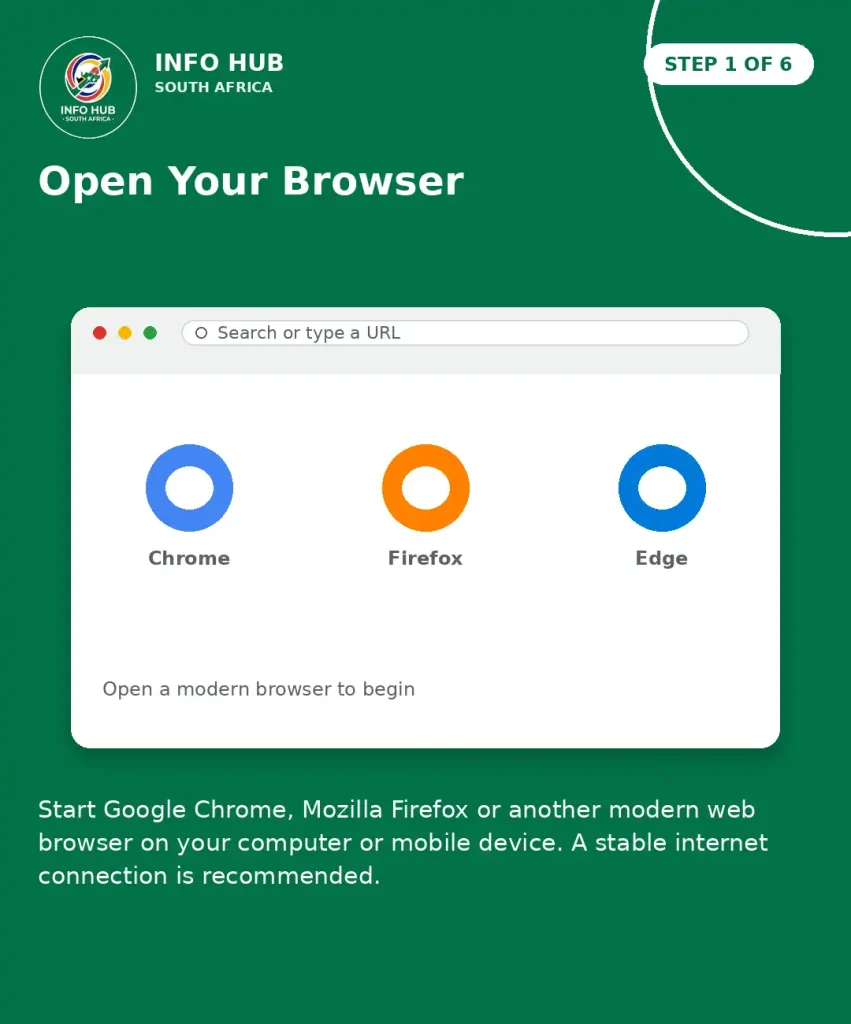
Start Google Chrome, Mozilla Firefox or another modern web browser on your computer or mobile device.
A stable internet connection is recommended, particularly when you are opening course materials, watching learning videos or submitting online work.
Step 2: Open the TUT myTUTor LMS
Go to the official TUT myTUTor LMS address:
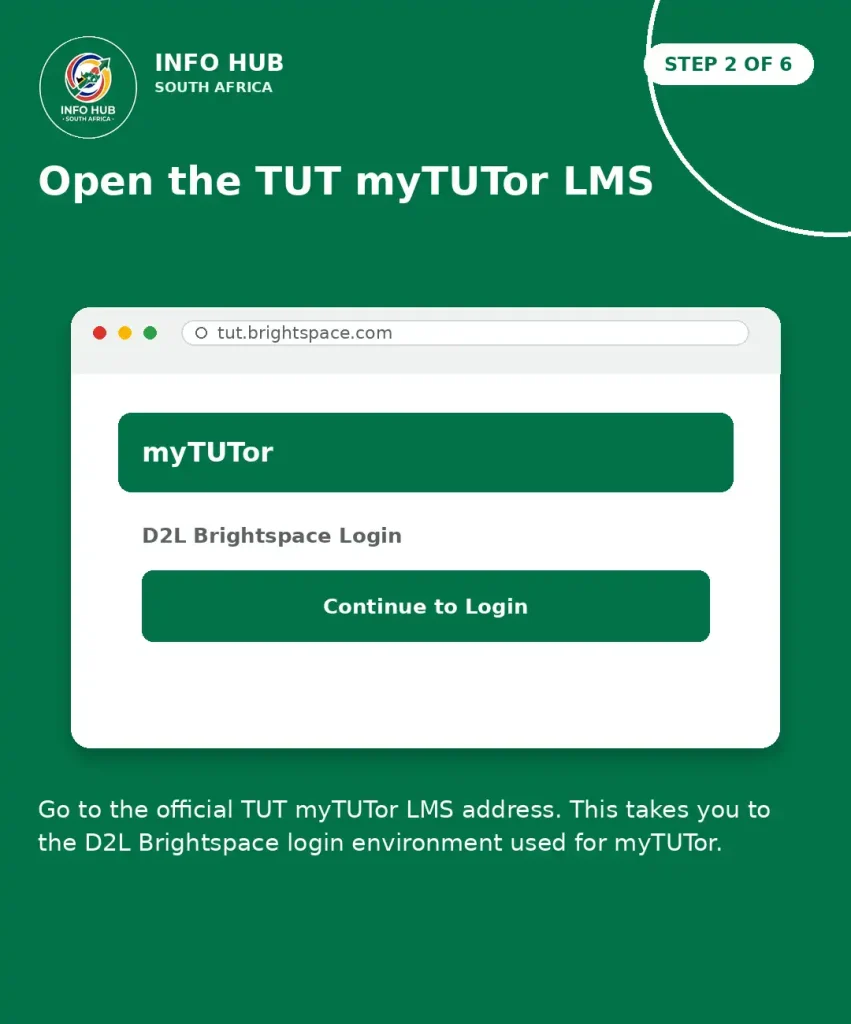
This takes you to the D2L Brightspace login environment used for myTUTor.
If you arrive through the main TUT website instead, select the myTUTor section and follow the university’s current access instructions.
Step 3: Enter your TUT4Life email
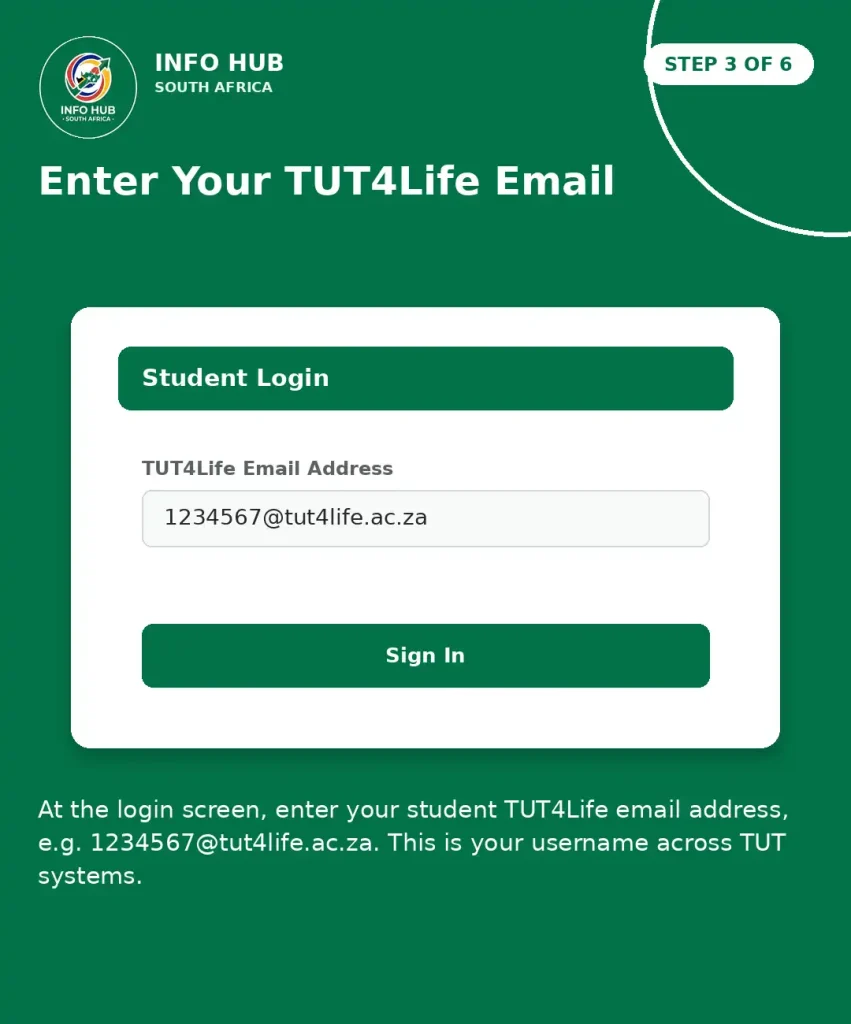
At the login screen, enter your student TUT4Life email address.
For example:
TUT’s published login requirements specifically identify the TUT4Life email address as the student username.
This is an important point for students searching for TUT ITS login information because your TUT4Life credentials are used across several TUT systems.
Step 4: Enter your password
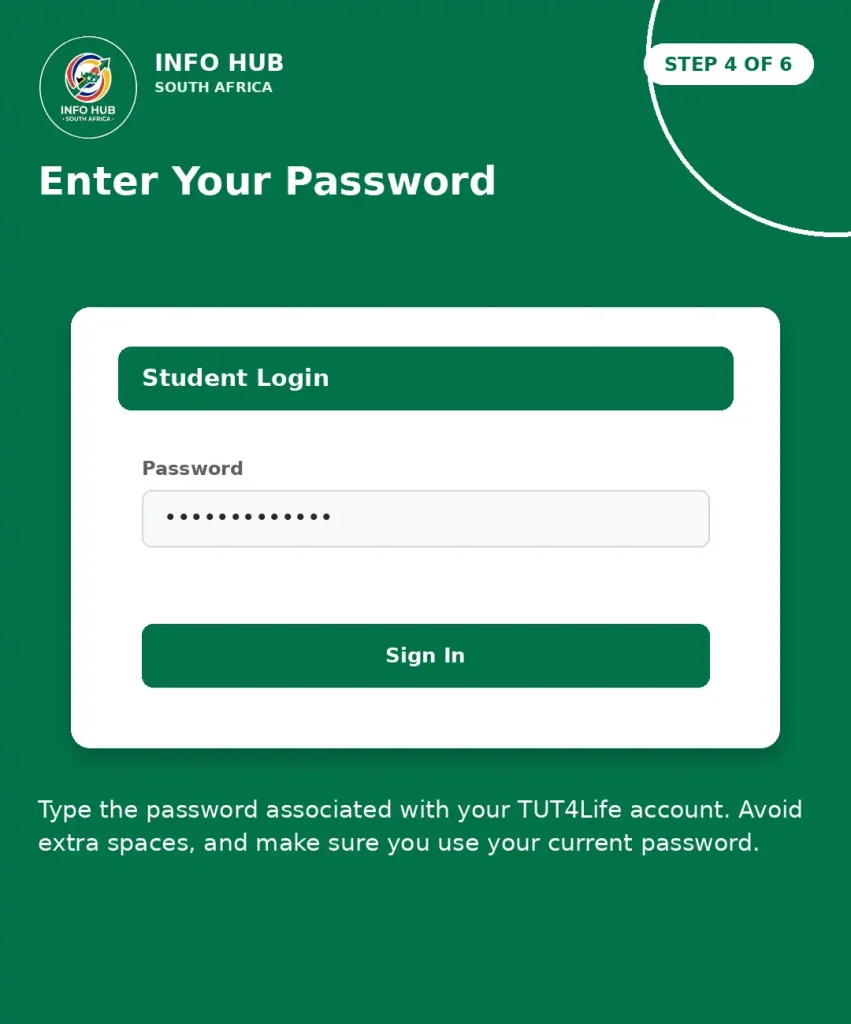
Type the password associated with your TUT4Life account.
Avoid copying a password with an accidental space at the beginning or end. If you recently changed your password, make sure you are using the new one rather than an older saved password.
Step 5: Complete the security check

TUT uses Multi-Factor Authentication (MFA) to help protect student accounts. The university states that MFA is required once every 24 hours for student login security.
Depending on your configured authentication method, you may need to approve the sign-in using Microsoft Authenticator, a cellphone text or another available verification method.
Step 6: Open your myTUTor dashboard

After your credentials and security verification are accepted, you should enter the myTUTor learning environment.
Your available modules and learning resources depend on your registration and the information synchronised with your account.
Quick Tip: Save the official myTUTor page in your browser bookmarks. This reduces the chance of accidentally using an unofficial login page when searching for “myTUTor login” or “TUT ITS login”.
TUT ITS Login vs myTUTor Login
A common source of confusion is the difference between TUT ITS login and myTUTor login.
These terms are sometimes used together when students are trying to access university services, but they do not necessarily refer to the same platform.
myTUTor is TUT’s online Learning Management System. TUT’s official documentation states that students access it through the D2L Brightspace LMS using their TUT4Life credentials.
The wider TUT technology environment contains other student systems as well. For example, the university’s Student Portal provides access to student-related services such as subject history, examination and graduation information, financial information and email-related services.
So, if your goal is to open your online course content, the service you are looking for is myTUTor, rather than simply searching for a generic TUT ITS login page.
What You See After a myTUTor Login
Once you successfully complete your myTUTor login, the dashboard becomes your starting point for online learning.
The exact layout can vary according to your account, modules and the current TUT system configuration. However, registered students can access their available module content through the LMS.
Your module area
Your registered modules are the main part of the academic workspace. Selecting a module can take you to the learning resources and activities made available for that subject.
You may find:
Not every module will use every available myTUTor feature. Lecturers and academic departments decide how digital learning resources are presented.
Student Orientation Module
New users should also look for the Student Orientation Module.
TUT provides this resource to help registered students learn how to navigate and use the D2L Brightspace LMS. It is particularly useful if this is your first time using myTUTor.
What If Your Modules Are Not Showing?
One of the first things students may notice after a successful myTUTor login is that an expected module is not visible.
Do not immediately assume that your password or login has failed. A successful login and module availability are two different things.
First, check that your registration has been completed correctly. TUT’s student regulations state that proof of registration may be required when a user has not been authenticated by the central ITS system.
If your registration is confirmed but the expected module still does not appear, contact the appropriate TUT support channel and provide the relevant registration information.
Before contacting support, check:
This basic check can save time when dealing with a myTUTor login or module-access problem.
myTUTor and TUT4Life: What Is the Difference?
The relationship between TUT4Life and myTUTor can be confusing for new students.
TUT4Life provides the credentials used to access several university services. TUT specifically states that TUT4Life credentials can be used for myTUTor, eduroam, computers in i-Centres and other TUT systems.
That means your TUT4Life account is important even when your immediate goal is simply to complete a myTUTor login.
If your TUT4Life password is not working, resolving the account issue may be necessary before you can successfully enter myTUTor.
Why Is MyTUTor Login Not Working?
There are several possible reasons your myTUTor login may fail. The most common include an incorrect username, an outdated password, an MFA problem, browser issues or an account that has not been properly activated.
For students, the username should be your full TUT4Life email address, rather than simply your student number.
For example:
If you are entering only 1234567, your TUT ITS login details may not be accepted by the myTUTor system.
Check these details first
Before trying another solution, confirm that:
If your credentials work on another TUT service but fail specifically on myTUTor, the problem may be related to the LMS or account synchronisation rather than the password itself.
Forgot Your TUT4Life Password?
Your TUT4Life password is important because it is used when accessing myTUTor. If you have forgotten your password, you may need to reset or update your TUT4Life account before attempting another myTUTor login.
Do not repeatedly guess passwords if you are unsure of the correct one. Multiple unsuccessful attempts can make troubleshooting more difficult.
Use TUT’s official account and password-management resources rather than third-party websites.
What to do after changing your password
Once you have successfully changed your TUT4Life password:
- Close any old myTUTor login tabs.
- Open a new browser window.
- Visit the official myTUTor login page.
- Enter your full TUT4Life email address.
- Enter the newly updated password.
- Complete MFA when requested.
- Check whether your dashboard loads correctly.
If you previously saved the old password in your browser, make sure the browser does not automatically insert the outdated credential.
Multi-Factor Authentication Problems
MFA provides an additional layer of security for your TUT account. During a myTUTor login, you may be asked to verify your identity after entering your normal credentials.
TUT’s official information states that MFA is required once every 24 hours for student login.
If the authentication request does not arrive, check the device or verification method connected to your account.
If MFA is not working
Try the following:
If you still cannot authenticate, the issue may require assistance from TUT’s technical support team.
MyTUTor Page Is Not Loading
Sometimes your username and password are correct, but the myTUTor page does not load properly.
This can happen because of a temporary browser problem, cached website data, an unstable connection or a service-side issue.
Start with the simplest solutions.
Refresh the page
Use your browser’s refresh button and wait for the page to load completely.
If that does not work, close the tab and reopen the official myTUTor login page.
Try another browser
If the problem continues, test the platform in another modern browser.
For example, if you normally use Chrome, try Firefox. This can help determine whether the problem is connected to your current browser rather than your myTUTor login account.
Clear cached website data
Old cached files can occasionally interfere with websites.
You can clear your browser’s cache and cookies, restart the browser and then attempt to access myTUTor again.
Avoid clearing everything unnecessarily if you have important saved browser information. Start with the website data relevant to the login problem where possible.
MyTUTor Works but My Module Is Missing
A missing module does not always mean that your myTUTor login has failed.
You may successfully enter the LMS while a particular course has not yet appeared in your dashboard.
First confirm that you are properly registered for the module. Then allow the university’s systems time to update the information.
If the module remains unavailable after your registration has been confirmed, contact TUT for assistance.
Check before reporting a missing module
| Check | What to confirm |
|---|---|
| Registration | Your registration is finalised |
| Account | You are using the correct TUT4Life account |
| Dashboard | You have checked your available modules |
| Internet | Your connection is stable |
| Browser | The LMS works correctly in another browser |
| Support | You have relevant registration information available |
This is especially useful for new students who have just completed registration and are waiting for their academic information to appear.
Can You Use myTUTor on a Phone?
Yes, accessing an LMS through a mobile device can be useful when you do not have immediate access to a computer.
For everyday tasks such as checking module information, reading material or reviewing announcements, a smartphone can be convenient. However, some activities may be easier on a larger screen, particularly when working with documents, completing detailed assignments or using complex learning resources.
For the best experience, keep your mobile browser updated and use a reliable connection.
If the mobile page behaves differently from the desktop version, try rotating your phone, refreshing the page or opening the LMS in another supported browser.
Can Students Use Campus Wi-Fi for myTUTor?
TUT students can use available university connectivity options when accessing online academic services. The information supplied for this guide also identifies eduroam as a campus Wi-Fi option.
When using campus Wi-Fi, make sure your device is correctly connected before starting a myTUTor login.
If other websites work but myTUTor does not, the issue may be specific to the LMS, your account or the browser session.
Common myTUTor Login Mistakes to Avoid
Small mistakes can prevent students from accessing their accounts.
Using only your student number
One of the most common mistakes is entering a student number where the full TUT4Life email address is required.
Instead of:
1234567
use the complete student email format:
Using an old password
If you have recently changed your TUT4Life password, do not continue using an older saved password in your browser.
Searching for unofficial login pages
Search engines can display many pages when you search for myTUTor login or TUT ITS login. Use the official TUT website and the university’s recognised LMS address whenever possible.
This reduces the risk of entering your university credentials on an unrelated website.
Ignoring MFA
Entering your password is not necessarily the final part of the login process. If TUT asks you to complete MFA, you must finish the verification step before access can be granted.
What Information Should You Give TUT Support?
If you need technical assistance, avoid sending a vague message such as “myTUTor doesn’t work”.
A more useful support request explains exactly what happened.
Include:
Never send your password to support or include it in screenshots.
Providing useful troubleshooting information can make it easier for the support team to identify the problem.
TUT myTUTor Technical Support
If you have worked through the basic troubleshooting steps and still cannot access your account, use TUT’s official support channels.
The information provided for this guide lists the following myTUTor Service Desk contacts:
Phone: +27 12 382 4427 / 0861 102 421 (Option 4)
Email: [email protected]
Reported service hours: 08:00–16:00
For general TUT enquiries, the supplied information lists:
Email: [email protected]
SMS: 30655
Because contact details and service arrangements can change, check the official TUT website before relying on older contact information.
Quick myTUTor Login Checklist
Before contacting support, run through this checklist:
If all of these checks are complete and the problem continues, contacting TUT support is the sensible next step.
Why Your TUT4Life Account Matters
Students sometimes treat myTUTor login and TUT4Life as completely separate accounts. In practice, the credentials are closely connected.
TUT’s information explains that TUT4Life credentials can be used for myTUTor as well as other university services.
This means that keeping your TUT4Life account active and your password up to date is an important part of maintaining access to your online learning environment.
How to Use myTUTor After Login
Once your myTUTor login is successful, the dashboard becomes your main online learning workspace. The information available to you depends on the modules you are registered for and the content provided by your lecturers.
The platform is built on D2L Brightspace, so students may see different sections for course content, activities and assessments depending on how each module has been set up.
For new users, it is worth spending a few minutes exploring the dashboard before starting your academic work. This can help you find your modules, understand where resources are stored and avoid missing important activities.
Finding Your TUT Modules
After signing in to myTUTor, look for the area displaying your available courses or modules.
Your modules are connected to your academic registration. If a particular subject is not visible, first confirm that you are registered for that module and that your registration information has been processed.
Select a module to enter its learning area. From there, the lecturer may provide different types of academic material.
Module content may include
The layout will not necessarily be identical for every subject. One lecturer may organise content by week, while another may arrange it according to topics or learning units.
Using Course Materials
The main purpose of myTUTor is to provide students with access to digital learning resources.
When you open a module, take some time to understand how the lecturer has organised the content. Look for headings, folders, learning units or other navigation options that identify the material you need.
If a lecturer uploads a document, you may be able to open it directly or save it to your device for later study.
A useful habit is to check your module regularly rather than waiting until an assessment is due. Announcements or newly added resources may appear between your normal study sessions.
Assignments and Online Assessments
Depending on your course, myTUTor may be used for assignments, quizzes, tests or other continuous assessment activities.
If an assignment submission area is provided, read the instructions carefully before uploading your work. Pay attention to the required file format, closing date and any instructions from your lecturer.
Before submitting an assignment
Check the following:
Do not assume that simply uploading a file means the task has been successfully submitted. Follow the submission process shown by the system and look for confirmation where available.
Checking Announcements and Module Updates
Regularly checking myTUTor can help you stay aware of changes to your online coursework.
Lecturers may use the LMS to provide information connected to learning activities, assessments or module content. The exact approach differs between courses.
If you only log in when an assignment is due, you could miss an update posted earlier.
Student tip: Make checking your myTUTor modules part of your normal study routine.
Using myTUTor on Different Devices
Students may access their online learning environment from a computer, laptop, tablet or smartphone, provided the device and browser can properly load the LMS.
A computer is generally more convenient for tasks involving large documents, detailed assignments or extended study sessions. A phone, meanwhile, can be useful when you need to quickly check course information or access a resource while away from your computer.
Whichever device you use, make sure you have:
How to Keep Your myTUTor Account Secure
Your university login details should be treated as private information.
Never give your TUT4Life password to another person simply because they want to access course material. Your account is connected to university services, so sharing credentials can create security and academic problems.
For safer account use:
Students searching for myTUTor login should also be careful with unofficial websites that imitate university login pages.
What to Do When myTUTor Is Temporarily Unavailable
Sometimes the problem is not your account.
If the official LMS does not load, try accessing it again after a short period. You can also test another browser or device to determine whether the problem is local to your computer.
If other websites are working normally but the TUT LMS remains unavailable, check TUT’s official communication channels for information about a possible service issue.
Avoid repeatedly changing your password simply because the website is temporarily unavailable. A password change will not necessarily resolve a system outage.
FAQs
Conclusion
Accessing myTUTor is an important part of online learning at Tshwane University of Technology. By using your TUT4Life email address, current password and required MFA verification, you can sign in to the D2L Brightspace platform and access the modules and learning resources linked to your registration.
If you experience a myTUTor login problem, check your credentials, internet connection, browser, MFA and registration details before contacting support. Always use the official TUT website and recognised login pages when accessing your account.
At Info Hub South Africa, our aim is to make TUT and other South African university information easier to understand. Keep your login details secure, check your modules regularly and use official TUT support whenever you need assistance.
Info Hub South Africa
For students looking for straightforward information about myTUTor login and other TUT online services, Info Hub South Africa aims to make university information easier to understand.
Keep your TUT4Life credentials secure, use official TUT resources when accessing your account and check your myTUTor modules regularly. These simple habits can make your online learning experience much smoother.
Read More
Majuba Student Portal South Africa 2026: Student Login, Registration & Complete Portal Guide
Matric Results 2026 Online Check South Africa: Get Your NSC Results Instantly
CUT Status Check South Africa 2026: Complete Application and Admission Guide