eThuto CUT Login & Status Check 2026: Complete Student Portal Guide South Africa
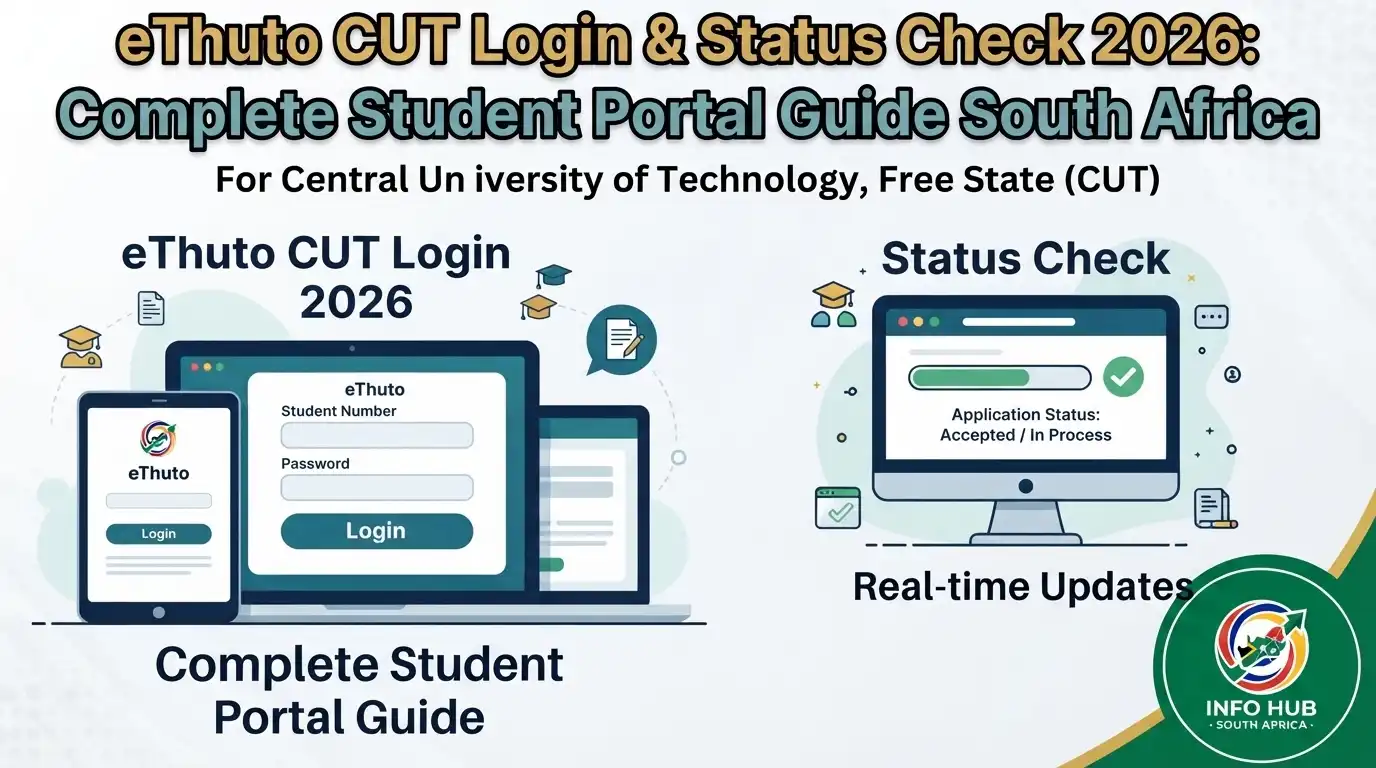
If you are a student at the Central University of Technology, Free State (CUT), eThuto CUT is one of the main online platforms you will use for learning. The system gives registered students access to course materials, study guides, assignments, announcements and other academic resources.
CUT also provides Central University of Technology (CUT) through its official student information and support pages. The university confirms that the same username and password are used for the CUT Student Portal and eThuto, while newly registered students may need to allow up to 24 hours for their registration information to be added to the system.”Visit Homepage for more”.
What Is eThuto CUT?
CUT eThuto is CUT’s online learning environment used to support teaching and learning. It is based on Blackboard and provides a central place where students can access academic information supplied through their registered modules.
According to CUT’s e-Learning and Educational Technology unit, Central University of Technology (CUT) supports online teaching and learning and is used for activities such as providing course resources and supporting students and lecturers. The unit also registers enrolled students on eThuto and assists users through the eThuto Helpdesk.
For a CUT student, the platform can be used to find:
The exact options visible to you can depend on your modules, lecturer settings and the current CUT learning environment.
eThuto CUT Login: What You Need Before Signing In
Before attempting an CUT eThuto login, make sure your student account is active and that you have the correct CUT credentials.
CUT states that the username and password used for the Student Portal are also used for the e-learning system. New students should also be aware that the university’s systems can take up to 24 hours after registration to update their registered-student information.
Basic eThuto requirements
You should have:
CUT’s current student guidance lists Chrome, Firefox, Microsoft Edge and Opera among the supported browser options and notes that Internet Explorer is discontinued.
New CUT students
If you are accessing CUT systems for the first time, you may need to register your password before you can use it across university services. CUT’s current student information explains that new students register their password once, while students who have already registered their password can use the available password-reset process if they experience problems.
Do not share your CUT password with another person. Your university login credentials provide access to institutional services and should be treated as private.
How to Access the Official eThuto CUT Website
The safest way to start is to use the official CUT eThuto address rather than relying on an unfamiliar search result.
Once the page opens, follow the login instructions displayed by the CUT system. The Central University of Technology (CUT) environment may present an institutional or third-party sign-in option for registered CUT students and staff.
An older CUT support document also shows the Central University of Technology (CUT) Blackboard environment using CUT institutional credentials, including a student email-style username. Because login screens can change, always follow the current instructions displayed on the official portal rather than relying on an old screenshot or guide.
Step-by-Step eThuto CUT Login
Step 1: Open the official portal
Open your preferred browser and go to the official eThuto CUT website:
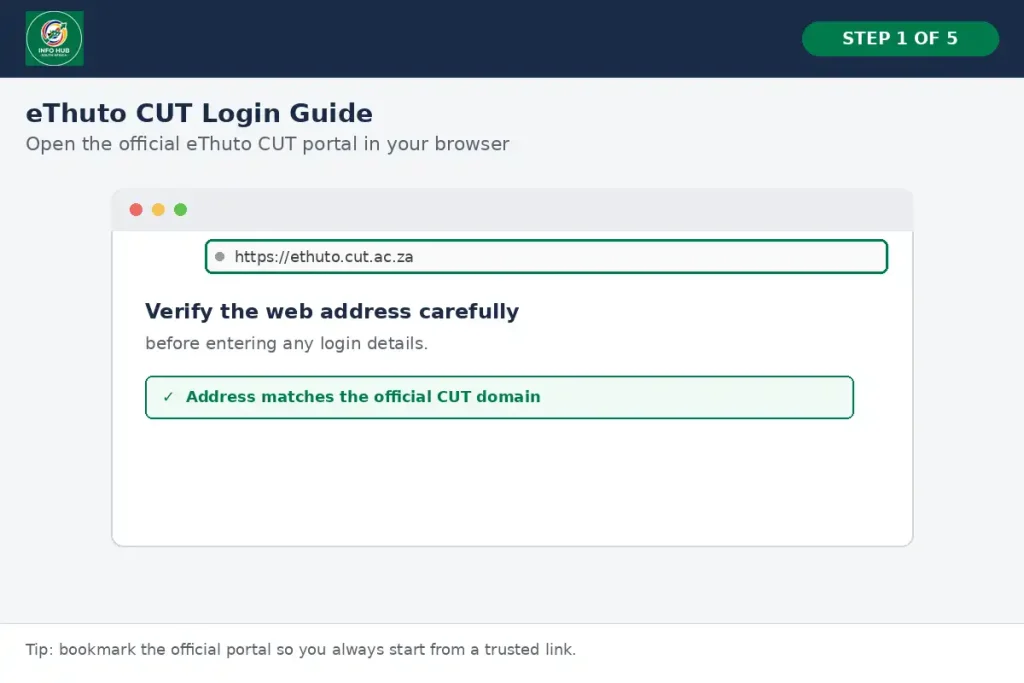
Check the web address carefully before entering your password. This helps you avoid unofficial websites that may look similar to a university login page.
Step 2: Choose the CUT student or staff sign-in option
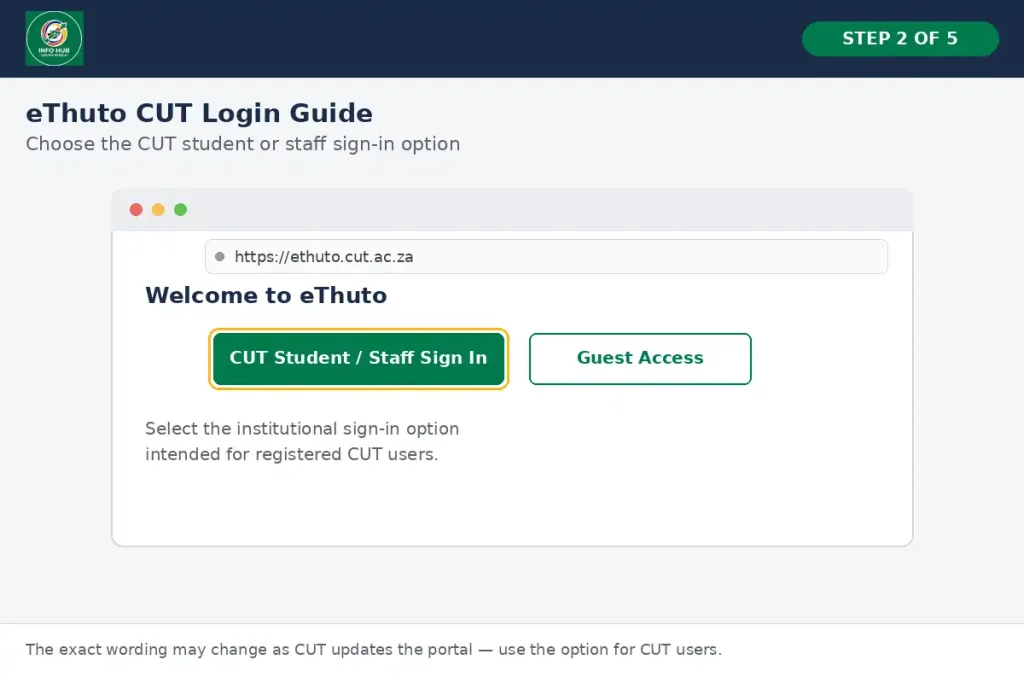
When the CUT eThuto page loads, look for the institutional sign-in option provided for CUT users.
The exact wording or appearance of the login page can change as CUT updates its online systems. Use the option intended for registered CUT students or staff.
Step 3: Enter your CUT username
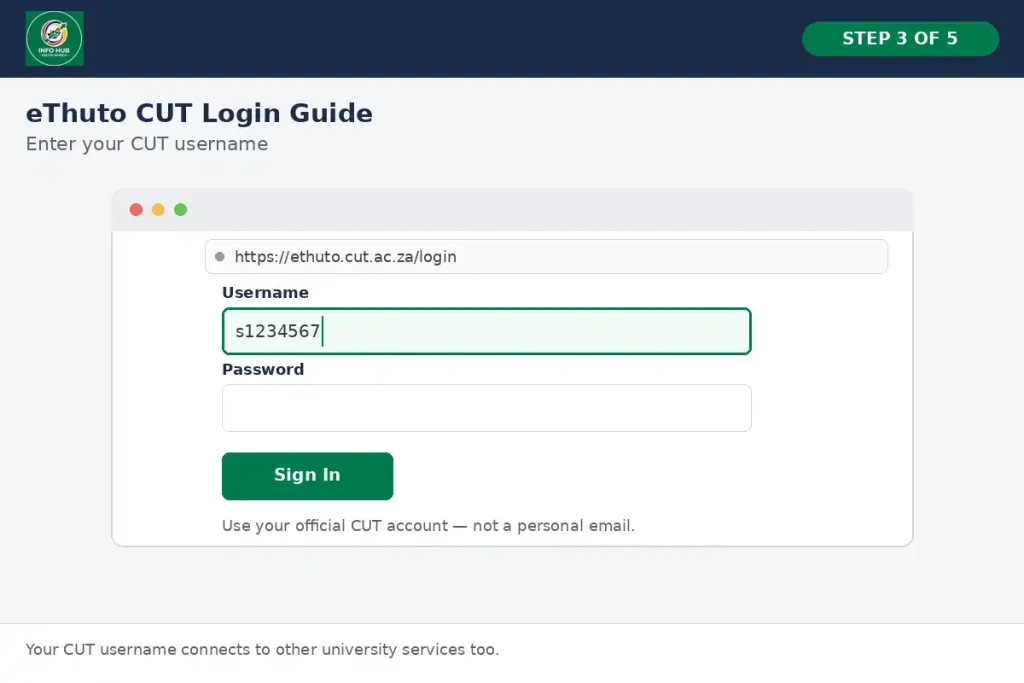
Enter the username or institutional account details associated with your CUT account.
Your student credentials are connected with other CUT services, so make sure you are using the account supplied by the university rather than a personal email address.
Step 4: Enter your password
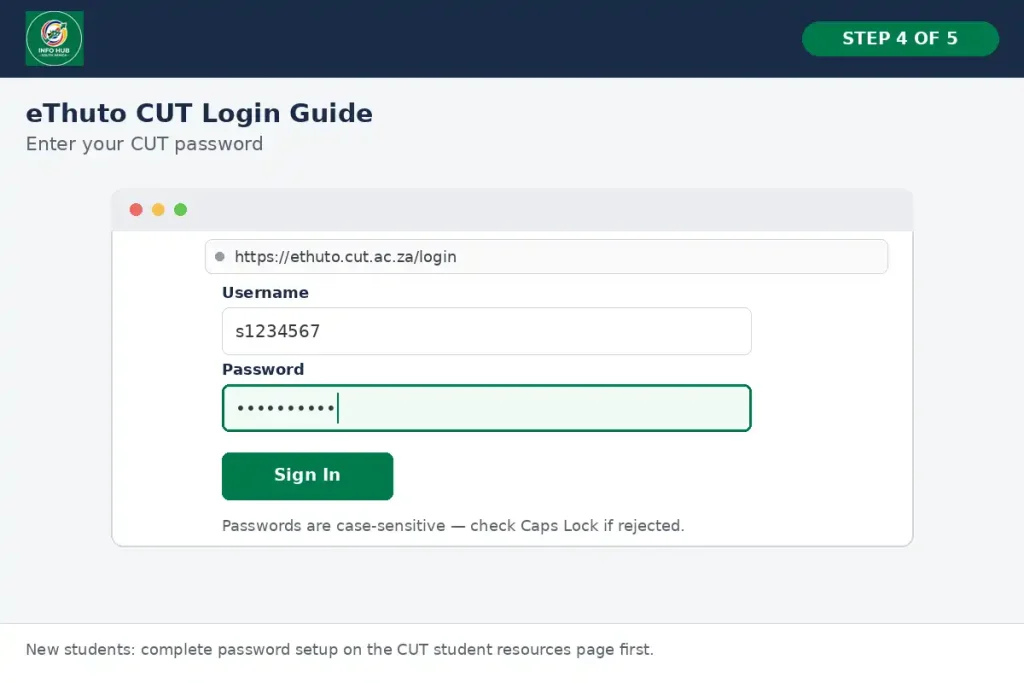
Type your current CUT password carefully. Passwords are case-sensitive, so check whether Caps Lock is enabled if the login is rejected.
If you are a new student and have not yet completed the password-registration process, complete that setup through the official CUT student resources first. CUT provides password setup and reset guidance through its current student page.
Step 5: Sign in
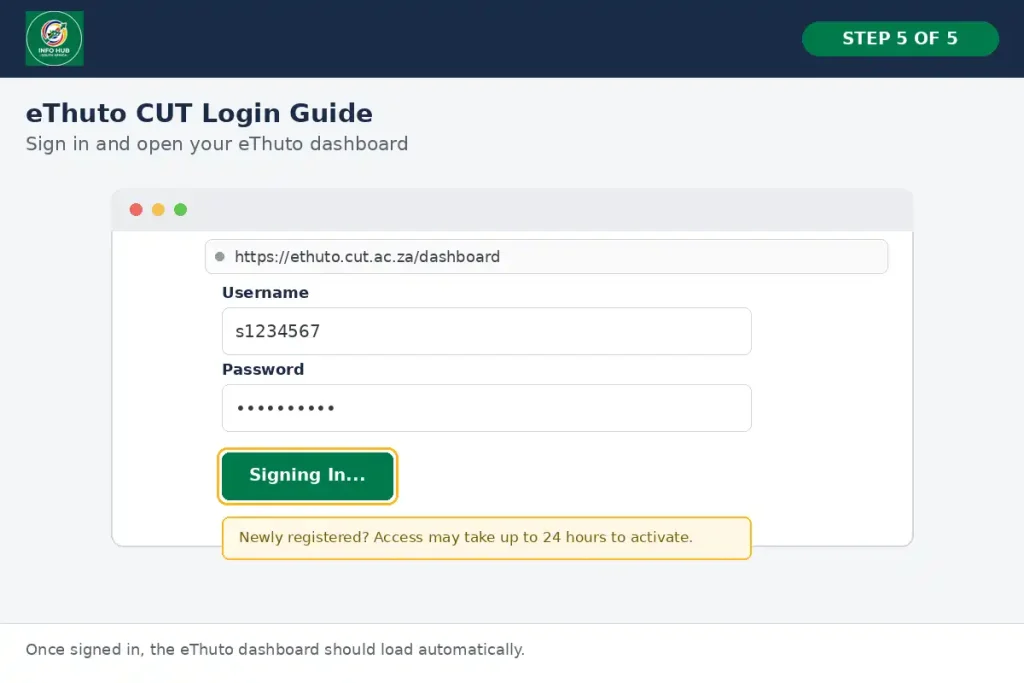
Select the relevant Sign In or login option. If your credentials are correct and your student information has already synchronised, the Central University of Technology (CUT) dashboard should open.
If your registration was completed very recently, a delay may occur. CUT advises that adding a newly registered student to the relevant systems can take up to 24 hours.
What You Can Find After eThuto Login
Once you successfully enter Central University of Technology (CUT), your dashboard acts as the starting point for your online learning activities.
Your available courses should reflect the modules associated with your registration. From there, you may be able to open individual module areas, read announcements, access learning materials and complete online assessments.
Your module area
The module or course area is where much of your academic work will take place. Depending on what your lecturer has published, you may see learning units, study guides, lecture material, assessment information and other resources.
If a module does not appear immediately, do not assume that your registration has failed. First check whether your registration has been processed and whether the normal system update period has passed.
Study materials
Lecturers can use Central University of Technology (CUT) to make learning resources available online. CUT’s support material identifies study guides, modules, assignments, due dates, marks and announcements among the platform’s uses.
Open the relevant module and look through the available sections. If a lecturer has uploaded a PDF, presentation or other resource, select the file to view or download it according to the options available on your device.
eThuto CUT and CUT Status Check: Are They the Same?
Students sometimes search for CUT status check when they actually need to check their application, registration or academic information. CUT eThuto and the university’s student information systems serve different purposes.
Central University of Technology (CUT) is primarily the online learning environment. CUT’s official student pages direct students to the Student Portal for areas such as timetables, marks and other student information.
For application-related information, CUT’s i-Enabler system has historically provided student enquiry functions, including application or admission status information. CUT’s official documentation describes the Student Enquiry area as a place for general student-related enquiries such as checking admission status.
This means that searching for CUT status check should not automatically lead you to the eThuto login page. Choose the CUT service that matches what you are trying to check.
What Is CUT i-Enabler?
CUT i-Enabler is another important university system that students may encounter. It should not be confused with eThuto.
The CUT website currently lists Student Connect+, CUT i-Enabler and eThuto as separate secure-login services.
In practical terms, Central University of Technology (CUT) is focused on online learning, while i-Enabler is part of the university’s student administration environment. The exact functions available to an individual student depend on the service and account access provided by CUT.
If you are looking for its enabler CUT or CUT i-Enabler, use the official CUT secure-login area rather than a third-party website:
The official CUT website lists i-Enabler alongside eThuto and other institutional services.
eThuto CUT vs CUT i-Enabler
| Service | Main purpose |
|---|---|
| eThuto CUT | Online learning, modules, study resources, assignments and announcements |
| CUT i-Enabler | Student administration and related university services |
| Student Portal / Connect+ | Access to various student services and information |
| CUT status check | A search phrase commonly used when students want to check application, admission or other student-related information |
Understanding this difference can save time. If you need a lecture note or assignment, start with eThuto. If you need an administrative student service, check the appropriate CUT student system instead.
Finding Your CUT Modules on eThuto
Your module areas are the most important part of the Central University of Technology (CUT) environment. They provide the online space where lecturers can publish learning material, announcements, assessments and other resources for students.
After signing in, look for the course or module section on your dashboard. Select the relevant module to open its learning area.
You may find folders or sections containing items such as:
The layout may differ from one module to another because lecturers can organise their online course areas differently.
What if a module is missing?
A missing module does not necessarily mean that your eThuto account is broken. CUT’s e-Learning and Educational Technology information explains that enrolled students are registered on Central University of Technology (CUT), so your academic registration and system enrolment are important factors.
If you have only recently registered, allow the system time to update. CUT’s current-student information indicates that new registration information can take up to 24 hours to synchronise with the relevant systems.
If the module is still missing after the expected update period, confirm that you are officially registered for the module and contact the appropriate CUT support channel if necessary.
How to Access Study Guides and Lecture Material
One of the main reasons students use eThuto CUT is to find digital learning resources.
Once you open a module, scan the available content areas rather than assuming every lecturer uses the same folder name. A lecturer may organise resources under learning units, course content, documents, study material or another suitable heading.
Select the relevant resource to open it. If the system provides a download option, you can save the material to your device for later use.
A useful study habit
Do not wait until an assignment is due before checking your module area. Make it a routine to review your Central University of Technology (CUT) courses regularly so you can see new announcements, resources and assessment instructions when they are published.
This is particularly useful when lecturers change or add material during the semester.
Submitting an Assignment Through eThuto CUT
Online assignment submission can vary according to the module and the assessment tool selected by the lecturer. Before uploading anything, read the instructions displayed inside the assignment area.
A typical submission process involves the following sequence.
Step 1: Open the relevant module
Sign in to eThuto and enter the course where the assignment has been created.
Step 2: Locate the assessment
Look for the assignment, assessment or submission area provided by your lecturer. The exact label can vary between courses.
Step 3: Read the requirements
Check the due date, file requirements and instructions before attaching your work. If a lecturer has specified a particular format, follow that requirement.
Step 4: Attach your document
Use the upload or file-selection option available in the assessment area to select the completed document from your device.
Before submitting, check the filename and make sure you have selected the correct version of your work.
Step 5: Submit the assignment
After confirming the attachment, use the submission option displayed by eThuto.
Do not close the browser immediately after uploading. Look for a confirmation message or other evidence that the submission has been successfully recorded.
Step 6: Keep your submission evidence
Where Central University of Technology (CUT) provides a confirmation, receipt or submission record, keep it until the assessment has been marked. A screenshot can also be useful for your personal records.
Student tip: Upload assignments before the final few minutes whenever possible. A slow connection, large file or unexpected browser problem can turn a straightforward submission into a stressful one.
Checking Assignment Information
Students often use Central University of Technology (CUT) to keep track of assessment requirements. Your lecturer may publish an assignment’s instructions, deadline, supporting documents and submission area within the relevant module.
The calendar or notification features may also help you keep track of upcoming academic activities when they are enabled in your learning environment.
However, do not rely on one feature alone. Always check the actual module and the latest announcement from your lecturer if there is any uncertainty about a deadline.
Understanding Your eThuto Dashboard
The dashboard provides access to the areas you use most often. Depending on your account and the current CUT learning environment, the available options can include your modules, announcements, calendar, messages, notifications and profile settings.
| eThuto area | What students may use it for |
|---|---|
| Courses or Modules | Opening registered learning areas |
| Course Content | Reading or downloading material |
| Assessments | Finding and submitting online work |
| Announcements | Reading messages from lecturers or CUT |
| Calendar | Tracking dates and scheduled activities |
| Messages | Accessing available course communication tools |
| Profile and Settings | Managing available account preferences |
Not every student will see identical options. The content presented within a module is controlled by the relevant course setup and lecturer.
eThuto CUT Login Problems and How to Troubleshoot Them
A failed eThuto CUT login can happen for several reasons. Before contacting support, work through the basic checks below.
Incorrect Username or Password
The most common problem is entering the wrong credentials.
Check that:
CUT’s current student information states that the Student Portal and e-learning system use the same username and password.
If you have forgotten your password, use the password-management or reset information provided through the official CUT student resources instead of trying unrelated third-party password tools.
Newly Registered Student Cannot Log In
If you have just registered with CUT, the issue may be related to system synchronisation rather than your credentials.
CUT advises that it can take up to 24 hours after registration for a student’s information to be added to the relevant systems.
If you have already waited for the expected period and still cannot access the system, check that your registration was successfully completed and then contact CUT support.
Login Works but Your Modules Are Not Visible
This is different from an incorrect-password problem.
If you can enter Central University of Technology (CUT) but one or more expected courses are missing, first check your official registration information. A module will not necessarily appear simply because you intended to take it; the relevant enrolment information needs to be reflected in the university system.
You can also check whether the lecturer has made the course available yet.
If the module should be available but remains absent, contact the relevant faculty, department or e-Learning support service.
eThuto Page Will Not Load
A connection or browser problem can sometimes prevent the portal from loading correctly.
Try these basic checks:
- Confirm that your internet connection is working.
- Refresh the page.
- Open the official eThuto address again.
- Try another supported browser.
- Clear the browser cache if the page continues behaving incorrectly.
- Try another network if your current connection is unstable.
Avoid repeatedly entering your password if the login page itself is not loading properly. First establish whether the problem is with the website connection or with your credentials.
Assignment Upload Does Not Work
If an assignment will not upload, check the requirements shown by your lecturer. File type and file size restrictions can affect submissions.
A practical approach is to:
If the problem continues close to the deadline, contact the appropriate CUT support channel and retain evidence of the problem and your attempted submission.
Quick eThuto CUT Troubleshooting Checklist
Before asking for technical help, run through this short checklist:
This approach can quickly separate a login issue from a registration, module-enrolment or assignment problem.
Protecting Your CUT Online Account
Your CUT account connects you with university services, so basic account security matters.
Always access eThuto through the official CUT website or a trusted university page. Be cautious of messages asking you to enter your CUT username and password on unfamiliar websites.
A genuine-looking login page is not enough reason to trust a link. When in doubt, type the official CUT or eThuto address directly into your browser.
Never give your password to another student, friend or person claiming to provide technical support.
eThuto CUT Student Checklist
Before starting your semester, keep this checklist handy:
| Task | What to check |
|---|---|
| CUT registration | Confirm that your registration has been completed |
| Account access | Make sure your CUT username and password work |
| eThuto login | Open the official eThuto website |
| Modules | Check that your registered courses appear |
| Learning material | Review available study guides and course resources |
| Announcements | Check lecturer and course notices regularly |
| Assessments | Review instructions and deadlines |
| Submissions | Confirm that uploaded work has been recorded |
| CUT status check | Use the appropriate student-information service |
| i-Enabler | Use it for relevant administrative services |
| Support | Contact eLET when an eThuto issue cannot be resolved |
FAQs
Conclusion
The easiest way to manage CUT’s online services is to understand what each platform is designed to do. eThuto CUT is your online learning environment, while other CUT systems handle student administration, enquiries and related services.
When you need learning material, module information or online assessment activities, start with eThuto. When you need an administrative service or a CUT status check, use the relevant CUT student-information system instead.
Students searching for its enabler CUT should also remember that i-Enabler is a separate service from Central University of Technology (CUT). Keeping these platforms separate in your mind makes it much easier to choose the right login page.
For reliable access, always begin with official CUT resources, keep your institutional credentials secure and check your modules regularly. If a newly registered account or module does not appear immediately, allow the university’s systems time to synchronise before troubleshooting further.
For students, faculty and academic staff, eThuto CUT is an important part of the digital learning experience at the Central University of Technology, Free State. Using it regularly and correctly can make it easier to stay organised, follow course announcements and manage online academic activities.
Info Hub South Africa provides this guide to help CUT students understand the different online services and navigate them with greater confidence.
Read More
Majuba Student Portal South Africa 2026: Student Login, Registration & Complete Portal Guide
Matric Results 2026 Online Check South Africa: Get Your NSC Results Instantly
CUT Status Check South Africa 2026: Complete Application and Admission Guide
SANC eRegister South Africa 2026: Login, Registration & Status Check
Learners Licence Booking South Africa 2026: Requirements, Steps & Fees