TUT Student Portal Login: Status Check & iEnabler Guide
The TUT student portal is the online platform students at Tshwane University of Technology (TUT) use to manage essential academic activities. Whether you need to register for a new academic year, submit supporting documents, check your application or view examination results, the portal provides access to these services in one place.
TUT uses the ITS iEnabler Self Help system, which allows registered students to access their academic information using their student number and PIN. By visiting ienabler.tut.ac.za, you can sign in to your account and access the available student services without visiting the campus for every administrative task.
This guide covers how to log in to the TUT student portal, complete registration, upload documents, check your registration status, view your marks and resolve common login problems.
How to Log In to the TUT iEnabler Student Portal
To access your TUT student account, you’ll need your student number and PIN. Once you have them ready, follow these steps:
1. Open the TUT iEnabler Login Page
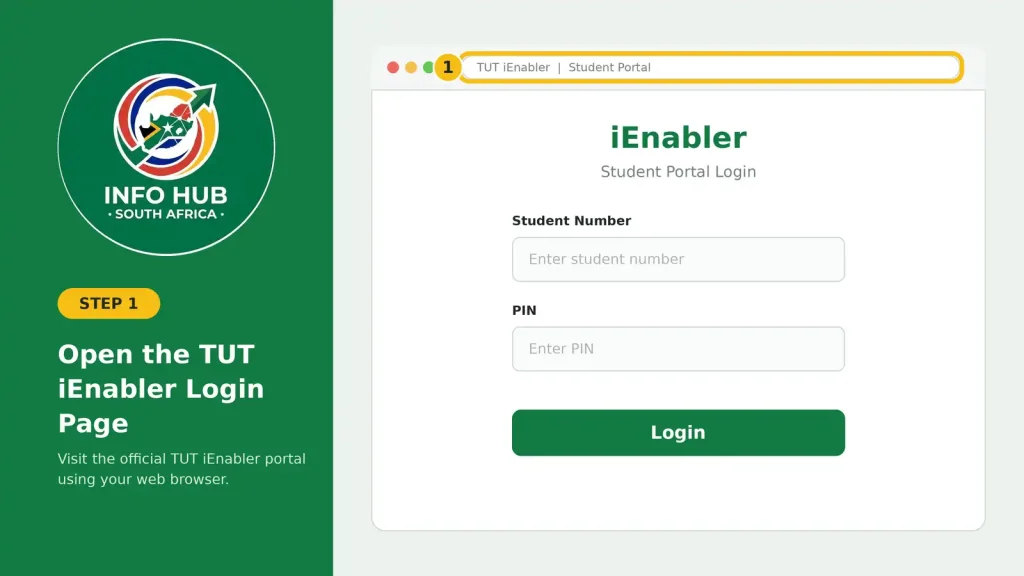
Visit the official TUT iEnabler portal using your web browser.
2. Enter Your Student Number
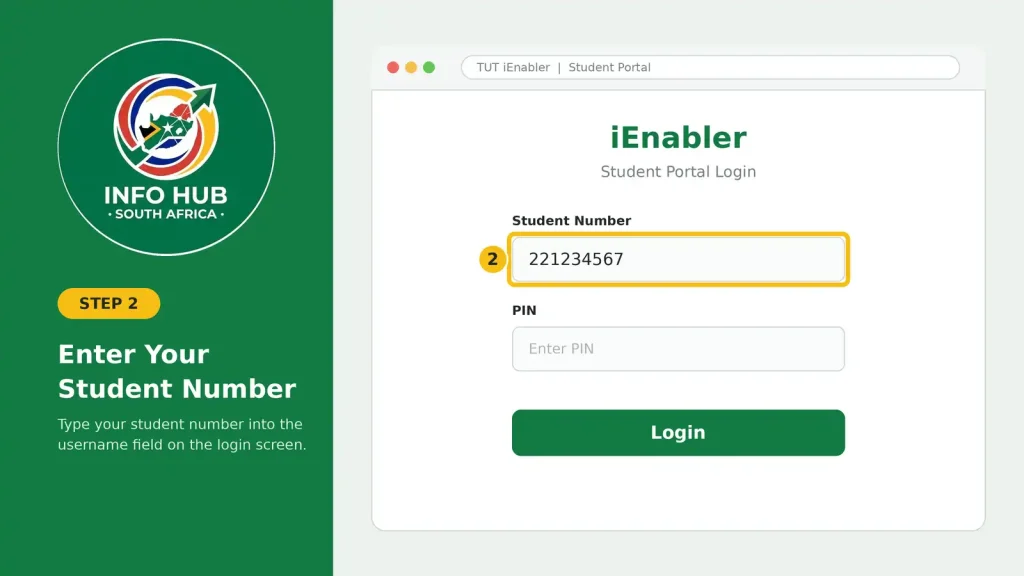
Type your student number into the username field on the login screen.
3. Enter Your PIN
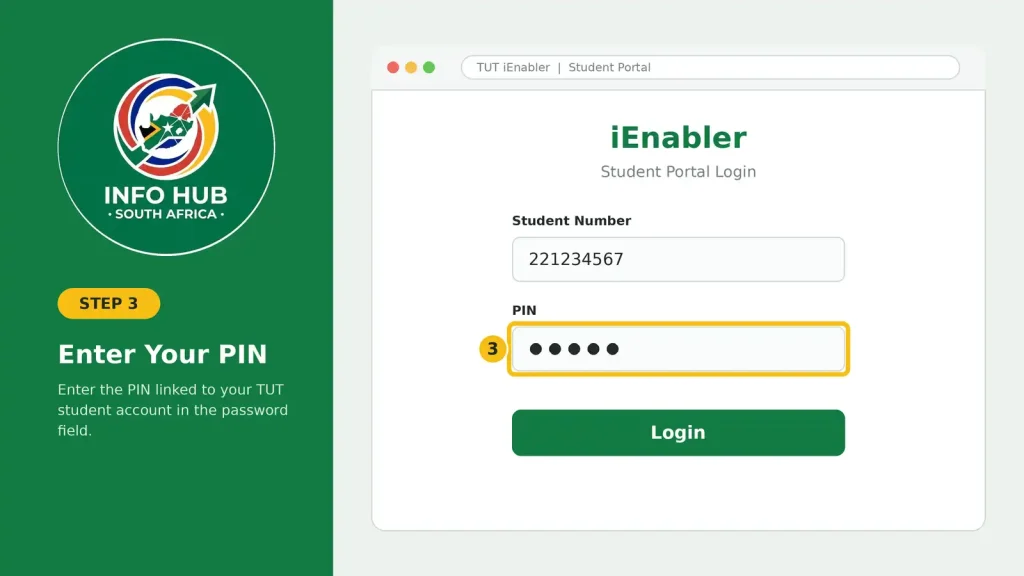
Enter the PIN associated with your TUT student account in the password field.
4. Select “Login”
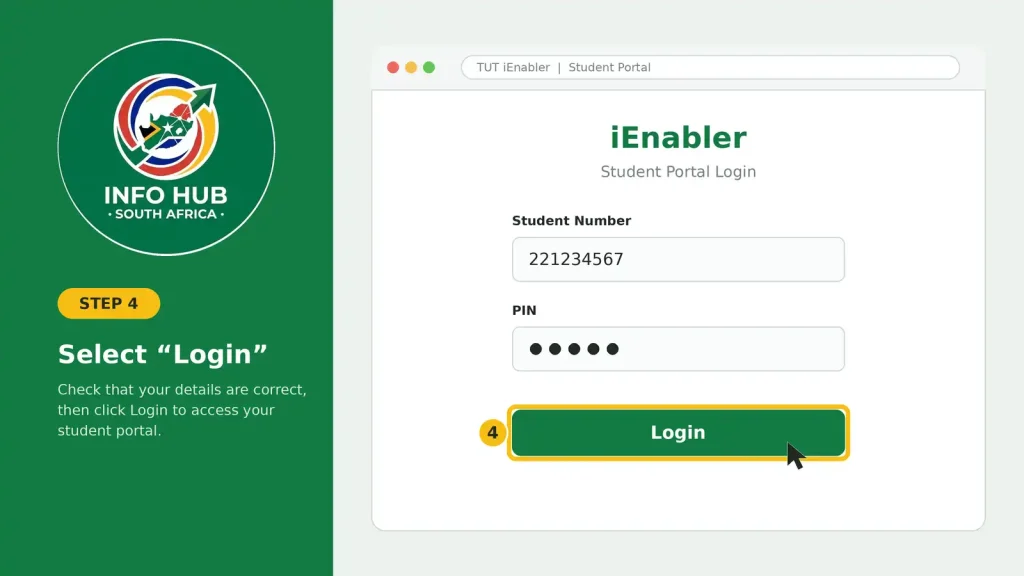
Check that your details are correct, then click Login to access your student portal.
After signing in, you’ll find the Self Help menu down the left-hand side on a computer. On a phone, tap the menu icon in the top right corner instead. From there you can open your registration details, academic results, financial status and student email.
Realted Posts
TUT Late Applications 2026 in South Africa: Complete Guide to Apply Before the Closing Date
TUT Status Check 2026/2027: How to Check Your Application Status Online
Forgotten Your Student Number?
You don’t need to contact anyone to get it back. The Forgot Student Number page on iEnabler lets you look it up using any one of these:
Checking Your Application Status Before Registration
Applied to TUT and waiting to hear back? The ITS iEnabler application status page shows whether you’ve been accepted. Enter your ID number and it will display your application status along with your student number. If you don’t have a South African ID, enter your surname, full name and date of birth instead.
Still haven’t applied? Our guide on how to apply to TUT walks you through it.
Uploading Your Documents on the TUT Portal
Once you’re signed in to the iEnabler Self Help portal, you can upload the documents TUT needs from you. These usually include certified copies of your academic transcripts and your ID or passport.
| What to know | Details |
|---|---|
| File format | PDF (the portal will show if other formats are accepted) |
| Maximum file size | Shown on the upload page, so check it before you choose your file |
| Documents usually needed | Certified copy of your ID or passport, certified copy of your academic transcripts (such as a matric certificate), and any programme-specific documents TUT asks for |
Upload steps
- Sign in to iEnabler Self Help with your student number and PIN.
- Open the document upload section from the Self Help menu.
- Pick the type of document you’re uploading.
- Choose your PDF file, making sure it’s within the size limit on the page.
- Select Upload and wait for the confirmation message.
Tip: If your file is too large, run it through a free PDF compressor first, then upload the smaller version.
Note: Requirements differ depending on your programme and registration stage. Check your iEnabler notifications, or contact TUT Student Services at [email protected] or +27 (0)86 110 2421 to confirm what you need.
Checking Your Registration Status
After you’ve registered, the Self Help portal shows exactly where you stand.
- Sign in with your student number and PIN.
- Open the registration section in the Self Help menu.
- Your registration status, registered modules and any outstanding requirements will appear on screen.
The same portal also shows your financial status and account balance, so you can confirm your registration fees have gone through. For more on the university itself, including fees and admission requirements, see our TUT institution page.
Viewing Your Academic Results
TUT posts predicate (assessment) marks on iEnabler Self Help. The TUT Student Portal also holds your subject history, exam information and graduation details.
To see your marks:
- Sign in to iEnabler Self Help with your student number and PIN.
- Open the results or academic record section from the menu.
- Choose the academic year and semester you want.
Where to Find Your Exam Timetable
When your predicate marks are published, your personal examination timetable becomes available at os.tut.ac.za/ExamsLegacy/. You can also ask for it at Student Services on your campus. The final examination timetable for the current semester is available as a PDF download on the TUT website.
Resetting a Forgotten or Locked Password
If you can’t remember your password, or your account has been locked, use the TUT4Life password reset page at tut4life.tut.ac.za/password/. You’ll need three things to hand:
Enter them in that order, then select Submit to reset your password.
The TUT Password Manager App
If you’d rather sort this out from your phone, TUT offers a Password Manager app for Android and iOS. It lets you:
Search for “TUT Password Manager” in the Google Play Store or Apple App Store to download it.
Setting Up Multi-Factor Authentication (MFA)
Using myTUTor, TUT’s learning management system at mytutord2l.tut.ac.za? Then you’ll need to set up multi-factor authentication first. You can verify yourself with any of these:
MFA has to be repeated once every 24 hours to keep access to myTUTor. If you get stuck setting it up, contact myTUTor support at [email protected] or 0861 102-421 (Option 4).
Fixing Common TUT Portal Login Problems
Most login trouble comes down to a handful of causes. Find your problem in the table below.
| Problem | Why it happens | What to do |
|---|---|---|
| Login fails or “Invalid credentials” appears | Wrong student number or PIN | Recheck your student number, using the Forgot Student Number page if you need to. Then reset your password at tut4life.tut.ac.za/password/. |
| Account is locked | Too many failed attempts, or a security hold | Reset your password at tut4life.tut.ac.za/password/, or open the TUT Password Manager app to see whether your account is locked. |
| Portal won’t load, or the page is blank | Browser compatibility problem or server maintenance | Switch to another browser (Chrome or Firefox are recommended) and clear your cache and cookies. If TUT’s servers are down for maintenance, try again later. |
| “No data found” error | Expired session or a menu that hasn’t loaded | Log out fully, clear your browser cache and sign in again. If it keeps happening, use a different browser. |
| Document upload fails | File is too big or in the wrong format | Make sure it’s a PDF within the size limit shown on the upload page. Compress it first if necessary. |
| MFA stops working on myTUTor | Authenticator app out of sync, or your phone number changed | Register your MFA method again at mytutord2l.tut.ac.za, and email [email protected] if you need help. |
Still Stuck? Contact TUT Directly
FAQs
Conclusion
The TUT iEnabler portal makes it easier for students to manage important tasks, including checking application and registration information, uploading documents, accessing academic results and resolving account issues. Keeping your student details and required documents ready can help you complete these processes without unnecessary delays.
For more helpful information about South African universities, colleges, applications, student portals and other education-related services, Info Hub South Africa provides practical guides designed to make these processes easier to understand. Check the website regularly for new updates, step-by-step instructions and useful information for students across South Africa.
Read More
GEHS Login South Africa 2026: Online Login, Password Reset & Status Check Guide
Television Licence South Africa: Online Application, Status Check & SABC TV Licence Guide 2026
UMP Moodle Login South Africa 2026: Student Portal Access Guide