MyUnisa Login: Access Your University of South Africa Student Portal
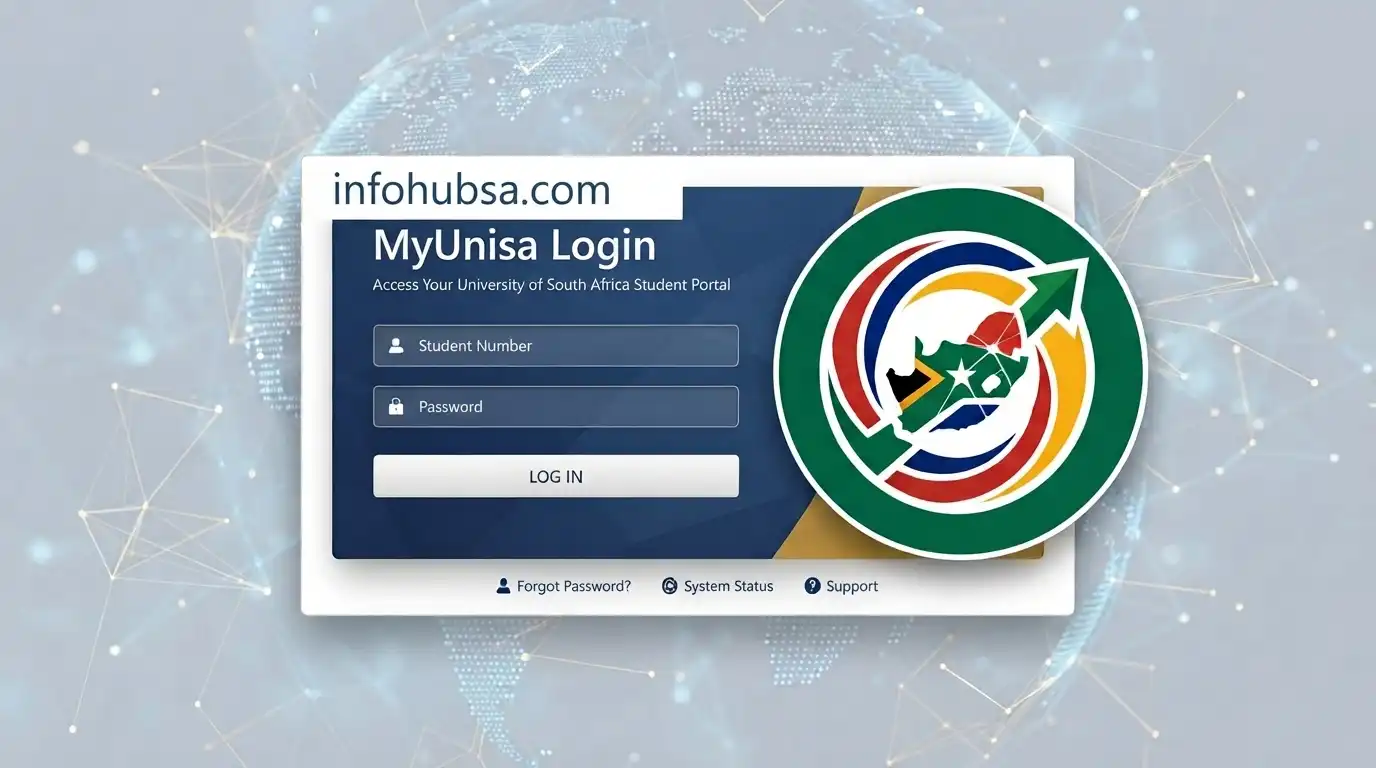
If you’re studying at the University of South Africa (Unisa), myUnisa is the central place to manage much of your student life. It brings together study materials, assignments, exam results, your official student email and important module announcements.
For new students, completing the myUnisa login for the first time can be confusing if you’re unsure where to begin. This guide covers how to claim your login details, access myUnisa and myUnisa myLife, and troubleshoot common access problems when something doesn’t work as expected.”Visit Homepage for more”.
What Is myUnisa?
myUnisa is Unisa’s official online student portal, bringing key academic services together in one place. Students can use it to access study resources, submit assignments, check results and keep up with important university updates.
It’s helpful to think of myUnisa as a gateway to several connected services rather than one standalone system. Depending on what you need to do, you may use:
Knowing what each service does makes it easier to navigate your account, especially when completing a myUnisa login or accessing your myUnisa myLife email.
Who Uses myUnisa?
If you’re a registered Unisa student, myUnisa is an important part of managing your studies online. Both undergraduate and postgraduate students use the platform to access course materials, communicate with lecturers and take part in online discussions.
It also supports key administrative tasks, including updating personal details, monitoring academic progress and viewing financial statements. If you’re new to the platform, completing your myUnisa login gives you access to the services you’ll need throughout your studies.
How Does myUnisa Work?
Think of myUnisa as your main online dashboard for managing your Unisa studies. Once you complete your myUnisa login, you can reach your courses, study resources, grades and other student services from one central account.
The dashboard also helps you keep track of announcements, reminders and other updates. Its navigation tools are designed to make it easier to move between different parts of your student account and stay on top of academic responsibilities.
How to Create a myUnisa Account
You need a Unisa student number before you can set up your account. This is issued as part of the application and admission process.
To get started:
- Open the myUnisa portal and select the relevant account setup option.
- Enter your student number when prompted.
- Provide the requested personal details to verify your information.
- Create your password by following the instructions provided.
- Sign in using your student number and new password.
Once your account is ready, you can access services connected to your studies, including myModules, the Unisa Library and myUnisa myLife, your student email service.
How to Activate Your myUnisa Account
Setting up the account and activating your Unisa login are connected steps. The activation process is commonly referred to as “Claim UNISA Login” on the myUnisa website.
- Select “Claim UNISA Login” from the myUnisa homepage.
- Enter your student number and the personal information requested for verification.
- Complete the activation process and follow the instructions for your myLife email account.
- Once activation is complete, use your new credentials to access myUnisa and myLife.
Your myLife account is important because Unisa uses it for official student communication, including information relating to your studies, examinations and results.
How to Log In to myUnisa
Once your account has been activated, the myUnisa login process is straightforward:
Step 1: Open the myUnisa Website
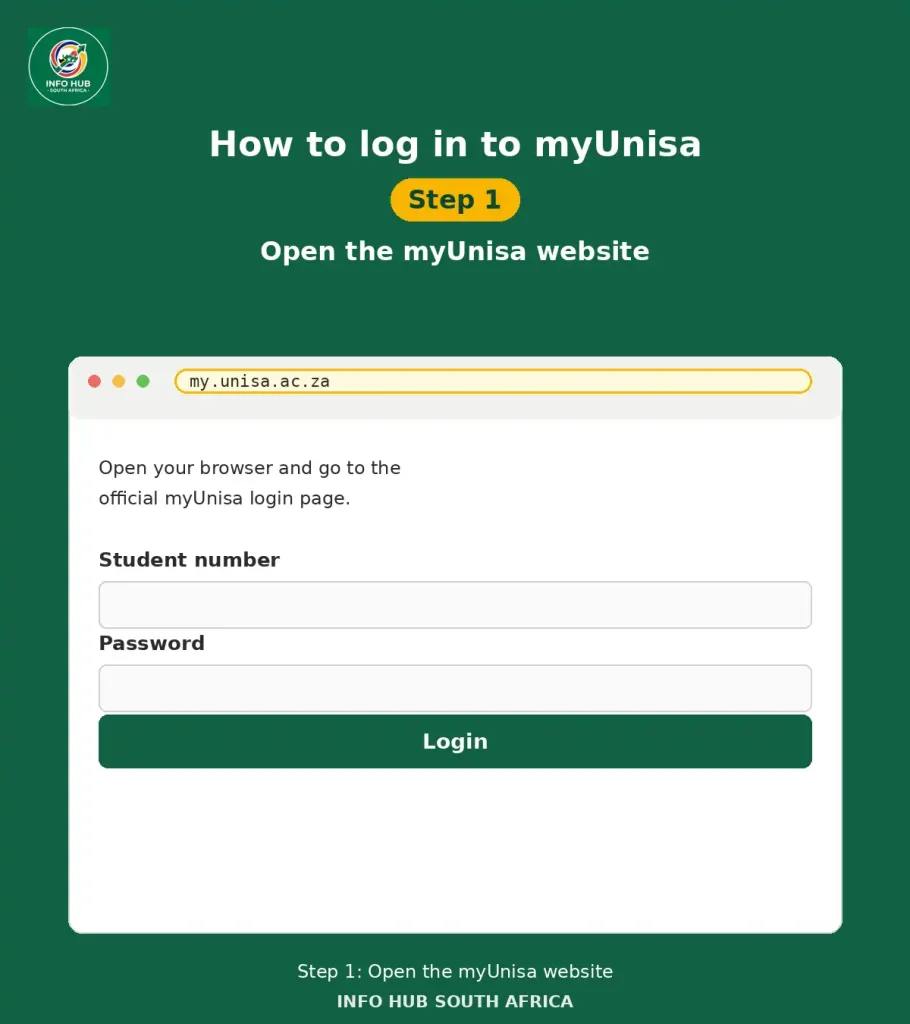
Open your preferred browser and go to the official myUnisa login page.
Step 2: Enter Your Student Number
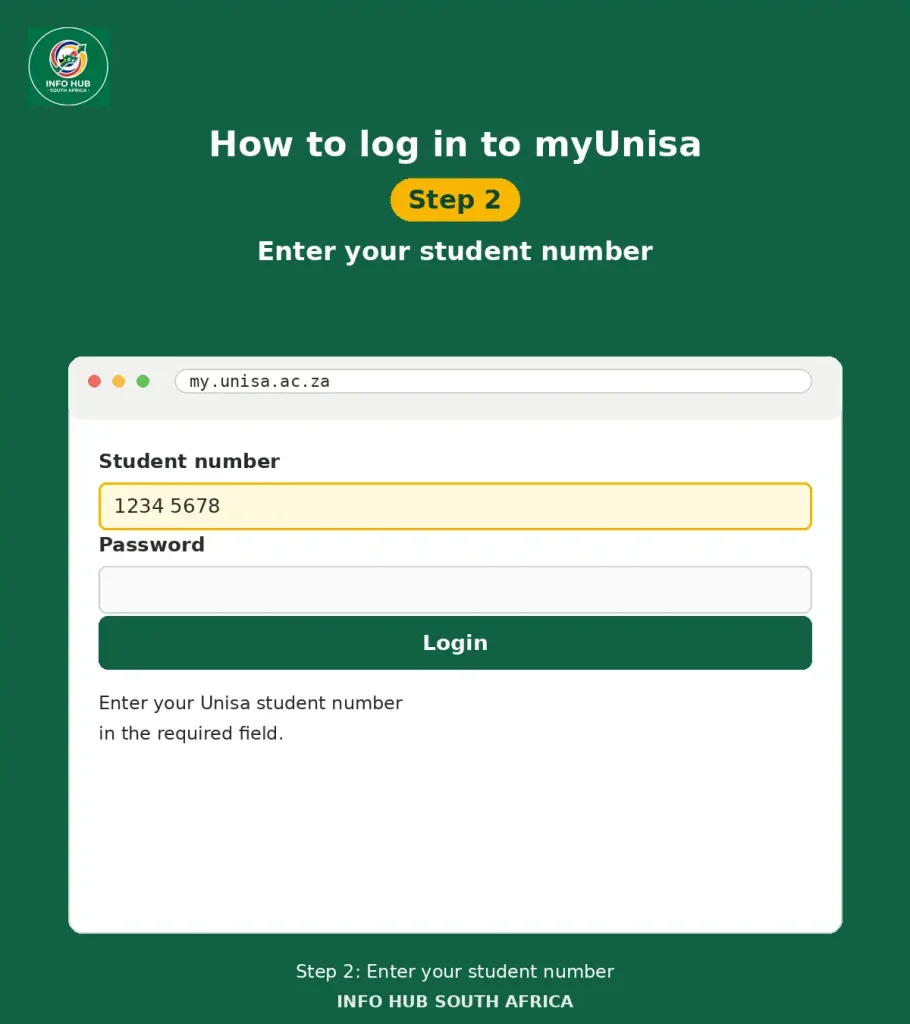
Enter your Unisa student number in the required field.
Step 3: Enter Your Password

Type your myUnisa password carefully. Make sure your details are correct before continuing.
Step 4: Log In to Your Account

Click the Login button to submit your details and access your account.
Checking your account regularly can help you keep track of announcements, coursework and upcoming deadlines. The Unisa Student App can also be useful when you want to check certain student information from your mobile device.
How to Change or Reset Your myUnisa Password
If you can still access your account, you can change your password through the account or personal-details settings. Choose the password option and follow the instructions to create a new one.
Forgotten your password? Use the password recovery or self-service option available from the myUnisa login area. You’ll need to provide the requested student and identity details so your information can be verified.
Because your myUnisa and myUnisa myLife access are connected, completing the reset process correctly is important if you need to regain access to both services.
How to Add a Profile Picture
You can personalise your myUnisa profile by adding a suitable photograph through your profile or personal-information settings.
After signing in:
- Open your profile settings.
- Find the option for managing your profile information.
- Select the option to upload a picture.
- Choose an appropriate image from your device and save the change.
A clear, professional photo can make your online profile easier for lecturers and fellow students to recognise in areas where profile images are displayed.
How to Access Study Materials
Your registered modules and course resources can be accessed through myModules.
After completing your myUnisa login:
- Open myModules from your available services.
- Select the module you want to study.
- Open the module’s course area.
- Look for the section containing the official study materials.
- Download the available PDFs or other resources you need.
Getting your study materials early gives you more time to work through the content and prepare for assessments.
How to Access Exams and Results
myUnisa also provides access to important information about assessments, examinations and academic results.
You can use the platform to:
Keep an eye on your myLife student email as well, since Unisa uses it to communicate important academic information. If you regularly check both myUnisa and myLife, you’re less likely to miss updates about assessments, examinations or results.
Understanding the Unisa Digital Ecosystem
Unisa’s online services work together, but each platform has a different role. Knowing what each one does makes it easier to understand where to go after completing your myUnisa login.
myUnisa is the main student portal at my.unisa.ac.za. It acts as your academic home base, giving you access to modules, assignment submissions, results, personal details and registration services.
myLife is your official Unisa student email account, using the format [email protected]. This is where Unisa sends official messages such as registration confirmations, examination information and other academic correspondence. Your myLife and myUnisa accounts use the same password.
myModules, which runs on Moodle, is where you’ll find your actual course content. This includes study guides, learning materials, discussion forums and assignment submissions. You access myModules through myUnisa, while some modules may also use myExams for online assessments.
The key point is that these services are connected. Your student number and password are used across the platforms, so keeping your login details secure helps you access the different parts of your Unisa student account.
Step 1: Claim Your Unisa Login
If you’re accessing Unisa’s online services for the first time, you’ll need to claim your login before you can complete a myUnisa login. Start by visiting the official Claim UNISA Login page and enter the student number provided when your registration was processed.
You’ll be asked to verify your identity using your South African ID or passport details before creating your password.
Keep these points in mind:
Step 2: Complete Your myUnisa Login
Once your account has been activated, you can sign in to myUnisa using your student number and password.
- Open the myUnisa website.
- Enter your student number as the username.
- Enter your myUnisa password.
- Select Login.
After signing in, your dashboard provides access to services such as myAdmin, your registered modules, announcements and other student resources. You can also reach the myUnisa login area through the main Unisa website.
Step 3: Sign In to Your myLife Email
Your myLife account is separate from the myUnisa portal, although both use the same password. To access your student email:
- Open the Microsoft Outlook sign-in page.
- Enter your full [email protected] address.
- Enter the password you use for myUnisa.
- Select Sign in.
Microsoft may ask you to complete an additional identity verification step. Follow the instructions shown on screen if this happens.
If you’ve recently changed your myUnisa password, the source information states that it may take up to 30 minutes to synchronise with myLife. If you still can’t sign in afterwards, contact Unisa’s myLife support service using the details provided by the university.
Step 4: Open Your Modules in myModules
After your myUnisa login, you can access your registered courses through myModules. From the myUnisa dashboard:
- Select myModules from the navigation menu.
- Continue to the Moodle-based learning platform.
- Check your dashboard for your registered modules.
Each module can provide access to study guides, learning resources, discussion forums and assignment submission areas. You can also use the module page to check assignment information and due dates.
If a module isn’t listed, first check whether your registration for that module has been confirmed. According to the supplied information, an unregistered module won’t appear in myModules, even if payment has already been made.
Common Login Problems and Solutions
“Invalid Credentials” error
This usually means your password is incorrect. Use the Forgotten Unisa Password option to reset it instead of repeatedly trying different passwords, as several failed attempts may temporarily lock your account.
myLife email not working after claiming your login
After claiming your Unisa login for the first time, your myLife email may take up to 24 hours to become active. Wait until the following day and try again. If it still does not work after 24 hours, contact [email protected].
myUnisa is slow or not responding
The portal can become slower during busy periods, especially around registration and assignment deadlines. Try logging in during quieter hours, such as early morning or late evening. You can also try another browser, clear your browser cache, or use incognito mode.
Modules are not showing in myModules
First, check your registration status in myAdmin. If the module is not listed, your registration may not yet be confirmed. If your registration is correct but the module is still missing, contact Unisa’s student enquiries team at [email protected].
Password reset is linked to an old cellphone number
If your registered cellphone number has changed, you may not be able to complete the self-service password reset. Contact [email protected] and provide your student number and the required identity document so your details can be checked.
Useful Unisa Contact Details
| Query | Contact |
|---|---|
| myUnisa login and password problems | [email protected] |
| myLife email problems | [email protected] |
| General student enquiries | [email protected] |
| Library access problems | [email protected] |
| Exam queries | myexams.unisa.ac.za |
Tip: When contacting Unisa about a login or account problem, include your student number, a clear description of the issue, and any relevant error message. This can make it easier for the support team to identify the problem.
FAQs
Conclusion
Understanding how Unisa and myUnisa work can make the application, registration, and study process much easier. From checking admission requirements and application status to accessing your student portal, results, study materials, and important updates, myUnisa provides a central place to manage many aspects of your studies.
At Info Hub South Africa, we aim to make important South African education and student information easier to understand and follow. Before applying or registering, always check the latest information from Unisa, as admission requirements, application dates, registration periods, and academic rules can change.
Whether you are a new applicant or an existing student, keeping your details updated and regularly checking your myUnisa account can help you stay informed throughout your academic journey.
Read More
Majuba Student Portal South Africa 2026: Student Login, Registration & Complete Portal Guide
Matric Results 2026 Online Check South Africa: Get Your NSC Results Instantly
CUT Status Check South Africa 2026: Complete Application and Admission Guide
Sol Plaatje University Online Application 2026 South Africa: Complete Step-by-Step Application Guide
TUT Late Applications 2026 in South Africa: Complete Guide to Apply Before the Closing Date