UP Portal South Africa: University of Pretoria Login & Student Guide
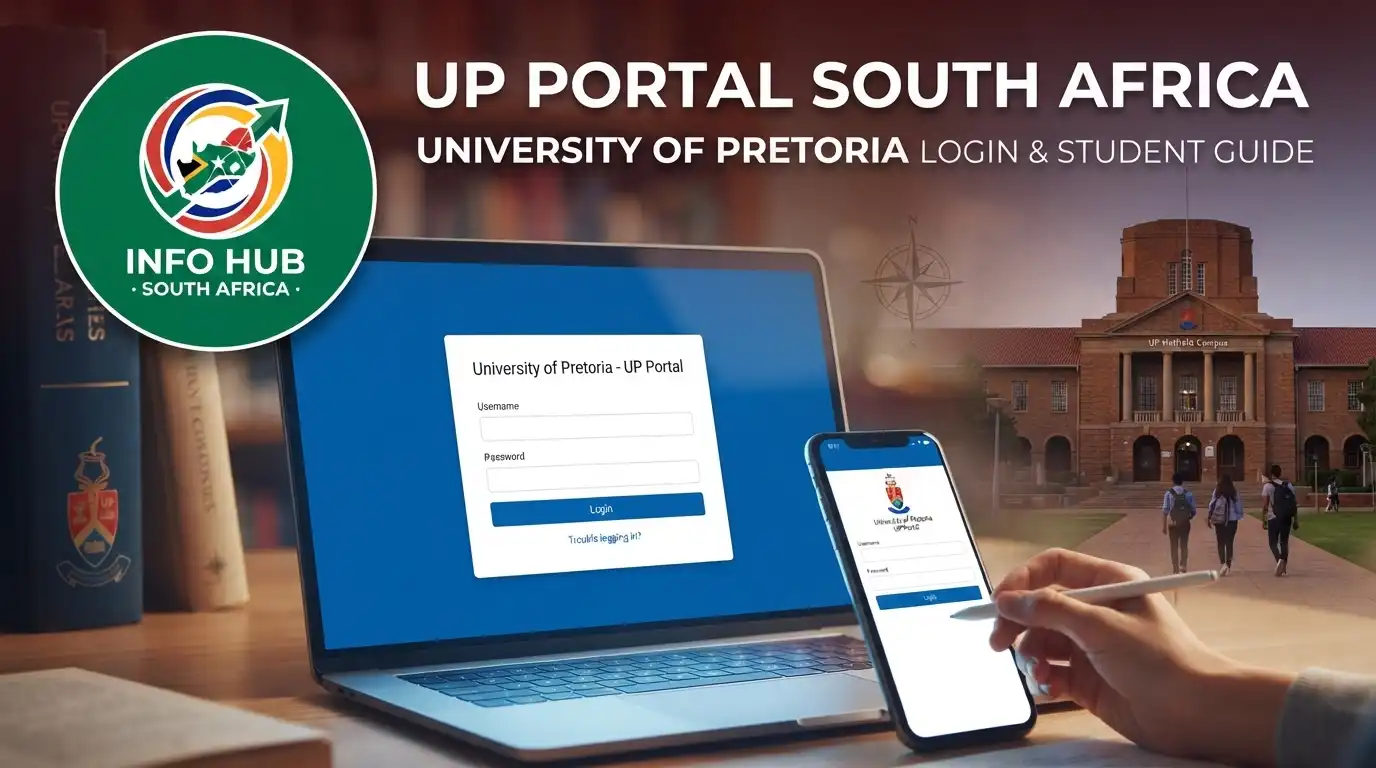
The UP Portal is the University of Pretoria’s main online gateway for students and other authorised users who need access to university services. From checking academic information and application progress to viewing registration details and accessing learning resources, the portal brings several important services together under one login.
If you are searching for the UP Portal, UP Portal login, clickUP login, or clickUP UP, the most important thing to know is that these services are connected but are not exactly the same. The UP Portal acts as a central access point, while clickUP is the university’s learning management system used for online course content and registered modules.”Visit Homepage for more”.
What Is the UP Portal at the University of Pretoria?
The UP Portal is the University of Pretoria’s online student gateway. Once you have the required UP login credentials, the portal displays information relevant to your relationship with the university.
For students, this can include:
The University of Pretoria describes the Student Portal as a 24/7 gateway containing information specific to each student and their course.
This is why keeping your UP Portal login details secure is important. The account can provide access to several areas containing personal and academic information.
UP Portal vs clickUP
One common source of confusion is treating UP Portal and clickUP as the same service.
They are related, but they have different purposes.
| Service | Main purpose |
|---|---|
| UP Portal | Central gateway to student and university services |
| clickUP | University learning management system |
| clickUP login | Sign-in process for accessing online learning |
| UP Login | Credentials used across supported UP systems |
The university’s educational resources describe clickUP as the in-house name for its learning management system, with clickUP Ultra providing access to registered modules.
So, if you need to check your application, registration or other student administration information, the UP Portal is generally the place to start. If you need course materials, assignments or online classroom content, you may need clickUP.
Who Can Use the UP Portal?
The portal is not limited to one type of user. University of Pretoria information indicates that systems can be accessed by students, staff, alumni, applicants and authorised guests, depending on their account and permissions.
For students, the username normally follows the university’s “u” username format. The current official login page gives an example such as u01234567 and states that the system no longer supports sign-in with “p” usernames.
Applicants should have received the necessary username information from the university. Existing students can generally find their student or EMPLID information on university correspondence or their student card.
Before You Attempt a UP Portal Login
A failed UP Portal login is not always caused by an incorrect password. Before trying repeatedly, check that you have the right account information and are using the official website.
What you should have ready
You will normally need:
For example, the official UP login page uses a username such as u01234567.
If you are a new user, you may need to activate your account and create your UP Portal password before you can use all available services.
Recommended browsers
The official UP login page says the site works best with recent versions of commonly used browsers, including:
If the page does not load properly, updating your browser is a sensible first step.
How to Activate and Access the UP Portal
Getting started with the UP Portal is straightforward if you are using it for the first time. Follow these steps to activate your account and sign in successfully.
Step 1: Visit the University of Pretoria Website
Open your preferred browser and go to the official University of Pretoria website.
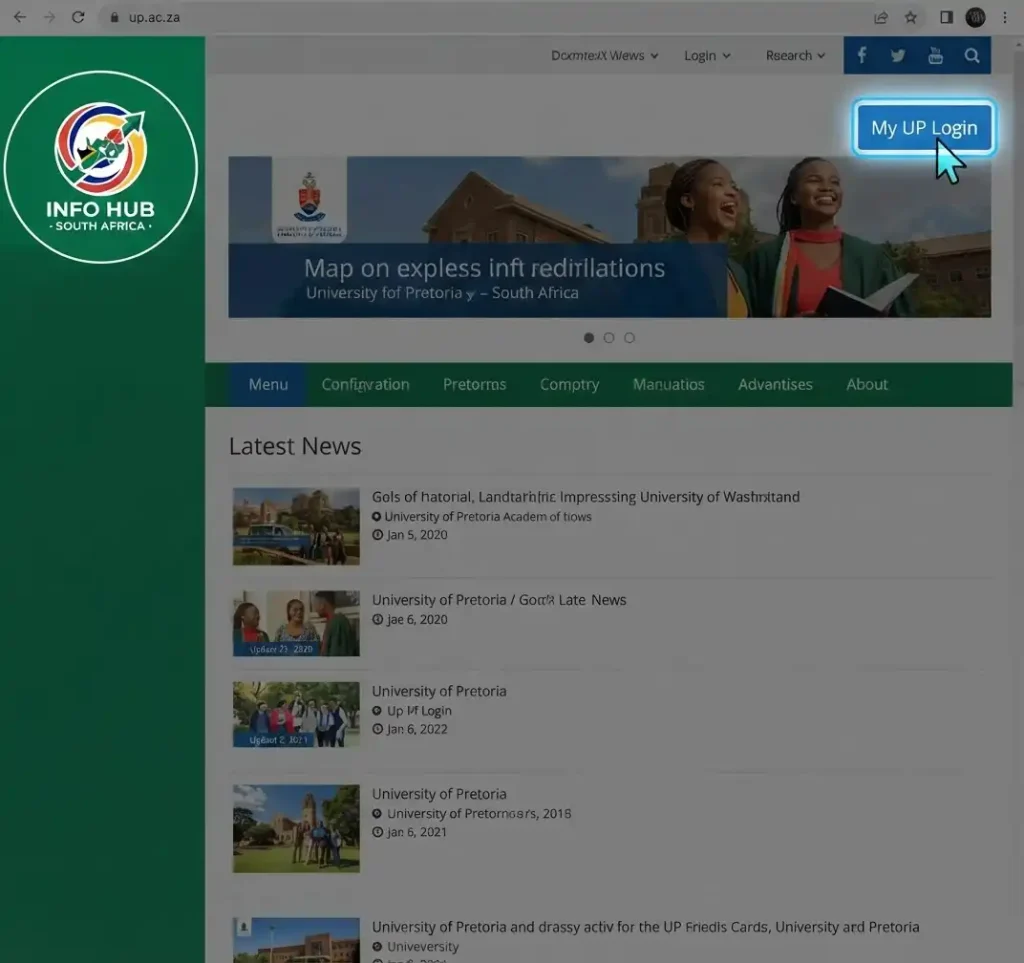
Look for “My UP Login” and select it. This will take you to the UP Portal login page, where you can access the relevant university services.
Step 2: Choose the “New User” Option
If you have never activated your UP Portal account before, select “New User” on the login page.
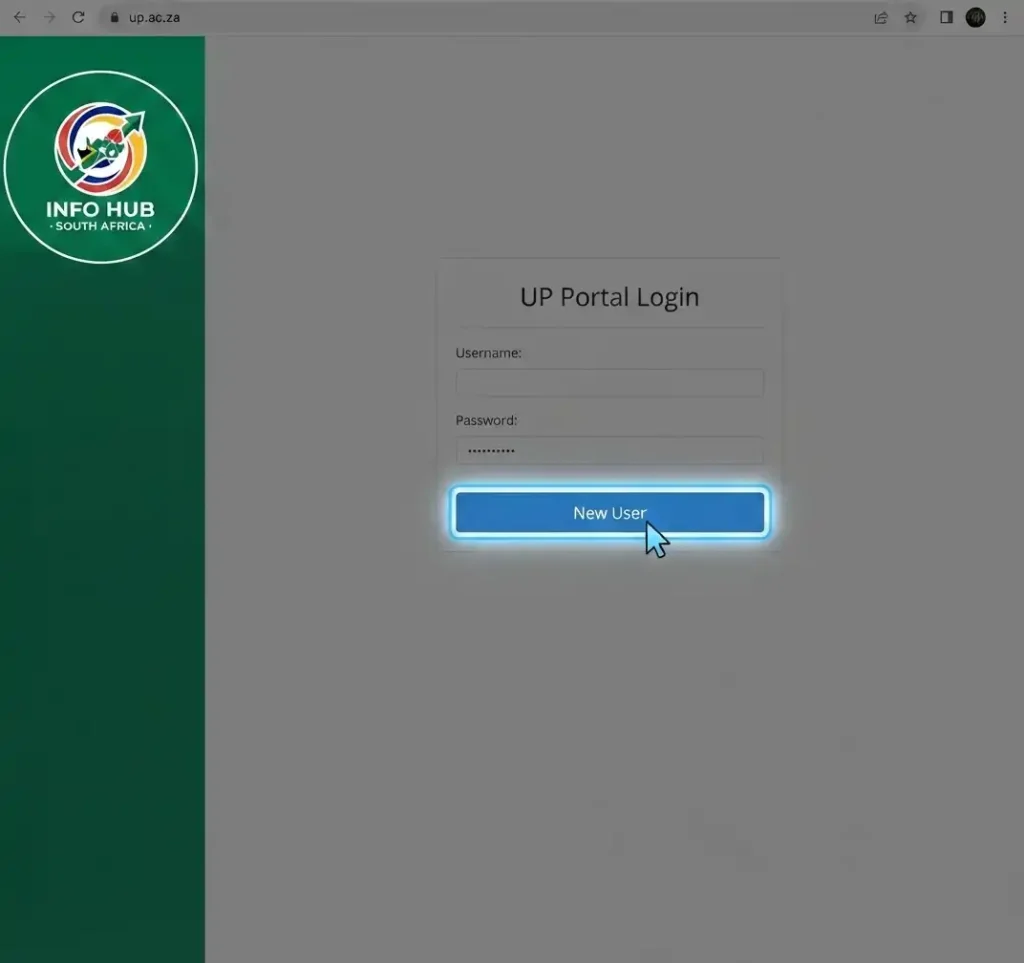
This option starts the account activation process and allows first-time users to create their portal password.
Step 3: Provide Your Identification Details
Enter the details requested on the activation screen:
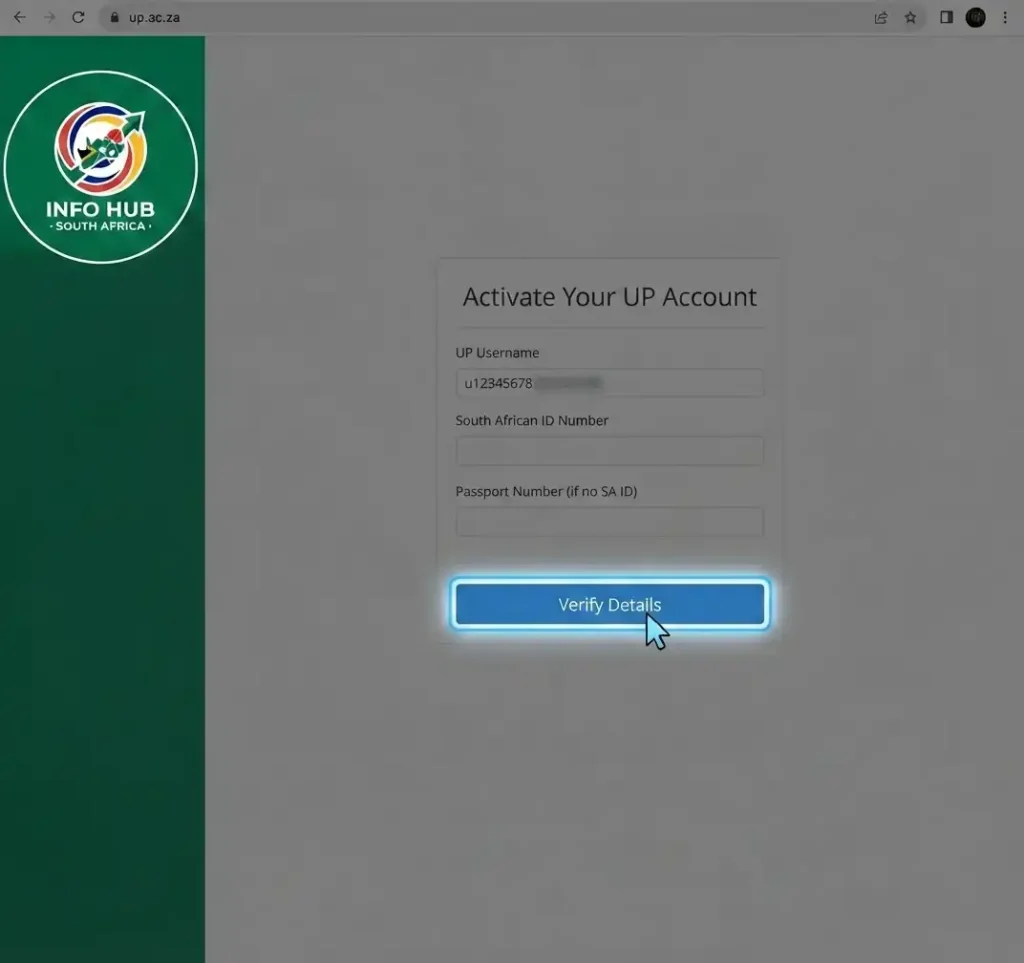
Check the information carefully before continuing to avoid activation problems.
Step 4: Set Your UP Portal Password
The system will display the password rules you need to follow. Create a password that meets those requirements, enter it again for confirmation, and select “Proceed”.

Keep your new password secure because you will need it whenever you use the UP Portal login.
Step 5: Add Your Challenge Questions
You will then be asked to set up security questions. Select at least three challenge questions and provide answers that you can remember.

These questions may be used when you need to reset your password in the future. Once your selections and answers are ready, click “Save”, then select “OK” when the confirmation appears.
Step 6: Sign In to the UP Portal
Return to the UP Portal login screen and enter your username and newly created password. Select “Submit” to sign in.

After authentication, the system directs you to the portal that matches your role, such as:
If your University of Pretoria account has more than one role, you can switch between the available portals through the “My View” dropdown menu.
How to Access the Official UP Portal
You can reach the University of Pretoria UP Portal through the university’s official website or go directly to the official login page.
Method 1: Direct UP Portal Login
- Open Chrome, Edge, Firefox or Safari.
- Go to the official UP Portal login page.
- Locate the username field.
- Enter your UP “u” username.
- Enter your UP Portal password.
- Select Login.
- Wait for your personalised portal page to load.
Official login page: UP Portal Login
The current login page also includes New User, Lost (forgotten) password, and Change password options.
Method 2: Start from the University Website
If you prefer not to save the direct login address:
- Visit the official University of Pretoria website.
- Find My UP Login.
- Select the appropriate login option.
- Enter your UP username and password.
- Continue to your portal.
The university’s own student guidance explains that students can access the Student Portal through My UP Login.
What Can You Do After UP Portal Login?
The exact services visible to you can depend on your role and university records. For students, however, the UP Portal can be used for several important academic and administrative tasks.
Check Your Application Status
Applicants can use the UP Portal to access their Student Centre and check application information.
The University of Pretoria advises applicants to regularly check their personal information and application status through My UP Login.
This is particularly useful if you are waiting for an admission decision or need to check whether additional information is required.
View Registration Information
The portal can provide access to UP course registration and other student administration functions.
If your registration option is unavailable, do not assume that the portal itself is broken. Registration access can depend on your student record and other university requirements.
Check Examination Results
The UP Portal can also provide access to examination results. Because results are linked to your personal student profile, always log in through the official university website.
View Timetables
Students can use the portal to access timetable information relevant to their studies. This makes the UP Portal useful not only during registration but throughout the academic year.
Manage Fee-Related Services
The official Student Portal information lists payment of acceptance fees and fees among the services available through the portal.
Before making any payment, make sure you are using an official University of Pretoria page and not a website claiming to represent the university.
clickUP Login: How It Connects to the UP Portal
If your main goal is accessing online classes, you may actually be looking for clickUP login rather than the general UP Portal.
clickUP is the University of Pretoria’s learning management system. It is used to provide access to registered modules and online learning resources.
There are several ways to reach clickUP.
One approach is to enter clickUP directly through the university’s learning platform. Another is to log into the UP Portal and select the clickUP option available to you.
University guidance describes accessing clickUP through the UP Portal by first signing into the Student Portal and then selecting the clickUP portlet.
Basic clickUP Login Process
- Open the University of Pretoria website.
- Select My UP Login.
- Sign into your UP Portal.
- Locate the clickUP option or portlet.
- Select clickUP.
- Wait for your registered learning content to load.
- Open the required module.
If your registered modules are not appearing, first confirm that you are using the correct account and that your registration information is up to date.
Using clickUP on a Mobile Device
Students may also access learning materials through the Blackboard Learn mobile application. University guidance says users can search for clickUP or University of Pretoria in the app and sign in using their UP Portal/clickUP credentials.
The mobile application can provide access to course content, notifications, assignments, tests, grades and other learning features, depending on what is enabled for the course.
This makes clickUP UP particularly useful for students who need to check course activity away from a desktop computer.
A Quick UP Portal and clickUP Comparison
| If you want to… | Start with… |
| Check application status | UP Portal |
| View academic information | UP Portal |
| Check examination results | UP Portal |
| Access registration services | UP Portal |
| View fees-related services | UP Portal |
| Access registered online modules | clickUP |
| View online course content | clickUP |
| Complete online learning activities | clickUP |
| Receive course notifications | clickUP |
The services available to an individual user may vary according to their UP account and current status.
Keep Your UP Login Secure
Your UP Portal account can provide access to personal university information, so treat your credentials as private.
Avoid entering your username and password into unfamiliar websites, social media messages or unofficial pages. When searching for UP Portal login, check that you are actually on a University of Pretoria domain before entering your credentials.
The University of Pretoria’s own information also advises users not to share their password because it could provide access to personal information.
How to Reset a Forgotten UP Portal Password
Forgetting your password does not mean you need to create a new account. The official UP Portal login page provides a Lost (forgotten) password option that can be used to begin the recovery process.
If you are unable to remember your password:
- Open the official UP Portal login page.
- Select Lost (forgotten) password.
- Follow the instructions shown on the screen.
- Provide the account information requested by the University of Pretoria.
- Complete the required verification steps.
- Create a new password when prompted.
- Return to the UP Portal and try signing in again.
Use the official university page for password recovery rather than third-party websites. The current login page specifically provides a forgotten-password option for users who cannot remember their credentials.
What If the Password Reset Does Not Work?
A password reset problem can have several causes. Before contacting support, check that:
If the problem continues, use the university’s official support channels rather than repeatedly attempting passwords.
How to Change Your UP Portal Password
You may also want to change your password even when you can still access your account. This is different from recovering a forgotten password.
The official UP login page includes a Change password option.
A general process is:
- Visit the official UP Portal page.
- Choose Change password.
- Enter the information requested.
- Complete the verification process.
- Set a new password according to the university’s requirements.
- Save the new credentials securely.
- Sign in again to confirm that the new password works.
Do not share your new password with classmates, friends or anyone claiming to provide unofficial technical assistance.
UP Portal Login Problems and How to Fix Them
Sometimes the UP Portal login page opens correctly but refuses to authenticate your account. Other times, the page may not load properly at all.
The quickest way to identify the problem is to work through the following checks.
1. Check Your Username
The official UP login page uses the university’s “u” username format. For example, the page displays a format such as u01234567.
Make sure you have not accidentally entered:
A small typing error can prevent authentication.
2. Check Your Password
Passwords are case-sensitive. Check whether Caps Lock is enabled and make sure you are entering the current password rather than an older one.
If you genuinely cannot remember it, use the official Lost (forgotten) password option rather than repeatedly guessing.
3. Try a Different Browser
If the UP Portal looks broken or a button does not respond, open the page in another supported browser.
The official login page recommends current versions of browsers such as Chrome, Edge, Firefox and Safari.
For example, if the portal fails in an outdated browser, try the latest version of Chrome or Edge.
4. Clear Browser Cache
Old cached information can sometimes interfere with websites.
You can try:
If possible, test the page in a private or incognito window. This can help determine whether an extension or stored browser data is causing the issue.
5. Check Your Internet Connection
A weak connection can cause login pages to load incompletely or time out.
Try another network if available, then reopen the official UP Portal login page.
6. Avoid Multiple Failed Attempts
If you are unsure of your password, do not continue entering random combinations. Use the official password-recovery option instead.
This is safer and avoids turning a simple forgotten-password problem into a longer account-access issue.
What to Do When clickUP Login Is Not Working
A common student problem is being able to access the UP Portal but not seeing or opening clickUP correctly.
Remember that the two systems have different roles.
UP Portal: student and university administration.
clickUP: online teaching and learning.
The University of Pretoria’s educational guidance explains that students can access clickUP through the UP Portal by signing in and selecting the relevant clickUP portlet.
If clickUP is unavailable, work through these checks.
Confirm Your UP Portal Account
Start by signing into the main portal.
If you cannot complete the UP Portal login, solve that problem first. Your clickUP access depends on your university account.
Look for the clickUP Option
After logging into the UP Portal, look for the clickUP option or portlet.
If you are expecting a particular module but cannot find it, check whether your registration has been processed correctly.
Check Your Registered Modules
clickUP is used for registered modules and online learning resources. If a module is missing, the problem may not be your browser.
Check your academic registration information through the appropriate UP service first.
Try the Learning Platform Again
If the portal is working but clickUP does not load:
- Sign out.
- Close the browser.
- Reopen a supported browser.
- Sign into the UP Portal again.
- Open clickUP.
- Check whether your modules are displayed.
This simple restart can help separate a temporary browser issue from an account or course-access problem.
UP Portal Services Students Commonly Need
The University of Pretoria uses the portal for more than just a login screen. It is designed as a central point for several student services.
Here is a practical overview:
| Service | What students may use it for |
|---|---|
| Application | Checking application-related information |
| Registration | Accessing registration services |
| Results | Viewing examination information |
| Timetable | Checking academic timetable details |
| Fees | Accessing relevant fee services |
| Student information | Viewing personalised university information |
| clickUP | Reaching online learning resources |
The Student Portal is described by the University of Pretoria as a 24/7 gateway to student-specific information, including application status, registration, exam results, fees and timetables.
Because different students can have different permissions, you should not assume that another student’s portal will display exactly the same options as yours.
Important Safety Tips for UP Portal Users
Searching for UP Portal login can bring up many results, but not every result should be trusted.
Before entering your password, check the website address carefully.
Use official University of Pretoria pages
The safest starting points are:
Avoid entering your credentials into a website simply because its page looks similar to the University of Pretoria login screen.
Never share your password
Your password should remain private. Do not send it through WhatsApp, email, social media or messaging platforms.
University guidance also warns students against sharing their password because it can expose personal information.
Quick Troubleshooting Checklist
Before contacting support, run through this short list:
This checklist can save time because it separates common login mistakes from problems that require university assistance.
FAQs
Conclusion
The UP Portal is an important starting point for students accessing University of Pretoria services. Whether you need to check application information, registration, results, fees or timetable-related information, the portal brings many student services together in one online environment.
For learning activities, clickUP has a different role. Understanding the difference between the UP Portal, clickUP login and other UP systems makes it easier to find the service you need without wasting time.
At Info Hub South Africa, our goal is to make university portals and online services easier to understand. The safest approach is straightforward: use the official University of Pretoria website, protect your login credentials and follow the university’s own recovery and support instructions whenever something goes wrong.
Read More
Majuba Student Portal South Africa 2026: Student Login, Registration & Complete Portal Guide
Matric Results 2026 Online Check South Africa: Get Your NSC Results Instantly
CUT Status Check South Africa 2026: Complete Application and Admission Guide
Sol Plaatje University Online Application 2026 South Africa: Complete Step-by-Step Application Guide
TUT Late Applications 2026 in South Africa: Complete Guide to Apply Before the Closing Date