UL Student Portal Login South Africa: Complete Student Guide 2026
The UL student portal is the main online platform used by students of the University of Limpopo (UL) to manage important academic and administrative activities. Whether you are checking an application, completing registration, viewing your academic record or checking financial information, the portal brings these services together in one place.
The system is powered by ITS iEnabler, which means you may also see references to the UL iEnabler login when accessing your account.
What Can You Do on the UL Student Portal?
The University of Limpopo student portal is designed to support students throughout different stages of their university journey. Its functions can vary depending on your student status and the services available to your account.
Some of the main activities include:
For prospective students, the portal can be particularly useful for following an application after submission. Current students can use the same system for registration, academic information and account-related services.
UL Student Portal at a Glance
| Portal feature | What it is used for |
|---|---|
| Application information | Follow application or admission progress |
| Registration | Register for academic terms and manage modules |
| Academic records | View results and academic history |
| Student finances | Review fees, balances and payment information |
| Personal details | Maintain contact and address information |
| iEnabler access | Enter the University’s online student system |
UL Student Portal Login: What You Need Before You Start
Before attempting the student portal UL login, prepare the credentials associated with your University of Limpopo account. Having the correct information ready can prevent unnecessary login errors.
Generally, you will need:
Make sure JavaScript and cookies are enabled in your browser if the portal does not behave as expected.
Important: Never share your student number together with your PIN or password with another person. Your login credentials should remain private.
How to Access the UL Student Portal Login
The quickest way to reach the University’s online system is to use the official portal address rather than relying on third-party websites or search results.
Step 1: Open Your Browser
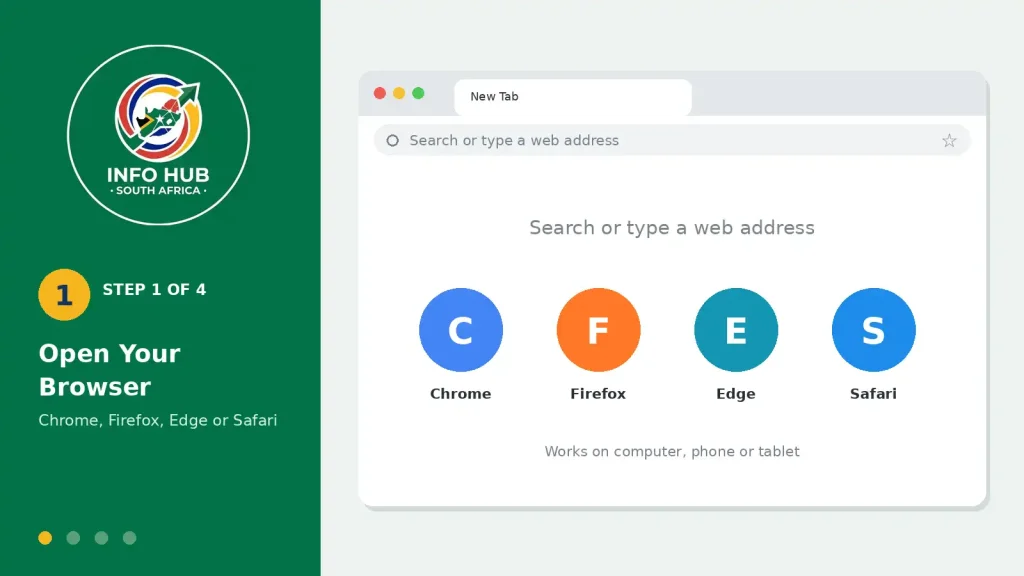
Launch a modern web browser on your computer, phone or tablet. Chrome, Firefox, Edge and Safari are suitable options.
If you regularly use the portal, consider bookmarking the official login page so that you can return to the same address later.
Step 2: Open the Official UL Login Page
Go directly to the University of Limpopo’s student access page:
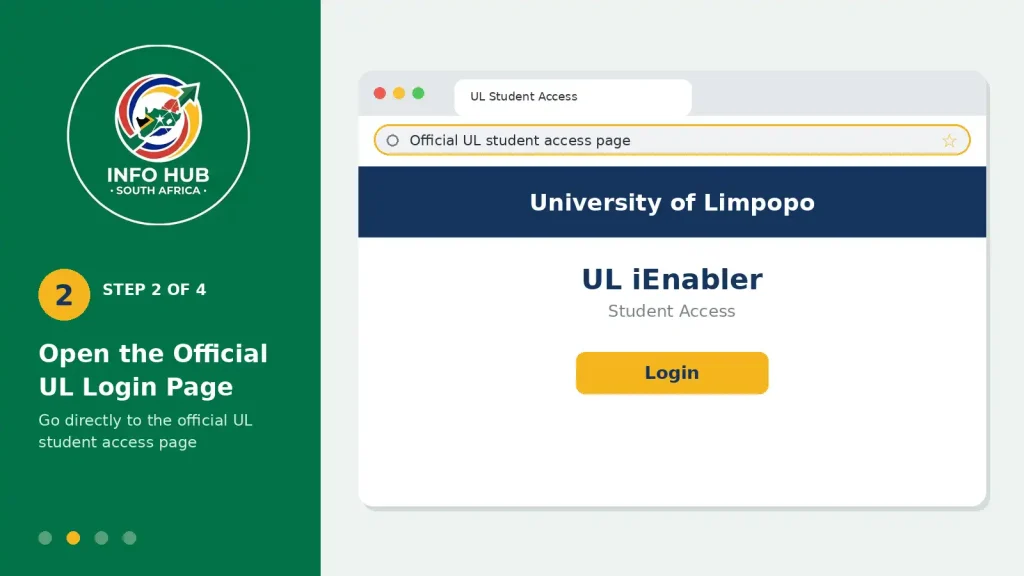
This is the portal address supplied for the UL iEnabler login.
Step 3: Enter Your Student Details
Once the login page loads, enter the information requested by the portal.
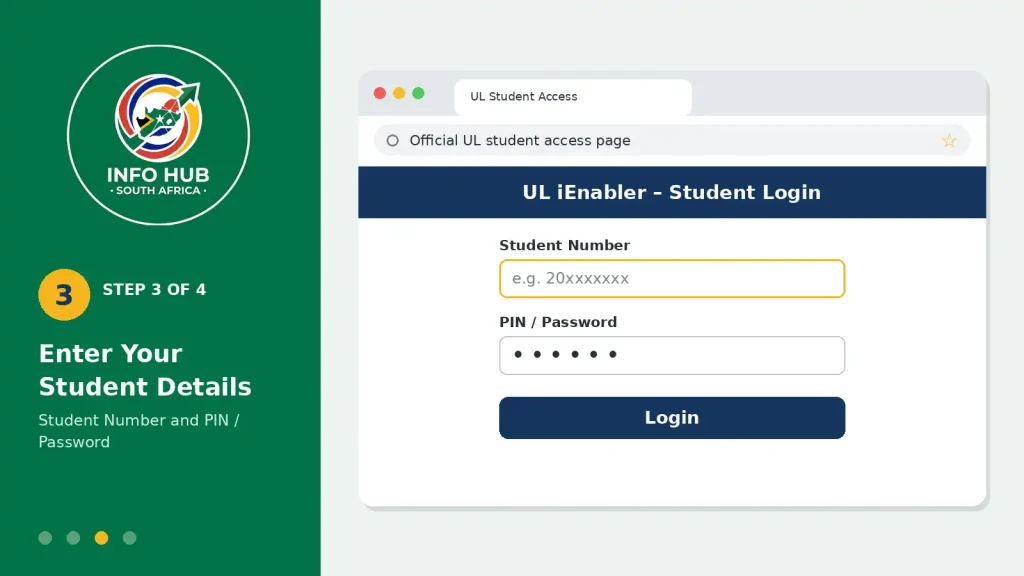
Typically, this includes:
- Your Student Number in the user ID or student number field.
- Your PIN or Password in the relevant password field.
- Select the appropriate login or proceed option shown on the page.
Check the details carefully before submitting them. A typing mistake, incorrect PIN or accidental use of the wrong student number can prevent authentication.
Step 4: Access Your Student Menu
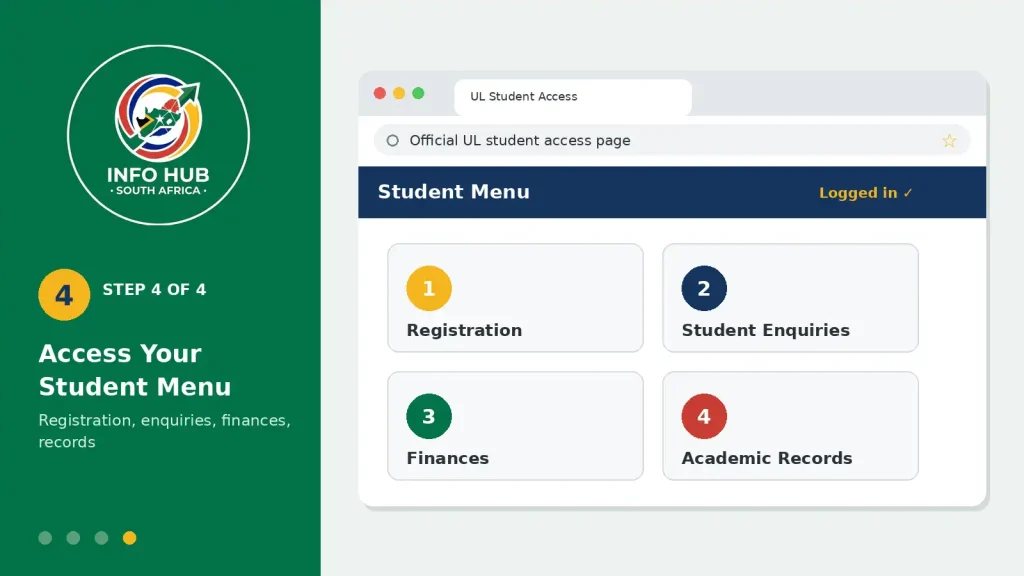
After successful authentication, you should reach the main student menu or dashboard available to your account.
The options displayed can depend on your student status and the services enabled for your profile. From there, you can move to the relevant area, such as registration, student enquiries, finances or academic records.
Using the Portal After Login
Getting through the UL student portal login is only the first step. The real benefit comes from knowing where to look for the service you need.
Check Your Application or Admission Information
Prospective students can use the relevant Student Enquiry or application-related section to follow available admission information.
Depending on the options displayed on your account, you may be able to monitor progress and access admission documents such as an offer or acceptance letter.
If you are checking an application, make sure you are using the correct student or application details associated with your UL profile.
Complete Online Registration
Current students can use the registration section to manage their academic enrolment.
The process may involve:
Read each screen carefully before moving to the next stage. If the portal displays an instruction or warning, deal with it before attempting to continue.
Check Academic Results
Students can also use the academic section to view available results.
Look for options such as Academic Records, View Results or related result functions. Where available, select the relevant academic year and term to view your module marks and progression information.
The exact menu wording may vary according to the account and services available.
Review Student Fees and Financial Information
The student portal can also provide access to financial information associated with your account.
Depending on the available menu options, you may find:
Before making a payment, always check the information displayed by the University’s official system and follow the University’s applicable payment instructions.
UL Status Check Using ID Number
One of the common reasons students and applicants visit the University of Limpopo online system is to find out where their application or student record stands.
If you are looking for a UL status check using ID number, it is important to use the University’s official online services and enter the information requested by the system. The available status information can depend on whether you are applying for admission or already have an active student profile.
After reaching the official portal, look for the relevant Student Enquiry or application-related option. If the system asks for your student number, application details or another identifier, enter the information exactly as it appears on your official UL records.
Can You Check UL Status With an ID Number?
The supplied portal information does not confirm that every status enquiry can be completed using an ID number alone. The login process described for the student portal uses the Student Number together with a PIN or password.
Therefore, if you specifically need a UL status check using ID number, do not assume that the ID number replaces your student number on the login page.
Instead:
- Open the official UL portal.
- Check which identification details the relevant enquiry page requests.
- Enter your information carefully.
- Follow the instructions displayed by the University system.
- If you cannot access the required status information, contact the University’s official support channels.
This distinction can help prevent students from repeatedly trying an incorrect login method.
Understanding the UL iEnabler Login
The term UL iEnabler login refers to access to the University of Limpopo’s online system powered by ITS iEnabler.
For a student, the process is centred around the credentials issued for the UL account. Your student number identifies your account, while your PIN or password is used to authenticate your access.
When accessing the portal, always check the web address before entering confidential information. Avoid submitting your student credentials on unofficial websites claiming to provide UL login services.
UL iEnabler Login Details
| Information | Purpose |
|---|---|
| Student Number | Identifies your UL student account |
| PIN / Password | Provides secure access |
| Browser | Used to open the online system |
| Internet connection | Required to communicate with the portal |
Your PIN or password should be treated as confidential. If another person has access to it, your account could potentially be exposed.
What to Do If Your UL Student Portal Login Does Not Work
A failed UL student portal login does not necessarily mean that your account is permanently blocked. Several straightforward issues can prevent successful access.
Start by checking the details you entered.
Check Your Student Number
Make sure your student number has been entered exactly as provided by the University. Avoid adding unnecessary spaces or characters.
Check Your PIN or Password
Passwords and PINs are sensitive to incorrect characters. If your details are rejected, carefully re-enter them rather than repeatedly guessing.
Also check whether Caps Lock is enabled if your password contains letters.
Try the Official Login Page Again
Return to the official portal rather than using an old bookmark or a third-party login page:
If the page was previously left open for a long time, close the browser tab and start a fresh session.
Forgotten UL PIN or Password
If you cannot remember your portal access details, use the recovery facility provided on the official login page where available.
Recovery Process
- Open the official UL login page.
- Look for the Forgot PIN or Request a PIN option.
- Enter your Student Number and the official email address associated with your University account, if requested.
- Follow the instructions provided by the system.
- Check your registered email account for the recovery instructions.
- Return to the portal and try signing in with the updated access details.
Tip: Avoid using random passwords repeatedly when you cannot remember your credentials. Account recovery is a safer approach.
Common UL Portal Problems and Possible Solutions
Technical problems can sometimes affect the way the portal loads or accepts a login. The following checks can help you identify the issue.
| Problem | What to try |
|---|---|
| Invalid user or password | Recheck your Student Number and PIN/password |
| Forgotten PIN | Use the available PIN recovery option |
| Page timeout | Refresh the page or start a new browser session |
| Server error | Try again later and check your internet connection |
| Portal behaves incorrectly | Clear browser cache and cookies |
| Login page does not load properly | Try another supported browser |
| Unstable connection | Switch to a more reliable internet connection |
Invalid User or Password
An Invalid User / Password message usually means that the credentials entered do not match what the system expects.
First, verify your student number and PIN. If the information is correct but access continues to fail, use the password or PIN recovery option rather than continuing to guess.
Page Timeout or Server Error
If the page times out, your browser session or internet connection may be the cause. Try clearing your browser’s cache and cookies, reopening the browser and accessing the official portal again.
You can also test the portal using another supported browser or a more stable connection.
Browser and Device Tips for Better Portal Access
The UL student system can be accessed from different types of devices, but the experience may vary depending on your browser and connection.
For a smoother session:
If you are completing registration or another important academic process, using a laptop or desktop may also make it easier to review the information displayed on the screen.
University of Limpopo Portal Support
If you have tried the normal troubleshooting steps and still cannot access your account, contact the University of Limpopo through its official support channels.
The supplied contact information includes:
Switchboard: +27 (0)15 268 9111
Admissions & Enrolment: [email protected]
Physical address:
C/O R71 Tzaneen Road and University Street,
Mankweng Township, Polokwane,
University of Limpopo, Old Admin Block, Ground Floor,
Sovenga, 0727, South Africa.
For account-specific problems, explain the issue clearly and provide the relevant information requested by the University. Do not send your PIN or password in an email or public message.
A Useful Checklist Before Contacting Support
Before contacting the University about a portal problem, check the following:
Having this information ready can make it easier to explain the problem and receive appropriate assistance.
Important Things to Remember About the UL Portal
The student portal UL login gives students access to several university-related services, but the available functions can depend on the type and status of the account.
Keep these points in mind:
The official portal remains the best starting point for accessing your UL online services:
Quick UL Student Portal Checklist
Before signing in, make sure you have:
Once you are inside the portal, select the service you actually need rather than changing account details unnecessarily.
FAQs
Conclusion
The UL student portal brings several University of Limpopo services into one online environment. Students can use the system for activities such as registration, academic records, financial information, application-related enquiries and personal information management, depending on what is enabled for their account.
For the safest access, start with the official UL student portal login page and use your Student Number and confidential PIN or password. If you encounter an access problem, check your credentials first, use the available recovery option where appropriate, and contact the University if the issue remains unresolved.
For students looking for reliable South African education and government portal information, Info Hub South Africa provides practical guides designed to make official online services easier to understand and navigate.
Read More
UMP Moodle Login South Africa 2026: Student Portal Access Guide
SMU Student Portal South Africa: Login Guide & Student Services 2026
MANCOSA Login South Africa: Student Portal Access Guide 2026