| |

GEHS Login South Africa 2026: Online Login, Password Reset & Status Check Guide

GEHS Login South Africa 2026 Online Login, Password Reset & Status Check Guide

For thousands of public servants across South Africa, the Government Employees Housing Scheme (GEHS) plays a central role in helping eligible employees access housing benefits and manage their savings allocations. Whether you work under the Department of Public Service and Administration (DPSA), National Treasury, or another participating government department, understanding how to navigate the GEHS login online system is essential to making the most of your benefits.

This guide walks you through everything you need to know — from creating a new profile to completing your GEHS login register process, resetting a forgotten password, and checking the status of your account. We’ll also cover the official portal link, browser requirements, and common troubleshooting tips so you can manage your GEHS profile with confidence.

What Is the GEHS Online Customer Portal?

The GEHS Online Customer Portal is a secure, web-based platform designed specifically for qualifying public service employees. Through this portal, government workers can manage their housing access support benefits, view their savings allocations, and interact directly with scheme administration services — all without needing to visit a physical office.

Before attempting your GEHS login online, it’s worth confirming that you meet the basic eligibility and technical requirements outlined by the scheme administrators.

Who Can Use the Portal?

The system is intended for:

  • Active South African government employees who are eligible for GEHS benefits
  • Personnel under the DPSA, National Treasury, and other participating departments
  • Staff members who have already been registered within their department’s HR system as GEHS-eligible

System Requirements Before You Begin

To ensure a smooth experience on the portal, make sure you have the following ready:

  1. A modern web browser — Google Chrome, Mozilla Firefox, Microsoft Edge, or Safari all work well with the platform.
  2. Your official Employee Number — issued by your government department.
  3. A valid, active email address — one you check regularly, since all account verifications and password recovery instructions are sent here.
  4. Your departmental details — you’ll need to know exactly which government department you fall under, as this is a required field during sign-up.

Having these details on hand before you start will make both the registration and login process significantly faster.

Step 1: Registering a New Account (First-Time Users)

If this is your first time using the platform, you cannot simply attempt a GEHS login online — you must first complete the GEHS login register process to create your profile. Here’s how:
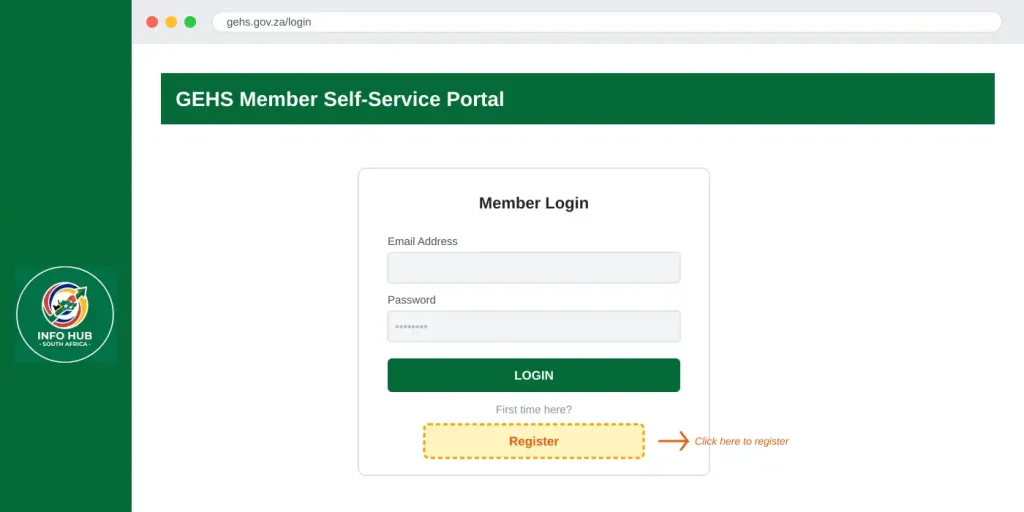
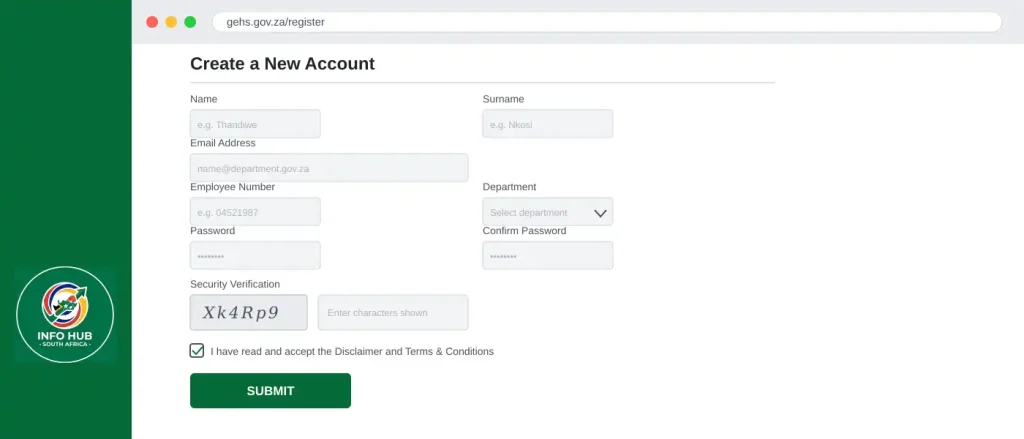
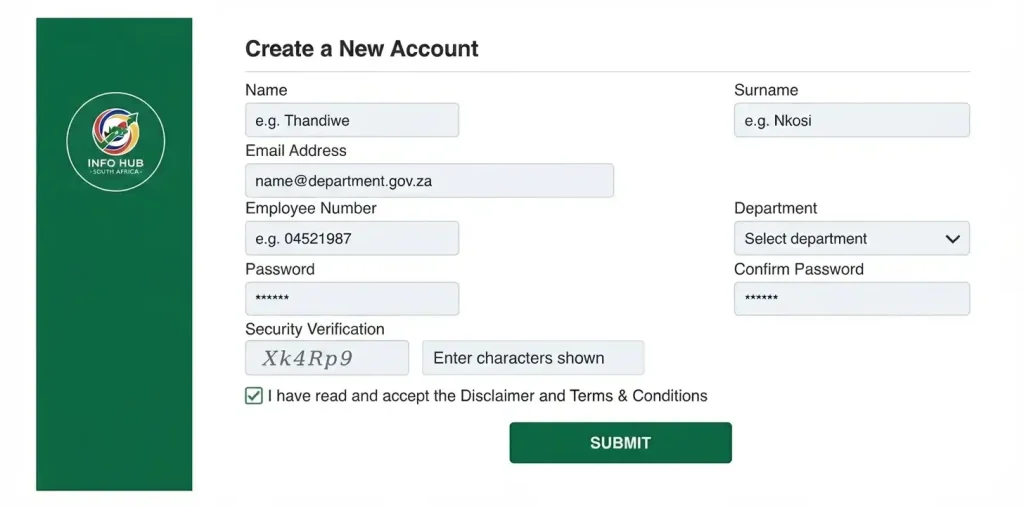
GEHS login register account creation form
GEHS login register for new users showing GEHS account registration form
  1. Open your browser and go to the official homepage:
  2. Locate and click the “Register” link, found near the top navigation bar or alongside the login panel.
  3. You’ll be taken to the “Create a New Account” form. Fill in the following required details carefully:
    • Name
    • Surname
    • Email Address (use an address you actively monitor, since this becomes your login credential and recovery contact)
    • Employee Number (as issued by your government department)
    • Password & Confirm Password (choose a strong, unique password — a mix of upper/lowercase letters, numbers, and symbols is recommended)
    • Department — select your exact government department from the dropdown menu (for example, National Treasury or the Department of Public Service and Administration)
  4. Complete the security verification (BotDetect CAPTCHA) by accurately typing the characters displayed on screen. This step confirms you’re a real user and not an automated bot.
  5. Carefully read the Disclaimer agreement, then check the box to confirm you accept the terms and conditions.
  6. Click the submission button to finalize your registration.

Once your registration is successfully submitted, your profile will typically be validated against your department’s employee records before full access is granted. If there’s a delay, it’s often related to a mismatch in the department selected — more on that in the troubleshooting section later in this guide.

A Quick Tip on Registration Accuracy

One of the most common reasons for delayed account activation is selecting the wrong department from the dropdown list. Since your Employee Number and department are cross-checked against internal government HR records, even a small selection error can hold up your profile validation. Always double-check this field before submitting your form.

Step 2: Logging In to the Portal

Once your registration has been processed and your account is active, accessing your dashboard is straightforward. Here’s exactly how to complete your GEHS login online:
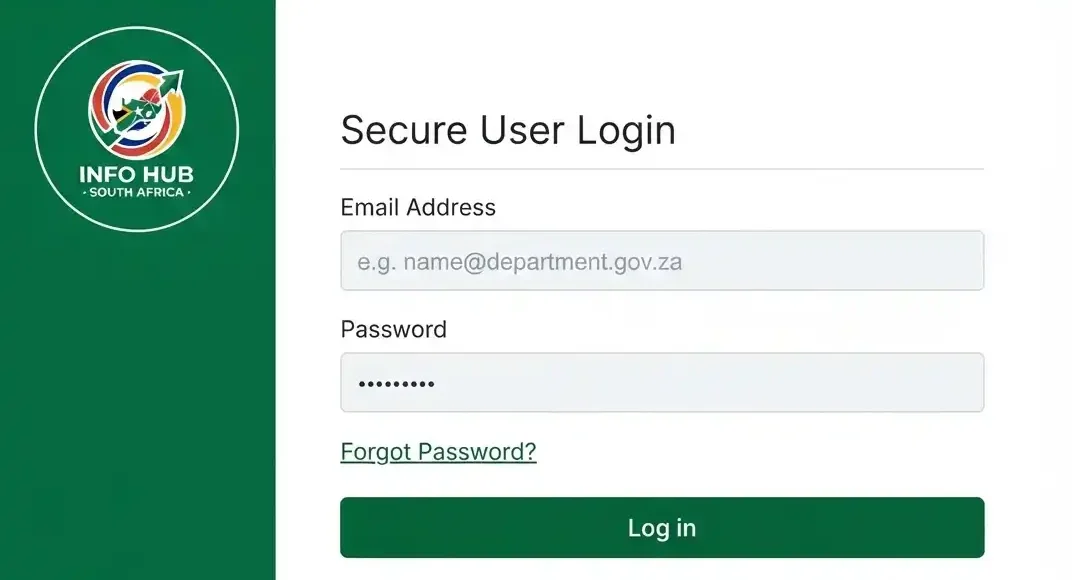
GEHS login page showing email address and password fields for secure online portal access.
  1. Go directly to the secure login page:
  2. Enter the Email Address you used during registration.
  3. Enter your account Password.
  4. Click the “Log in” button to access your secure dashboard.

That’s it — once authenticated, you’ll land on your personal dashboard where you can view your housing access support benefits, savings allocations, and any scheme-related updates relevant to your department.

Why You Might Struggle to Log In

A few common issues can prevent a successful GEHS login online attempt:

  • Mistyped email or password — since both fields are case-sensitive, double-check for accidental caps lock or extra spaces.
  • Incomplete registration — if your account hasn’t finished the validation process with your department’s HR records yet, login may be temporarily restricted.
  • Browser compatibility issues — using an outdated browser version can sometimes interfere with the login form. Switching to an updated version of Chrome, Firefox, Edge, or Safari usually resolves this.

If you’ve confirmed your credentials are correct and you’re still unable to access your account, the next section will help.

Step 3: Resetting Your Password

Forgetting a password happens to everyone, especially with a portal you might only log into occasionally. Fortunately, the GEHS login password reset process is fully automated and doesn’t require contacting support for a basic reset.
GEHS login password reset page showing the Forgot Your Password option and email field for resetting account access.

Here’s how to recover access to your account:

  1. Navigate to the login page at
  2. Click on the “Forgot your password?” link, usually located just below the login fields.
  3. Enter the Email Address associated with your GEHS account — this must match the email used during your original registration.
  4. Check your inbox for an automated message from the portal, and follow the prompts included in that email to securely reset your credentials.

Tips for a Smooth Password Reset

  • Check your spam or junk folder if the reset email doesn’t appear in your inbox within a few minutes.
  • Use the same email address you registered with — entering a different one won’t trigger a reset, since the system won’t recognize it.
  • Create a new password that’s genuinely different from your old one, and avoid reusing passwords from other accounts for security reasons.
  • Once your password is reset, return to and log in as normal with your new credentials.

If you’ve gone through this process and still can’t regain access — for instance, if you no longer have access to the email address on file — this typically requires contacting your department’s internal HR or GEHS representative directly, since the portal itself cannot verify identity outside of the registered email.

Step 4: Performing a GEHS Status Check

Once you’re logged into your dashboard, one of the most useful things you can do is run a GEHS status check on your profile and benefits. This gives you visibility into where your account stands and whether any action is needed on your part.
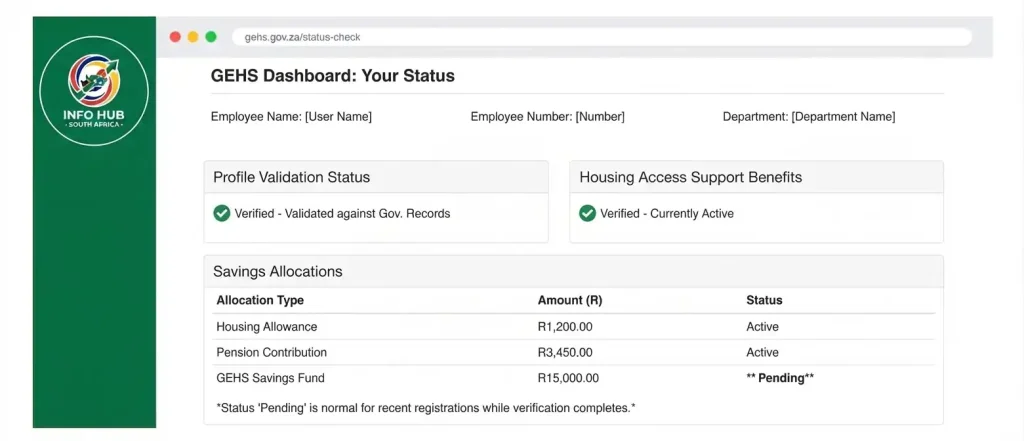
GEHS status check dashboard showing employee profile validation, housing benefits, and savings allocation information.

After logging in at, your dashboard should display information relevant to your:

  • Profile validation status — confirming whether your Employee Number and department details have been successfully verified against your government department’s records.
  • Housing access support benefits — an overview of your current benefit standing under the scheme.
  • Savings allocations — a summary of any contributions or allocations tied to your GEHS profile.

If your account was recently registered, it’s normal for certain sections of your GEHS status check to show as “pending” while your department completes its verification process in the background. This is particularly common if there was any inconsistency between the department you selected during registration and your official HR records.

For employees who need clarification on specific housing allowances, benefit calculations, or scheme rules beyond what’s visible on the portal, the correct next step is to consult your department’s internal HR or GEHS representative — the portal itself is designed for account access and basic status visibility, not detailed policy interpretation.

Quick Reference: Troubleshooting Common Issues

Below is a summary of the most frequently encountered problems on the portal, along with practical solutions:

IssueResolution
“Email Address is required” / “Password is required” errorEnsure all mandatory fields marked with an asterisk (*) are completely filled out before clicking submit. Empty or partially filled fields will block submission.
CAPTCHA Validation FailureCarefully type the case-sensitive characters exactly as shown in the CAPTCHA image. If the text is unclear or hard to read, refresh the image and try again.
Incorrect Department ListingDouble-check that you’ve selected your exact government department from the dropdown during registration. An incorrect selection can cause delays in profile validation.
Eligibility & Benefit InquiriesRemember that this portal is strictly designated for DPSA and authorized government employee users. For complex questions about housing allowances or scheme rules, reach out to your department’s internal HR/GEHS representative.
Forgotten PasswordUse the “Forgot your password?” link on the login page and follow the automated email instructions to reset your credentials securely.
Unable to Log In After RegistrationAllow time for your profile to complete department verification. If access issues persist after 24–48 hours, contact your HR representative.

FAQs

A GEHS certificate typically refers to proof of your enrolment or savings status within the scheme, which some employees need for mortgage applications, home loan qualification, or internal HR verification.

  • Log in to your account at the official portal and check your dashboard for a downloadable enrolment confirmation or statement.
  • If no digital certificate option is available on your profile, contact your department’s HR division, as they can issue an official letter confirming your GEHS enrolment status.
  • You may also request confirmation directly from the GEHS support team via email or the enrolment call centre.

In most cases, proof of enrolment is generated through your department’s payroll and HR records rather than the portal itself, so your HR office remains the most reliable source for a formal certificate.

Checking your GEHS status lets you confirm whether your enrolment has been processed, whether your housing allowance is being correctly allocated, and how your Individual-Linked Savings Facility (ILSF) balance is progressing.

  • Log in to your GEHS online profile using your registered email and password.
  • Review your dashboard for enrolment validation, benefit allocation, and savings summary sections.
  • If any section shows as “pending,” this usually means your department hasn’t finished cross-checking your employee and department details yet.
  • For urgent verification, you can also call the Employee Enrolment Support Call Centre for a status update over the phone.

If your status remains unresolved for an extended period, following up with your department’s HR representative is the fastest way to resolve the issue.

“Claiming” GEHS money generally refers to accessing the funds accumulated in your Individual-Linked Savings Facility (ILSF), which builds up over time for employees who don’t receive their full housing allowance as a direct cash payment.

  • ILSF savings become accessible under specific conditions — typically when you purchase a home, or upon retirement or exit from the public service.
  • To initiate a claim, you’ll generally need to submit supporting documentation (such as proof of home purchase or an exit form) through your department’s HR office.
  • The GEHS administration team, together with SA Home Loans where applicable, processes these claims once the required paperwork is verified.

Because the rules differ depending on your appointment date and homeownership status, it’s best to confirm your specific eligibility criteria with your HR division before submitting a claim.

Unlike the ILSF savings, the standard monthly housing allowance is usually paid automatically through payroll once your GEHS enrolment is confirmed.

  • Ensure you’ve completed the full GEHS login register process and that your enrolment has been validated by your department.
  • Confirm with your HR office that your homeownership status (owner vs. tenant) is correctly captured, since this determines how much of the allowance is paid directly versus diverted to savings.
  • Employees must contact the Human Resources division in their respective departments in order to access the housing allowance, since payment is processed through the PERSAL payroll system rather than the portal itself.

If your allowance isn’t reflecting on your payslip despite being enrolled, this is almost always a payroll administration matter to raise directly with HR.

If you’re a first-time user, you don’t “get” a password from GEHS directly — you create one yourself during registration.

  • New users set their own password during the GEHS login register process on the official portal.
  • If you’ve already registered but forgotten your password, use the GEHS login password reset option available on the login page.
  • Click “Forgot your password?”, enter your registered email address, and follow the automated instructions sent to your inbox to set a new password.

Always use the email address you originally registered with, since the system will only send reset instructions to a recognized account email.

Payout timelines depend on what type of payment you’re referring to:

  • Monthly housing allowance: Once enrolment is validated, this is typically processed automatically through your regular payroll cycle.
  • ILSF savings payout (on home purchase or exit): This can take several weeks to a few months, depending on how quickly supporting documents are verified by your department and the scheme administrators.
  • Processing delays are most often linked to incomplete documentation or unresolved enrolment validation issues.

For a payout that’s overdue, following up with your HR department and requesting a GEHS status check on your specific claim is the recommended next step.

For direct assistance beyond what’s available on the portal, you can reach GEHS through the following official channels:

  • Employee Enrolment Support Call Centre: 0861 12 34 34 Department of Public Service and Administration
  • SA Home Loans Call Centre (for home loan-related queries): 0860 2 4 6 8 10 Department of Public Service and Administration
  • Email: [email protected] Department of Public Service and Administration
  • Official website: www.dpsa.gov.za/gehs/ Department of Public Service and Administration

It’s worth noting that some third-party listings reference an alternate contact number and website; the DPSA-hosted page above is the most authoritative source for current contact details, so it’s best to verify against it directly if you encounter conflicting numbers elsewhere online.

Once your GEHS enrolment is successfully validated by your department, the housing allowance is generally incorporated into your next available payroll cycle rather than paid as a separate, one-time transaction.

  • New enrolments typically take a few weeks to reflect on payslips, depending on how quickly your department processes the validation.
  • Any backdated amounts owed from the enrolment date are usually adjusted retroactively once processing is complete.
  • Persistent delays beyond one or two pay cycles should be escalated to your department’s payroll or HR office.

The Home Owner Application (sometimes required to confirm homeownership status for correct allowance allocation) is generally accessed through your department’s HR office rather than downloaded independently online.

  • Speak to your HR or GEHS departmental representative to request the relevant application or declaration form.
  • Some forms may also be available directly through the official DPSA GEHS information page, alongside other scheme-related documentation.
  • Ensure any form you complete is submitted with the required supporting proof of ownership (such as a title deed or bond statement) to avoid processing delays.

The housing allowance is not a fixed figure — it is adjusted annually, based on the average Consumer Price Index (CPI) for the preceding financial year, in line with PSCBC Resolution 7 of 2015.

Here’s how the figure has moved over recent adjustment cycles:

  • From 1 April 2025, the housing allowance for homeowners increased from R1,784.55 to R1,900.00 per month, under PSCBC Resolution 1 of 2025.
  • Following the subsequent CPI-linked adjustment, the allowance rose further to R1,973.00 per month.
  • Effective 1 July 2026, under DPSA Circular No. 31 of 2026, the homeowner allowance increased again from R1,973.00 to R2,037.28 per month, based on the average CPI for the 2025/26 financial year.
  • Tenants who were appointed before 27 May 2015 continue to receive R900.00 per month directly, with the remaining balance diverted into the GEHS Individual-Linked Savings Facility (ILSF).
  • Employees appointed on or after 27 May 2015 who rent under a legal rental agreement have their full monthly allowance diverted into the ILSF account instead of receiving a direct cash payment.

Because this figure adjusts annually, it’s always worth checking the latest DPSA circular or confirming with your HR office to make sure you’re working with the most current amount for your specific appointment date and homeownership category.

Conclusion

Navigating a government benefits portal doesn’t need to be complicated once you understand the basic flow: register with accurate details, complete your GEHS login online using your verified email and password, use the automated GEHS login password reset tool whenever needed, and periodically run a GEHS status check to stay informed about your housing benefits and savings allocations.

By keeping your registration details accurate — particularly your Employee Number and department selection — and using an email address you check regularly, most portal-related hiccups can be avoided entirely. And for anything beyond basic account access, your department’s HR or GEHS representative remains the best resource for policy-specific questions.

For more guides like this one covering government portals, benefits, and everyday services in South Africa, Info Hub South Africa is dedicated to breaking down official processes into simple, easy-to-follow steps. Whether you’re trying to understand a new government platform, keep up with policy changes, or just need a reliable reference before contacting a department directly, Info Hub South Africa aims to be the go-to resource that saves you time and confusion. Be sure to check back regularly, as scheme details, contact information, and allowance figures are updated as new official circulars are released.

Read More

Matric Results 2026 Online Check South Africa: Get Your NSC Results Instantly

SASSA Reapplication South Africa: How to Reapply for the SRD Grant in 2026

UI-19 Form South Africa: Download, Complete & Submit Guide (2026)

Similar Posts

Leave a Reply

Your email address will not be published. Required fields are marked *