GDE Parent Login 2026/2027: Login & Admissions Guide
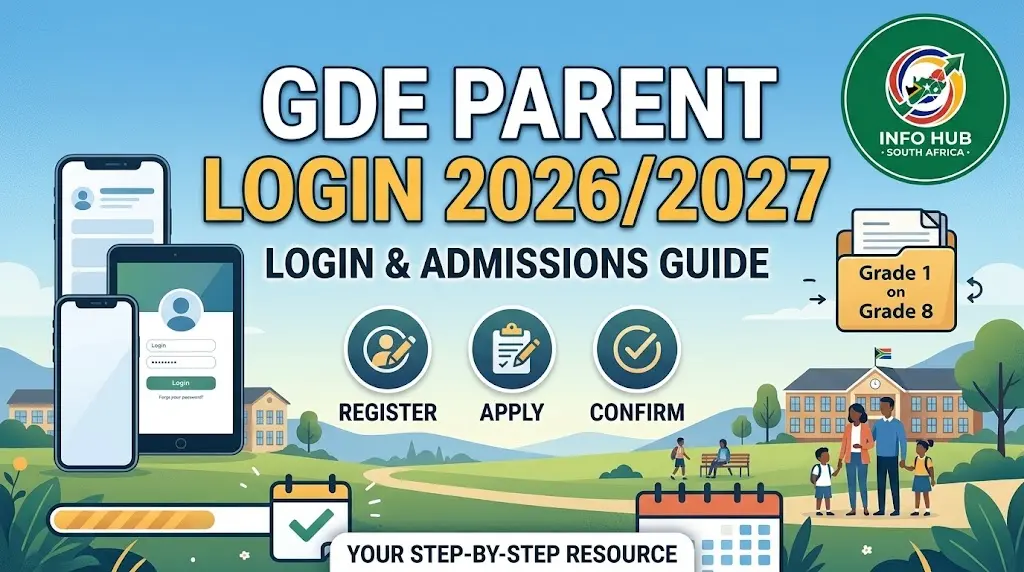
If you want to access the GDE parent login portal, register as a parent, apply for a Gauteng public school, or check your child’s application status, this guide explains each step. The GDE parent login portal is the online admissions platform of the Gauteng Department of Education (GDE), which helps parents and guardians manage Grade 1 and Grade 8 school applications in Gauteng.
The process begins with parent registration, where you create a profile and provide the required details. After registering, you can log in, enter your child’s information, select preferred schools, submit an application and track its progress according to the instructions for the relevant admissions period.
Whether you are reviewing the 2026 admissions process or preparing for GDE admissions parent registration online 2027, ensure your contact details are accurate and your supporting documents are ready. Application dates, school selection requirements and available portal features may vary by year, so check the latest admissions information before proceeding.
What Can You Do Through GDE Login?
The GDE login system helps parents manage key parts of the school admissions process online. The exact functions available depend on the admissions cycle and the stage of your application.
With a parent account, you may be able to:
The GDE parent login status check is particularly useful after an application has been submitted. Parents should keep their login credentials and application reference information safe so they can return to the portal when updates are available.
Documents to Prepare Before GDE Admissions Registration
Preparing the required paperwork in advance can reduce delays during registration and document verification. The documents requested may depend on the learner’s circumstances, grade and application category.
1. Parent or Guardian Identification
South African citizens may be asked to provide the appropriate South African identity document. Foreign nationals should prepare the relevant identification and immigration documents accepted by the admissions system.
Depending on the person’s circumstances, these may include:
Check the current portal instructions to confirm which document applies to your situation.
2. Learner Identification Documents
Prepare the learner’s identification details before starting the application. Depending on the learner’s status, the applicable document may be a South African identity document, passport or relevant permit.
If your child’s documents are still being processed, do not assume that every application can proceed without them. Follow the options displayed on the official system and confirm with the department what must be submitted and when.
3. Proof of Residential Address
The address supplied during GDE admissions parent registration online can be important when schools assess placement preferences. Prepare acceptable proof that reflects where the learner lives.
Examples provided for this process include:
An affidavit should not be treated as an automatic substitute for the requested address documents. Confirm the current evidence requirements on the portal before submitting your application.
4. School Records and Supporting Documents
The supporting records may differ according to the grade for which you are applying.
| Application grade | Document to prepare |
|---|---|
| Grade 1 | Clinic card or immunisation report, where required |
| Grade 8 | Latest official Grade 7 school report |
| All applicable grades | Parent identification, learner details and acceptable proof of address |
Keep clear digital copies of the documents available. If the system requests individual uploads, submit each file separately rather than combining everything into one document.
How to Complete GDE Parent Registration Online
Before you can submit a school application, you generally need to create a parent profile on the admissions website. The registration process collects the information required to identify the parent or guardian and link the account to the learner’s application.
Step 1: Open the GDE Login Website
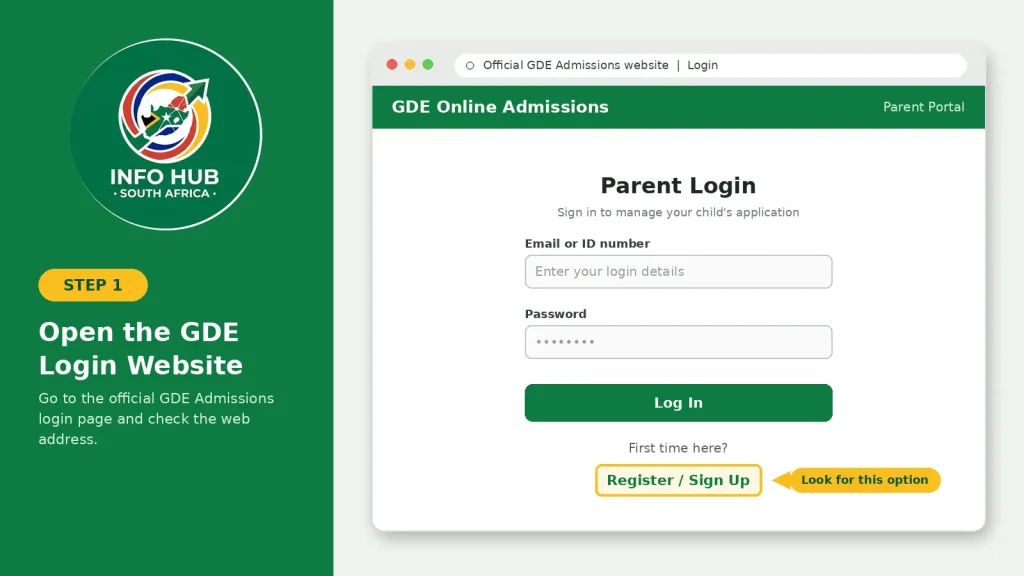
Visit the official GDE Admissions Login page. Check that the website address is correct before entering personal information.
First-time users should look for the registration option on the page. Parents who already have an account can use the existing login details instead of creating another profile.
Step 2: Enter Your Parent or Guardian Details
Complete the fields requested by the registration system. These may include your full name, identification or passport details, mobile number and other contact information.
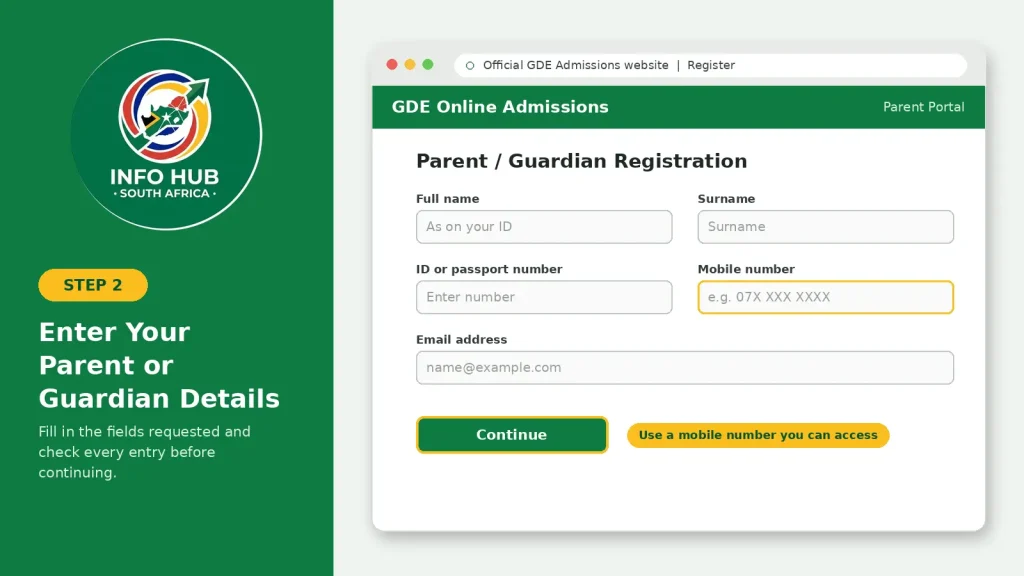
Check every entry before continuing. An incorrect phone number can make it difficult to receive verification messages or admissions updates.
Step 3: Verify Your Contact Details
Follow the verification instructions displayed on the website. If the portal sends a one-time PIN (OTP) or another verification code, enter it as directed.
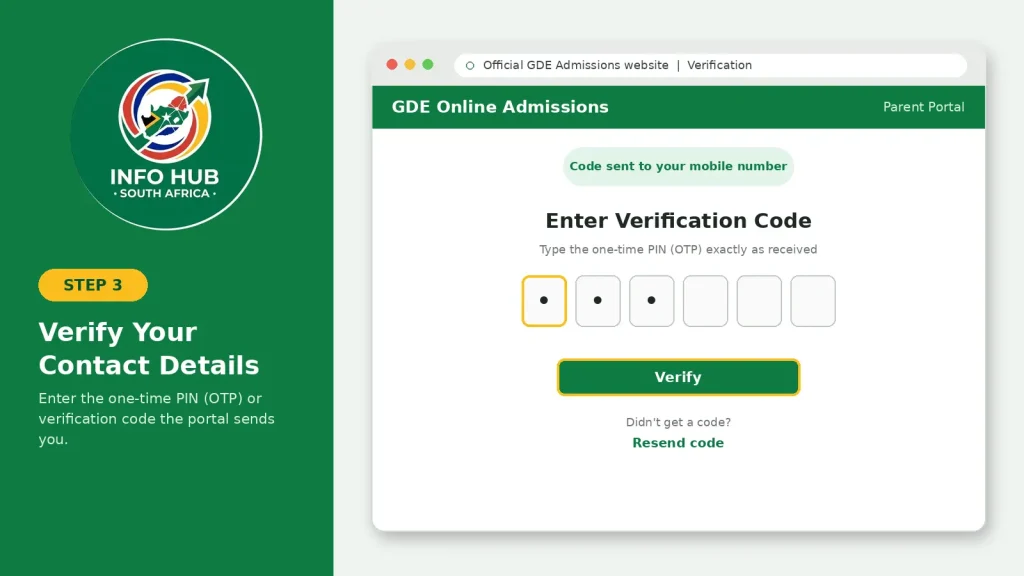
Make sure you can access the mobile number associated with your profile. If you no longer use the registered number, follow the portal’s official account recovery or support instructions.
Step 4: Create and Save Your Login Credentials
Set a password that meets the requirements shown on the website. Do not assume that password rules remain unchanged between admissions cycles.
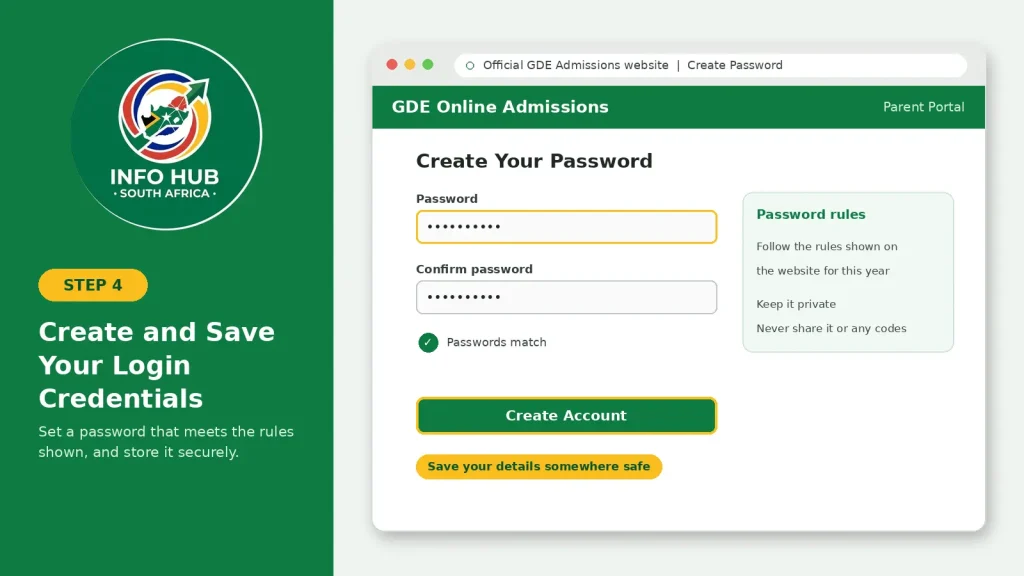
Store your credentials securely and avoid sharing your password or verification codes with other people. These details may be needed whenever you return to the GDE parent login portal to manage an application.
Step 5: Sign In to Your Parent Account
After registration, return to the login page and enter the requested credentials. Once signed in, look for the admissions options available for the relevant academic year.
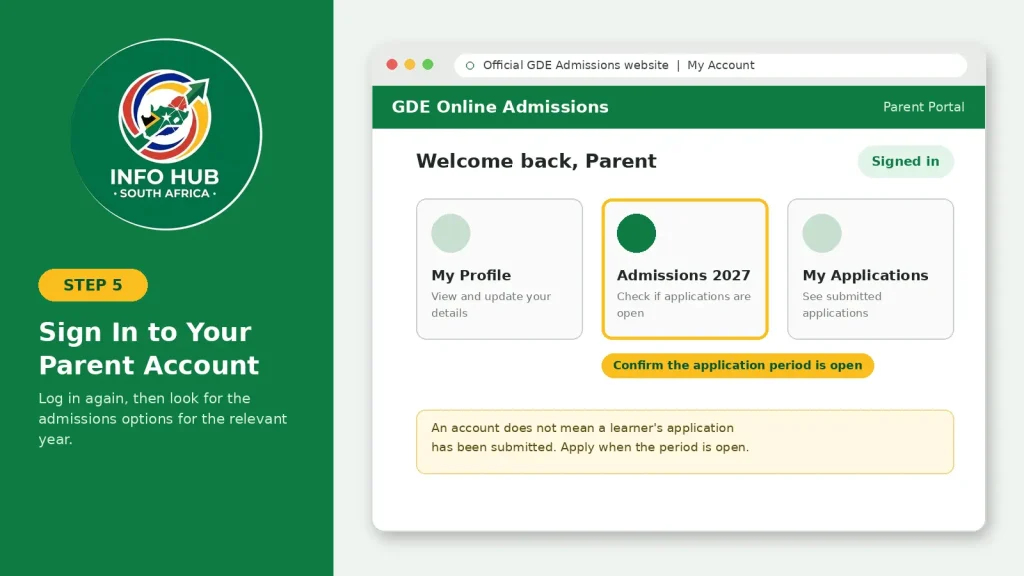
If you are applying for 2027, confirm that the relevant application period is open before proceeding. Creating an account does not necessarily mean that a learner’s school application has been submitted.
How to Add Learner Details on the GDE Admissions Portal
After accessing your parent profile, the next task is to provide the learner’s information. Enter all details carefully because incorrect names, dates of birth or identification numbers may cause verification problems later.
The GDE parent login portal may display different options depending on the admissions year and the learner’s circumstances. Follow the instructions shown on the live portal rather than relying on screenshots or directions from an older application cycle.
Enter Your Residential Address
Provide the residential address requested by the system and ensure it matches your supporting documents as closely as possible.
Your home address may influence which schools are available under particular placement categories. If you rent your home, make sure your lease agreement and other address evidence are consistent with the information entered on the application.
Before continuing, check that:
Do not enter an inaccurate address simply because it is closer to your preferred school. Incorrect information can create difficulties during document verification or placement.
Register Your Child and Review the Information
Enter the learner’s full legal name, date of birth and other details requested by the system. Use the information shown on official documents wherever possible.
For Grade 1 applications, carefully check the learner’s personal information. For Grade 8 applications, ensure the details correspond with the learner’s school records.
Before saving the learner profile, review the following information:
If you do not have a particular identity document, check whether the current GDE admissions instructions allow you to proceed using another option. Do not select an alternative unless it is permitted by the system.
Parents applying for more than one child should confirm that they are working with the correct learner profile before proceeding.
How to Apply for a School Through GDE Admissions
Creating a parent account is only one part of the process. To complete a GDE admissions application, you must provide the learner’s details, select suitable schools and submit the supporting documents required by the department.
For the 2027 academic year, the published application period for Grade 1 and Grade 8 ran from 5 August to 4 September 2026. As this period has ended, parents should check the current admissions announcements for placement updates and instructions concerning late applications.
Select the Appropriate Application Category
After saving the learner’s information, review the school application options displayed on the portal.
Depending on the available options, you may be able to apply using your residential address, a parent’s work address or another permitted placement category. Select the option that accurately reflects your circumstances and meets the current admissions requirements.
For the 2027 admissions cycle, parents were advised to use the home-address option at least once when selecting schools with feeder zones covering their residential address. Always check the current portal instructions before submitting an application.
Choose Your Preferred Schools
Review the schools available through the GDE admissions portal and select those that best meet your learner’s needs.
Consider the following before confirming your choices:
For the 2027 admissions cycle, the portal allowed applications to a maximum of five schools. Check the relevant rules if you are applying through a later admissions cycle or under a different arrangement.
Review and Submit Your Application
Before submitting the application, review the learner’s details, residential address and selected schools. Correct any errors you identify before finalising the information.
Once the application has been submitted, save the confirmation and any reference number provided by the system. Keep your registered mobile phone available because SMS notifications may contain important application updates.
Remember that creating a parent profile or adding a learner does not necessarily mean that the complete school application has been submitted. Make sure you have completed all the required stages shown on the portal.
How to Upload Documents After GDE Parent Login
Supporting documents help the department and schools verify the information supplied by parents. Missing, unclear or inconsistent documents can delay the processing of an application.
For the 2027 admissions cycle, parents were instructed to submit supporting documents to the schools they applied to within seven days after applying, subject to the department’s published deadline arrangements. Follow the applicable instructions if you are completing a late application or responding to a placement update.
Prepare the Required Supporting Documents
Before submitting your files, make sure each document is readable and belongs to the correct parent or learner.
Common supporting records may include:
The exact requirements can vary according to the learner’s circumstances and the admissions instructions. Parents using foreign identification or immigration documents should check which records are accepted before submitting their application.
Submit the Documents and Confirm Receipt
Sign in through your GDE parent login account and open the relevant learner’s application. Follow the document-submission instructions displayed by the system.
If online uploads are available, choose the correct document category and attach the appropriate file. Double-check that you have not uploaded one child’s documents to another learner’s profile.
If the portal instructs you to submit documents directly to a school, follow that procedure and ask for confirmation that the school has received them.
After submission, review the application or document status if this information is available. Save any confirmation provided. If the status does not change immediately, do not automatically assume that your documents have been rejected. Contact the relevant school or department if you need clarification.
Submitting documents does not guarantee admission. Placement depends on the applicable admissions criteria, verification and the availability of school places.
GDE Parent Login Status Check: How to Track an Application
The GDE parent login status check helps parents follow the progress of a learner’s school application and look for updates about document verification and placement.
Check Your GDE Application Status
Sign in to your registered parent profile and open the relevant learner’s application. Review the available application information, outstanding document requirements and placement notifications.
If you applied to multiple schools, check the information available for each application. An update concerning one school does not necessarily mean that every other school has reached the same decision.
If you cannot find the status information, review the portal’s help instructions or contact the department for assistance.
Understand Application Status Updates
The wording displayed on the portal may vary. The following table explains some common types of application updates in general terms.
| Status or update | What it generally means |
|---|---|
| Application submitted | Your application information has been sent to the system. |
| Documents pending | Supporting documents may still need to be submitted or processed. |
| Documents verified | The relevant documents have been checked by the responsible school or department. |
| Placement offer | A school has made an offer that requires your attention. |
| Alternative placement | The department may offer another school where space is available. |
These descriptions are general explanations, not a guaranteed list of the exact status labels used on the GDE portal. Read the message attached to your own application and follow any instructions provided.
Check for School Placement Offers
The GDE communicates placement updates through SMS and makes relevant information available through the parent profile.
For the 2027 admissions cycle, the published placement period for schools was 15–30 October 2026, followed by a period for placing learners who had not secured places at their selected schools.
If you receive a placement offer, read the instructions carefully and respond within the stated deadline. The department advised parents to accept placement offers within seven days.
If you have not received an SMS, sign in to check the portal rather than relying solely on text messages. If there is still no clear update, contact the department for assistance.
GDE Login Problems and How to Resolve Them
Parents may occasionally experience difficulties accessing their accounts or viewing application information. The appropriate solution depends on the problem displayed by the portal.
Forgot Your Password or Login Details
Return to the GDE login page and follow the available account recovery instructions. Use the contact information associated with your profile where requested.
Avoid creating multiple profiles to solve a login problem. If the system indicates that an account already exists, contact GDE support for guidance.
Unable to Receive an OTP or SMS
Check that your mobile phone has network coverage and that you entered the correct number during registration. If the verification message does not arrive, follow the portal’s instructions for requesting another code.
Never share your password or OTP with someone claiming they can guarantee school placement.
Learner Details Are Incorrect
If you entered an incorrect address, date of birth or other personal information, check whether the portal allows you to edit the relevant field. Some changes may require assistance or supporting evidence.
Do not submit conflicting information to bypass a validation error. Ask the department how to correct the record before proceeding.
A Preferred School Does Not Appear
Available schools can depend on the learner’s grade, application category, address and the options offered during the relevant admissions cycle.
Review your address and application details. If the school is still missing, consult the official admissions guidance or contact GDE support to understand your options.
Application Status Has Not Changed
Document verification and placement involve processes beyond the parent’s control. A status that remains unchanged does not automatically indicate rejection.
Check whether any documents are outstanding, review portal announcements and contact the relevant school or department if the delay requires clarification.
GDE Admissions Contact Details
If you cannot resolve a problem through the portal, use the department’s published support channels.
Parents can also consult the official GDE admissions FAQs for further guidance on document submission, application status, school choices and other common questions. Confirm contact details and current procedures through the department’s official channels before relying on them.
FAQs
Conclusion
The GDE parent login portal helps parents manage Grade 1 and Grade 8 school applications, submit supporting documents and follow admission updates for Gauteng public schools. Keeping your information accurate and checking your application regularly can help you stay informed about verification requirements and placement decisions.
If you are following the 2027 admissions process, check the latest GDE announcements for placement updates and any further instructions. For more student portal guides, education updates and government service information, visit Info Hub South Africa to find helpful guidance on accessing official online platforms.
Read More
GEHS Login South Africa 2026: Online Login, Password Reset & Status Check Guide
Television Licence South Africa: Online Application, Status Check & SABC TV Licence Guide 2026
Passport Renewal South Africa: Online Application, Fees & Banks