
UCT Student Portal: Login, Application Status Check & 2027 Guide
The UCT student portal, known as Students Online, is the University of Cape Town’s online platform for applicants and registered students. It allows users to check their admission progress, prepare for registration and manage their university accounts through a central online system.
Students can log in to access their personal and academic information and use the available self-service features for university-related activities. Whether you are a prospective student waiting for an admission decision or a current student managing your studies, the UCT student portal makes it easier to access important university services in one place.
What Is the UCT Student Portal?
The UCT student portal, known as Students Online, is the University of Cape Town’s online system for managing student-related information and administrative tasks. It allows applicants and registered students to access relevant university services online instead of visiting an administrative office for every routine enquiry. The platform uses Oracle PeopleSoft technology to support student administration and academic services.
Depending on your account status and access permissions, the UCT student portal may allow you to:
It is important to understand that the UCT application portal and Students Online serve different purposes. Prospective students use the relevant application facilities to manage admission-related enquiries, while registered students use Students Online for ongoing academic and administrative activities. Access to one platform does not automatically provide access to every service on the other.
UCT Student Portal Login: How to Access Your Account
To complete the UCT student portal login, you need your assigned university login credentials and an active account. Depending on your account setup, these may include your UCT student number or network username and your university password. If your account is already activated, you can sign in and access the available self-service facilities.
Step 1: Open the Students Online website
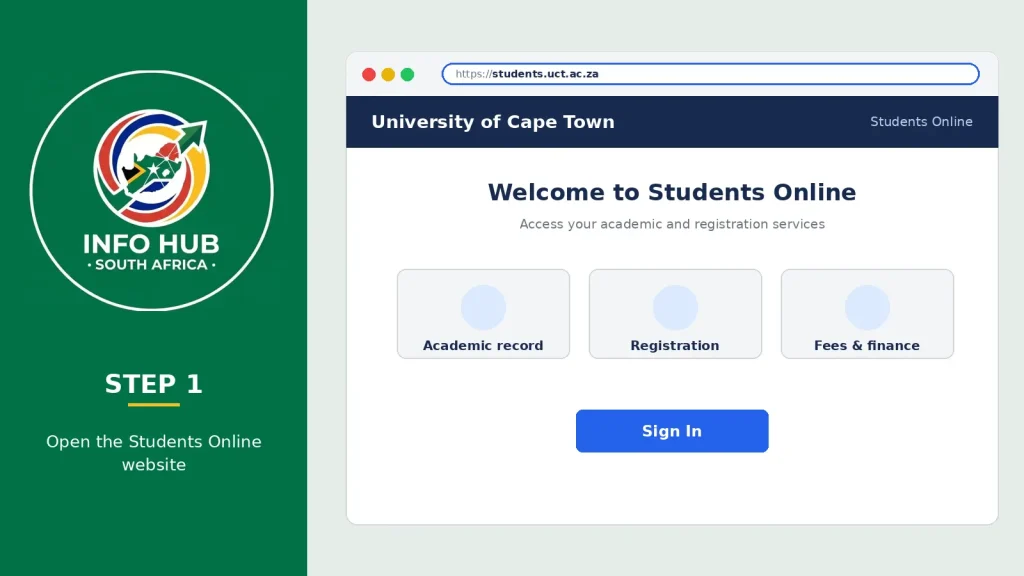
Visit the UCT Students Online page using your web browser. Make sure you are accessing the correct university platform before entering your personal details.
Step 2: Find the login section
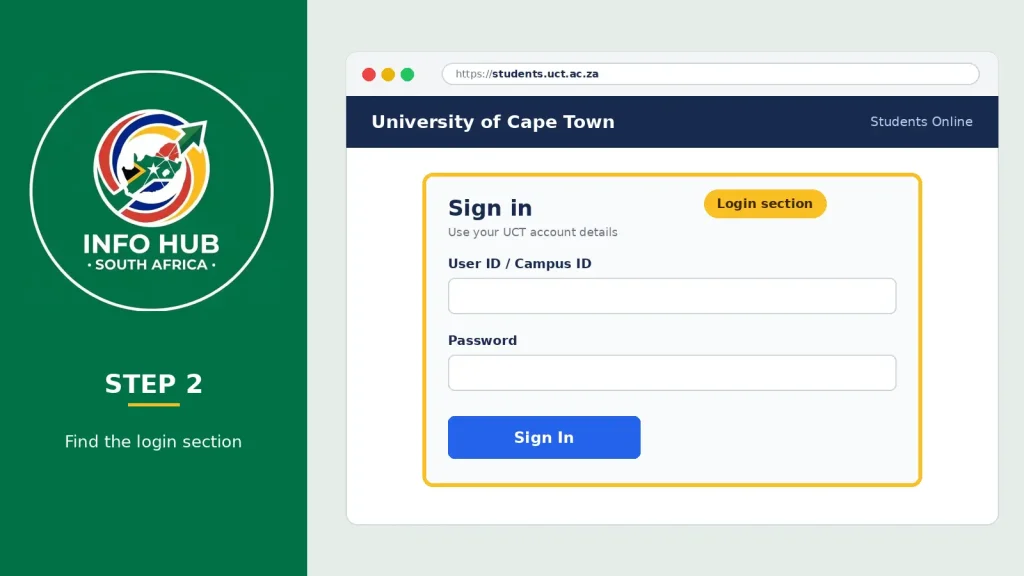
Once the page loads, locate the sign-in area where you are required to enter your university account details.
Step 3: Enter your UCT username or student credentials
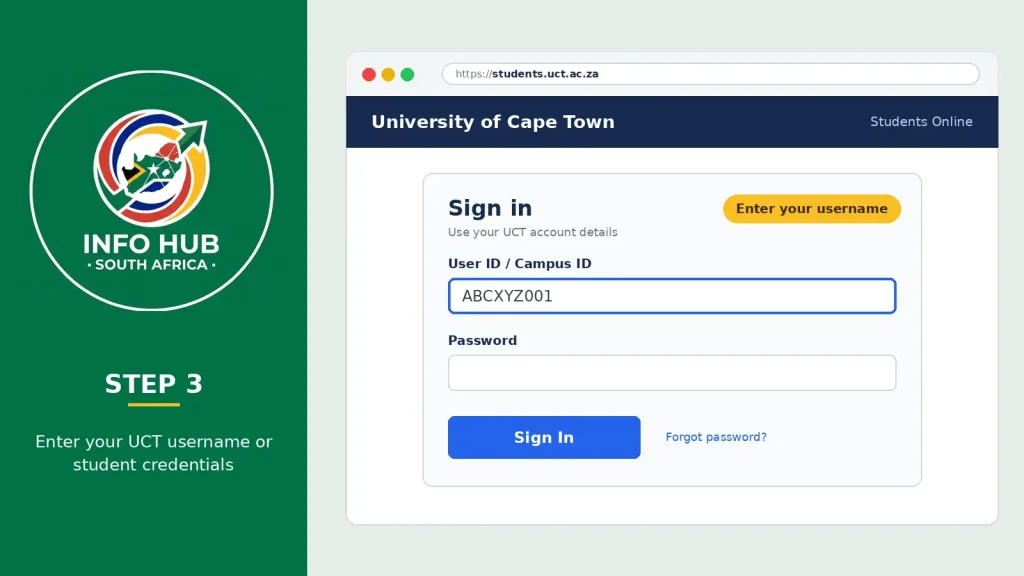
Type your assigned UCT network username or the accepted student identification details into the relevant User ID or Campus ID field. Your username may differ from your student email address, so use the login information provided by the university.
Step 4: Enter your password
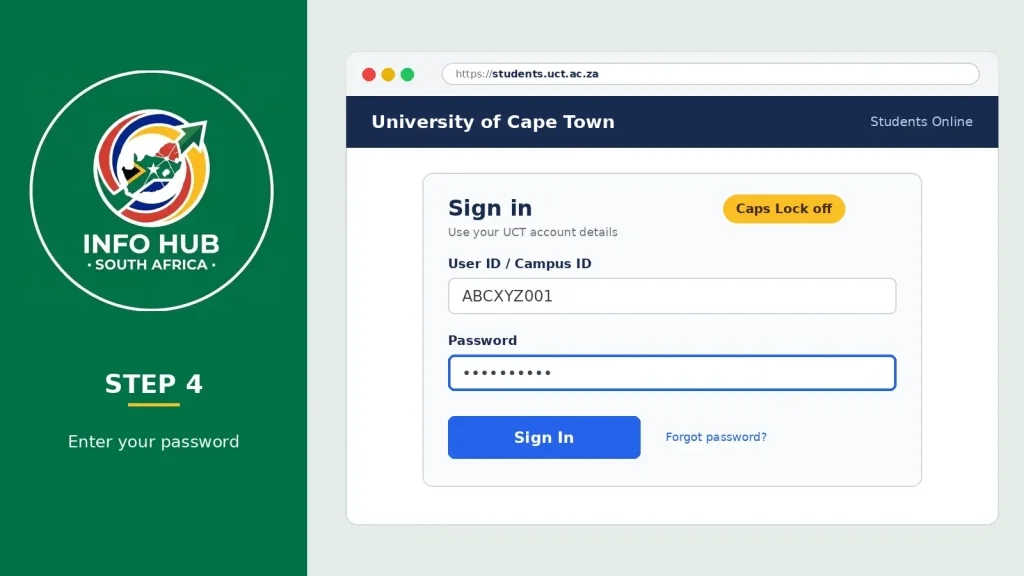
Provide the password linked to your UCT account. Check that Caps Lock is switched off and that you have entered the correct characters.
Step 5: Click Sign In
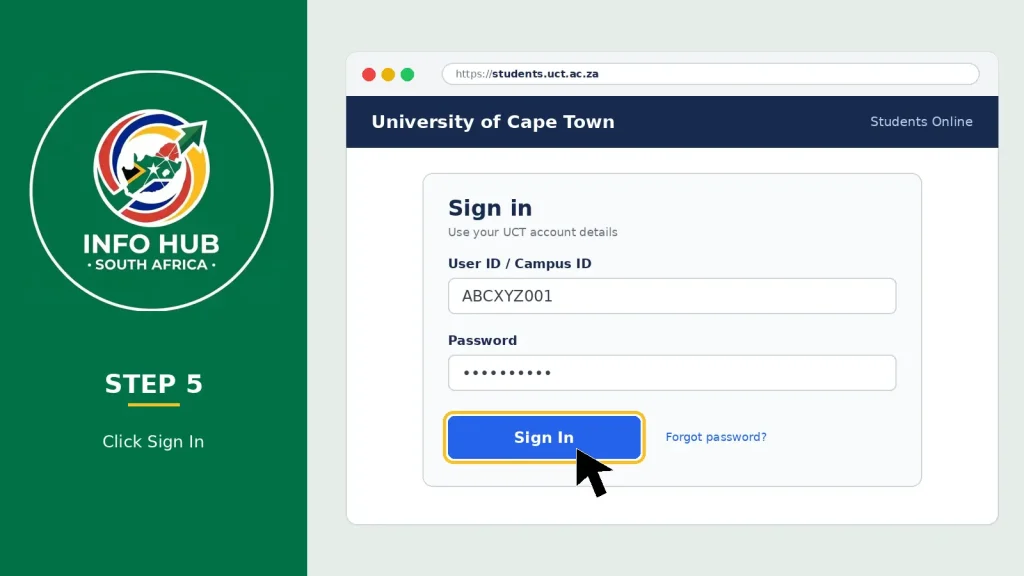
Select the Sign In option to submit your details. If your credentials are correct and your account is active, you should be directed to the relevant student dashboard.
Step 6: Choose the service you need
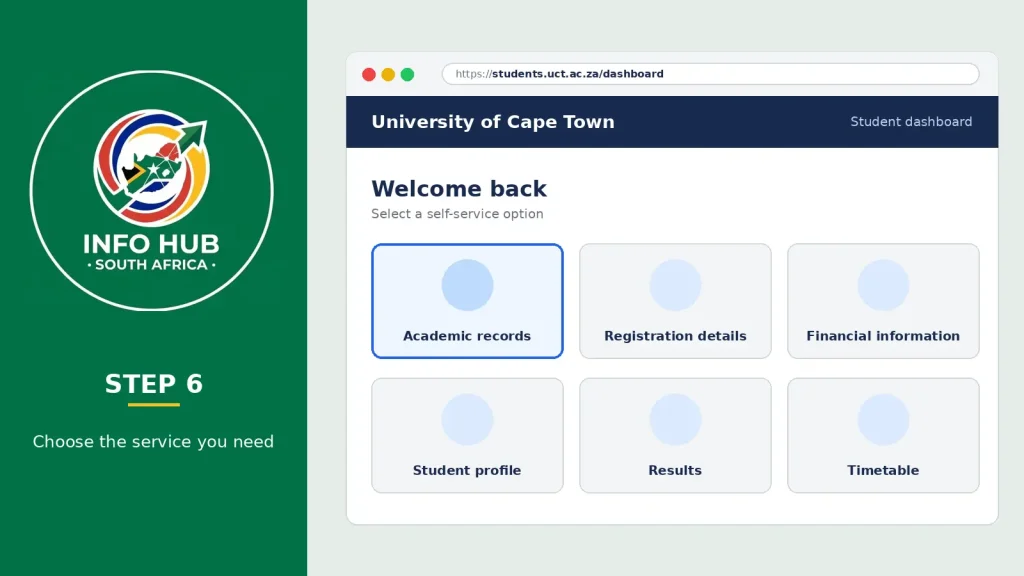
After logging in, navigate through the available self-service options to find your required information, such as academic records, registration details or financial information.
Login security reminder: Keep your UCT student number, username and password private. Never share your login credentials with anyone claiming they can access your academic or registration information on your behalf.
First-Time UCT Student Portal Access and Account Activation
Newly admitted students may not be able to log in to the UCT student portal immediately because their university network accounts still need to be activated. Receiving an admission offer does not automatically mean that your online account is ready to use. You may first need to complete the account activation process before accessing Students Online and other UCT digital services.
What You Need Before Activating Your UCT Account
Before attempting your first UCT student portal login, prepare the following information:
How to Set Up or Change Your UCT Password
UCT provides an online password self-service facility where students can manage their university account passwords. If you are setting up your account for the first time or need to update your password, follow these steps:
- Open your browser and visit the UCT password management website.
- Follow the account setup or password instructions displayed on the page.
- Complete any identity verification steps required by the system.
- Create or update your password according to UCT’s security requirements.
- Return to the Students Online platform and try logging in with your updated credentials.
Important for international students: If you are accessing your UCT account from outside South Africa, make sure you can receive messages through your registered recovery email address or mobile number. These details may be needed when completing account verification or multi-factor authentication.
Do not assume that your date of birth will work as a temporary or permanent password. Always follow the specific account activation instructions provided by UCT.
UCT Student Portal Status Check 2027: How to Track Your Application
Applicants who have applied to the University of Cape Town often use the UCT student portal to follow their admission progress. Checking your application status helps you find out whether your application is still under review, whether additional documents are needed or whether the university has made an admission decision. This is particularly important for students applying for the 2027 academic year.
How to Check Your UCT Application Status
Follow these steps to check your UCT application progress:
- Open the UCT online student platform using your browser.
- Enter your assigned login credentials if the application service requires authentication.
- Navigate to the relevant application or admission information section.
- Find your submitted application details and check the current status.
- Read any messages about outstanding documents or additional requirements.
- Follow the university’s instructions if you need to provide further information.
The information available may vary depending on whether you are an undergraduate or postgraduate applicant and how far your application has progressed. If you cannot find your admission status under Students Online, use the relevant UCT application enquiry service instead. A missing status option does not necessarily mean that your application has been unsuccessful.
Understanding UCT Application Status Messages
During the admission process, you may see different application status descriptions. Each one indicates a particular stage of the assessment process.
| Application status | What it generally means |
|---|---|
| Application received | UCT has received your submitted application. |
| Under consideration | Your application is being assessed. |
| Awaiting documents | Additional supporting documents may be required. |
| Conditional offer | You have received an offer subject to certain conditions. |
| Offer made | The university has communicated an admission offer. |
| Unsuccessful | Your application has not been approved. |
Note: These are general application status explanations, not a verified list of current UCT system labels. Always follow the exact message displayed in your account.
Important: Check your UCT application status regularly and respond promptly if the university requests additional documents or information. If your application has not changed for some time, contact the relevant admissions office before submitting another application. A delay in receiving an update does not automatically mean your application has been rejected.
UCT Upload Documents Login: How to Submit Supporting Documents
During the UCT admission process, applicants may be asked to submit additional supporting documents before their applications can be fully assessed. These may include academic transcripts, certificates or other information requested by the university. The document submission process depends on your application type and the instructions provided by UCT, so requirements may differ between applicants.
Step 1: Check which documents are required
Review your admission emails or application information to identify any outstanding documents. Pay attention to submission deadlines and specific instructions from the university.
Step 2: Open the relevant UCT online service
Access the appropriate UCT application or student account platform using the instructions provided for your application.
Step 3: Log in to your account
If authentication is required, enter your assigned UCT username and password to access the relevant application information.
Step 4: Prepare your supporting documents
Before uploading, make sure your files are complete, clear and readable. Follow these preparation tips:
Step 5: Select the correct document category
If the system provides document categories, choose the appropriate option for each file. For example, select the relevant category for an academic transcript or qualification certificate.
Step 6: Upload and confirm your submission
Follow the on-screen instructions to upload your documents. If the system provides a confirmation message or uploaded-document record, check it to make sure the correct files were submitted successfully.
What to Do If the UCT Document Upload Option Is Missing
Not every applicant will have access to the same document submission options. The upload facility may depend on your application stage, account permissions or the type of documents requested.
If you cannot find the upload section, try the following:
Important: Always submit supporting documents through the submission method specified by UCT. Sending files through an incorrect service may delay the processing of your application.
UCT Student Portal Not Working? Common Login Problems and Solutions
Having trouble accessing the UCT student portal can be frustrating, especially when you need to check your application, registration details or academic records. Login failures can happen for several reasons, including an inactive university account, incorrect login credentials, password synchronisation delays or temporary website problems. Identifying the cause can help you find the right solution without repeatedly attempting to sign in.
Common UCT Student Portal Problems and Their Solutions
| Login problem | Recommended solution |
|---|---|
| Incorrect username | Check your UCT admission or application communication for your assigned username. |
| Forgotten password | Use the UCT Password Self-Service facility to reset or manage your password. |
| Account not activated | Complete the university’s account activation instructions. |
| Repeated login failures | Recheck your username and password before trying again. |
| Recently changed password | Allow time for the new password to synchronise across UCT systems. |
| Portal not loading | Check your internet connection or try another browser. |
| Application information missing | Make sure you are accessing the correct applicant or student service. |
Problem 1: You Forgot Your UCT Password
If you cannot remember your password, you will not be able to complete the UCT student portal login. Use the university’s password management service and follow the required identity verification steps to reset your credentials.
After successfully changing your password, allow approximately five minutes for synchronisation before trying to access Students Online or another UCT service.
Problem 2: Your UCT Username Is Not Working
An incorrect username can prevent you from accessing your student account, even when your password is correct. Check your admission communication or account information to confirm the username assigned by UCT.
Remember that your university network username may be different from your personal email address. If you cannot locate your login details, consult UCT’s student support documentation or contact the ICT support team.
Problem 3: The UCT Student Portal Is Not Opening
Sometimes the problem is related to your browser or internet connection rather than your university account. Try the following troubleshooting steps:
Problem 4: Your UCT Application Status Is Not Updating
If your application status remains unchanged, it does not automatically mean that your application has been rejected. Admission decisions are communicated as applications move through the assessment process.
Monitor your registered email address and check your online application information regularly. If you need clarification about a delayed decision or outstanding requirements, contact the relevant UCT admissions office. Avoid submitting duplicate applications simply because you have not received a new status update.
UCT Student Portal Support: Where to Get Help
If you are still unable to access the UCT student portal after trying the recommended troubleshooting steps, contact the university’s support team for assistance. UCT provides different support channels for technical difficulties and student administration issues, so choosing the correct department can help you get a quicker response.
UCT Student Portal Support Contact Details
| Support department | Contact details |
|---|---|
| Student Systems Support (PeopleSoft) | [email protected] |
| ICTS Helpdesk (technical support) | [email protected] |
| ICTS telephone support | +27 (0)21 650 4500 |
| Student Systems Support telephone | +27 (0)21 650 5227 |
Which UCT Support Department Should You Contact?
Choose the department according to the problem you are experiencing:
What Information Should You Include When Contacting UCT?
To help the support team understand your problem, provide the relevant details when submitting an enquiry:
- Your UCT student number or application reference, where requested.
- A brief explanation of the problem.
- The error message displayed on the screen, if applicable.
- A screenshot showing the issue, if it helps explain the problem.
Security reminder: Never include your account password in an email or share it with anyone claiming to provide technical support.
Important Information for UCT Students Applying for 2027
If you are planning to study at the University of Cape Town in 2027, it is important to understand the application deadlines and how to follow your admission progress. The application process is separate from ongoing student administration, although both involve UCT’s online services. According to the published 2027 admission information, the key dates were:
Since these deadlines have passed as of November 2026, applicants who submitted their applications should regularly check Student Self-Service and monitor their registered email addresses for admission updates. If UCT requests additional documents, follow the specific submission instructions provided for your application, as the process may differ between applicants.
Important: Receiving an application acknowledgement does not mean you have been accepted. Wait for an official admission decision and carefully review any conditions attached to an offer before making further arrangements.
FAQs
Conclusion
The UCT student portal provides a central online platform for prospective, newly admitted and returning University of Cape Town students to access important university services. Through Students Online and PeopleSoft Self-Service, eligible users can manage student administration, check application progress, view academic results and access registration information.
Students applying for the 2027 academic year should keep their login credentials secure and regularly check their application accounts and registered email addresses for updates. If you experience password difficulties, use UCT’s password self-service facility. For PeopleSoft or student administration problems, contact the relevant Student Systems Support team.
For additional South African university portal guides, application updates and student support information, Info Hub South Africa is another useful resource. The website publishes guides to help students understand online portals, admission processes and government services in South Africa.
Before using any student service, always verify important admission decisions and account information through UCT’s own systems.
Read More
GEHS Login South Africa 2026: Online Login, Password Reset & Status Check Guide
Television Licence South Africa: Online Application, Status Check & SABC TV Licence Guide 2026
Coastal College Online Application 2027: How to Apply & Check Status