VUT Blackboard Login South Africa: Complete Student Access Guide 2026

If you are looking for the VUT Blackboard login, you are most likely trying to reach Vutela, the online learning platform used by the Vaal University of Technology (VUT). Students use the system to access digital learning resources, communicate around their modules, and take part in online teaching and assessment activities.”Visit Homepage for more”.
Quick answer: To access VUT Blackboard login, open the official Vutela portal, choose the VUT – Student Login option, enter your VUT student email address and AD/email password, and sign in.
What Is VUT Blackboard?
VUT Blackboard, also known as Vutela, is Vaal University of Technology’s institution-wide learning management system (LMS). The university describes VUTELA as a Blackboard-based LMS that is externally hosted to support reliable and scalable online learning.
For students, VUT Student Login can become an important part of everyday academic work. Depending on how a module is set up, you may use the platform to find learning resources, follow module activities, access assessments and receive academic updates.
The VUTela environment works alongside other VUT student services. It should not be confused with ITS iEnabler, which VUT uses for administrative services such as academic registration, residence applications and student enquiries.
VUT Blackboard Login Requirements
Before attempting the blackboard vut login, make sure your student account is active and that you can access your VUT student email account.
You will generally need:
VUT’s current IT guidance specifically states that Vutela/Blackboard can be accessed with student email credentials. Its student support information also identifies the student email format as [email protected].
This is worth checking if an older guide tells you to use a different email format. When the login page asks for your email address, follow the credentials currently issued by VUT rather than relying on an outdated example.
How to Login to Vutela Dashboard?
Accessing the VUT Vutela Blackboard dashboard is straightforward once you have your student login details. Use the official VUT Blackboard website and follow these steps:
Step 1: Open Your Browser
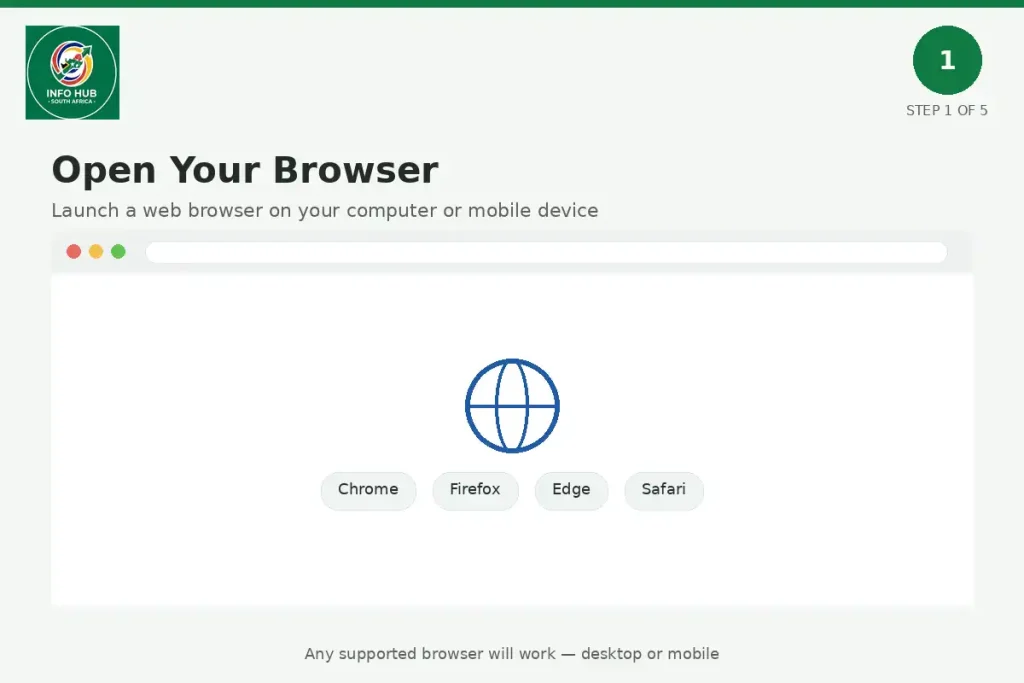
Launch a browser such as Google Chrome, Firefox, or another supported browser on your computer or mobile device.
Step 2: Visit VUT Blackboard
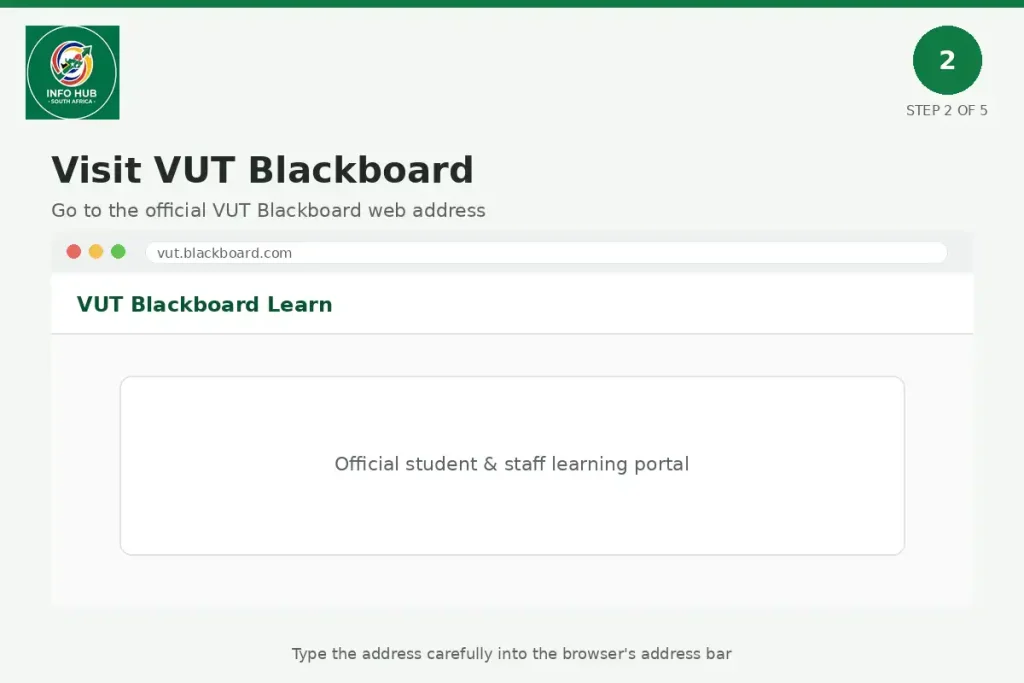
Go to vut.blackboard.com or open the direct login page at
Step 3: Select VUT Student Login
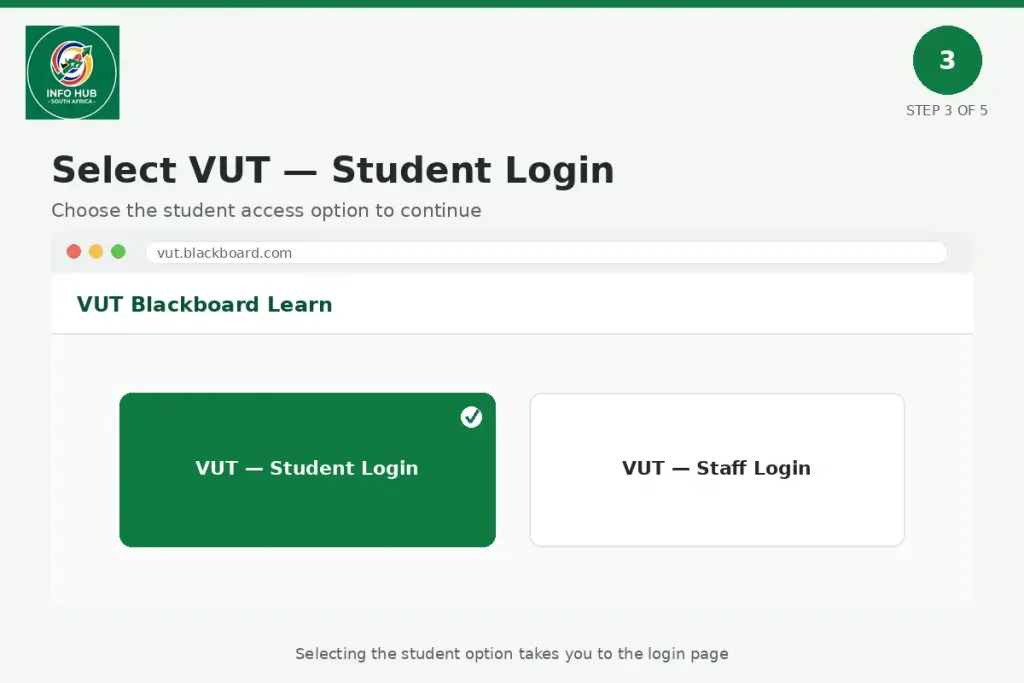
On the Blackboard login screen, choose “VUT — Student Login” to continue to the student access page.
Step 4: Enter Your Login Details

Type your VUT username and password into the relevant fields. Check your details carefully before proceeding.
Step 5: Click Login
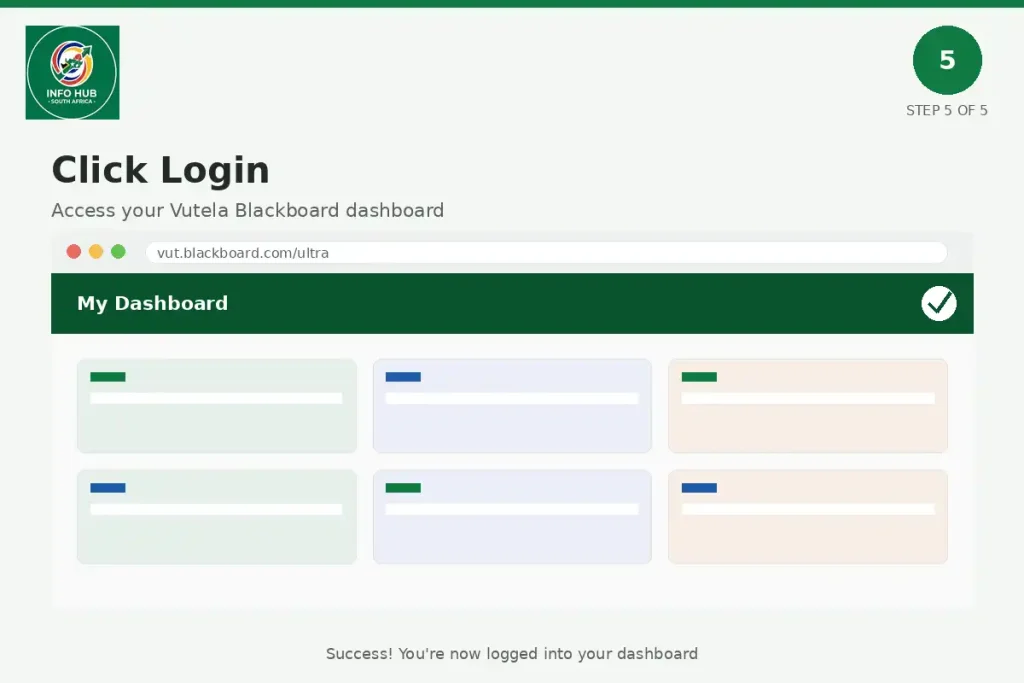
Select “Login” to access your Vutela Blackboard dashboard. If the credentials are correct, you should be taken to the main Blackboard page.
How to Access Your VUT Courses?
Once you are inside VUT Vutela Blackboard, you can locate your enrolled courses through the course area:
Step 1: Find Course Categories
Scroll down the Blackboard homepage until you see the “Course Categories” section.
Step 2: Select Your School
Choose your relevant school from the available categories.
Step 3: Choose Your Course
After selecting your school, find and open your specific course or browse the courses listed under your department.
Step 4: View Your Course Content
Your selected course should provide access to the learning content available for your enrolment. The VUT Student Login platform is used by VUT students to view course-related materials.
What Is the Process for Updating VUT Vutela Login Password?
Important: You should have access to your VUT student email and know your old or default password before attempting to change your password.
Forgot Password VUT Vutela Blackboard Login Password?
If you have forgotten your VUT Vutela Blackboard login password, you can reset it online using the VUT password recovery page. The process requires your student number and the answers to the three security questions you previously set during password registration.
Understanding Your VUT Blackboard Dashboard
After a successful VUT Student Blackboard login, you will arrive at the Blackboard environment where your available learning tools and modules are displayed. The exact layout can vary depending on VUT’s Blackboard configuration, but the main areas are designed to help you find courses, activity updates, deadlines, messages and grades.
For a new student, the best approach is to spend a few minutes exploring the dashboard before looking for a particular assignment or lecture file.
Courses and Modules
The Courses area is one of the most useful parts of VUT Student Login. It is where you can find the modules that have been made available to your account.
Select Courses and look for the relevant module. Inside a module, lecturers may organise content into areas such as:
The exact names and arrangement depend on how each lecturer has structured the module.
If you have recently registered for a module but cannot see it immediately, avoid assuming that your VUT Student Blackboard login is incorrect. Course access may depend on registration and the synchronisation of your student information with the learning platform.
Finding Study Materials on VUT Blackboard
Once you open a module, look through its content areas carefully. Your lecturer may upload PDF documents, presentations, links, videos or other resources that you need for your coursework.
A useful routine is to check your modules regularly rather than waiting until an assignment deadline is approaching.
When you find an important document, you can normally open it from the module page. If the lecturer has provided a downloadable file, save a copy to an organised folder on your device so that you can locate it later.
Student tip: Create separate folders for each VUT module on your laptop or phone. Naming files with the module name and topic can make revision much easier.
Checking Blackboard Announcements
Announcements are particularly useful because lecturers may use them to communicate changes, reminders or other module information.
After your blackboard vut login, check the activity area and individual module pages for recent updates. Pay attention to messages about:
Do not rely only on your memory of what was announced during a lecture. If an important instruction appears on Vutela, keep a record of it.
Using the Blackboard Calendar
The Calendar can help you keep track of academic dates that have been added to the Blackboard environment.
Depending on the information provided by your lecturers, the calendar may show assessment deadlines, scheduled activities and other important dates.
It is worth checking your calendar alongside the individual module pages. A deadline displayed in one place should not be treated as a substitute for reading the full assessment instructions supplied by your lecturer.
Why the Calendar Matters
University students often manage several modules at the same time. Missing one deadline because you forgot which module had an assessment can create unnecessary problems.
A simple habit is to review your Blackboard calendar at the beginning of each week and note important deadlines in your preferred personal planner as well.
How to Submit an Assignment Through VUT Blackboard
One of the most important reasons students use Vutela is to complete online coursework and submit assessments when a lecturer has enabled Blackboard submission.
The submission process can vary depending on the assessment settings, so always follow the instructions displayed on the specific assignment page.
A typical process looks like this:
Open the Relevant Module
Sign in through the official VUT Blackboard portal, then select Courses and open the module containing your assessment.
Look for the assessment area, assignment folder or link provided by your lecturer.
Read the Assignment Instructions First
Before uploading anything, open the assignment and read the requirements carefully.
Check:
Do not upload a file simply because its name looks correct. Make sure it is the final version you actually intend to submit.
Upload Your Work
When the assignment page provides an upload option, choose the relevant file from your device. Blackboard may provide a Browse Local Files option, although the wording and interface can vary.
PDF is often a practical format for documents because it helps preserve the layout, but you should always use the file format specified by your lecturer.
Check the Uploaded File
This step is easy to overlook.
Before submitting, confirm that:
- The correct assignment has been selected.
- The uploaded file opens correctly.
- The document contains your final work.
- The file is not corrupted or incomplete.
- You have followed the lecturer’s formatting requirements.
If Blackboard allows you to preview the uploaded document, use that option.
Submit the Assignment
Once you are satisfied with the upload, select the Submit option shown on the assessment page.
Do not assume that uploading a file automatically means the assignment has been submitted. Look for a confirmation or submission receipt after completing the process.
Important: Keep evidence of successful submission when possible. A screenshot, confirmation page or digital receipt can be useful if you later need to verify when your assignment was submitted.
What to Do If Your Module Is Missing
Sometimes students complete their VUT Student Blackboard login successfully but cannot find one or more expected modules.
This can happen when registration information has not yet synchronised with Blackboard or when access to a particular module has not been made available.
If you have recently registered, allow some time for the information to appear. The material you supplied indicates that students should allow approximately 24–48 hours after registration for Blackboard synchronisation.
If the expected module is still missing after that period, contact the relevant departmental administrator or Vutela support rather than creating a duplicate account.
VUT Blackboard Login Problems and Common Fixes
Not every Blackboard problem requires technical support. Some common issues can be resolved with a few basic checks.
| Problem | What to Check |
|---|---|
| Incorrect login | Confirm your VUT student email and password |
| Forgotten password | Use the official VUT password/self-service support |
| Missing module | Check registration status and allow synchronisation time |
| Page will not load | Check your connection and refresh the page |
| Browser problems | Clear cache/cookies or try another supported browser |
| Assignment upload problem | Check file size, format and assessment instructions |
If the problem continues, use VUT’s official IT support channels rather than relying on unofficial login websites or social media instructions.
Browser and Connection Troubleshooting
A browser issue can sometimes make the VUT Student Blackboard login or dashboard appear to be broken when the underlying account is working normally.
Try these steps:
If Blackboard works on another browser or device, the problem may be local to the original browser rather than your VUT account.
Protect Your VUT Blackboard Account
Your VUT login credentials provide access to university systems, so treat them as private information.
Never give your student password to another person simply because they claim they need to access Blackboard on your behalf. Be cautious of websites that imitate the official VUT Student Blackboard login page and ask you to enter your university credentials.
For the safest route, start from the official VUT website or use the recognised Blackboard address:
Also avoid saving your password on shared or public computers.
VUT Blackboard Support
If you have checked your credentials, browser and internet connection but still cannot access Vutela, contacting VUT support is the sensible next step.
The information supplied for this guide lists the following support contacts:
Vutela / Centre of Academic Development:[email protected]
General IT Services:[email protected]
VUT General Enquiries:+27 (0) 16 950 9000
When contacting support, explain the problem clearly. Include useful information such as your student number, the service you are trying to access and a description of the error. Avoid sending your password.
A Quick VUT Blackboard Login Checklist
Before contacting support, run through these checks:
FAQs
Conclusion
The VUT Blackboard login gives Vaal University of Technology students access to Vutela, the university’s Blackboard-based learning environment. Once signed in, students can use their available modules to find learning resources, follow announcements, manage academic activities and submit assessments when enabled by their lecturers.
For the safest experience, always use the official VUT Blackboard portal or the official VUT website to access your account. Keep your student credentials private, check your modules regularly and contact VUT support if a technical issue cannot be resolved through basic troubleshooting.
Info Hub South Africa provides this guide to help students understand the VUT Blackboard login process and use Vutela more confidently.
Read More
Majuba Student Portal South Africa 2026: Student Login, Registration & Complete Portal Guide
Matric Results 2026 Online Check South Africa: Get Your NSC Results Instantly
CUT Status Check South Africa 2026: Complete Application and Admission Guide
Sol Plaatje University Online Application 2026 South Africa: Complete Step-by-Step Application Guide
TUT Late Applications 2026 in South Africa: Complete Guide to Apply Before the Closing Date
UP Portal South Africa: University of Pretoria Login & Student Guide